- Solve real problems with our hands-on interface
- Progress from basic puts and calls to advanced strategies
Interactive Options Course
Lesson 11 of 13
Already an Interactive Brokers Client?
New to Interactive Brokers?
The Interactive Brokers (IBKR) OptionTrader is a robust tool on the Trader Workstation (TWS) that allows the investor to trade single and multi-leg options. The OptionTrader allows the investor to load multiple option chains by adding additional tabs and offers the investor several data points and uses including the ability to:
To access the Interactive Brokers (IBKR) OptionTrader in Classic TWS, the investor clicks on Trading Tools in the top left corner of the screen, scroll down to the Option/Events section, and click on OptionTrader.
The investor may also add the OptionTrader button to the toolbar by clicking on Configure, scrolling to Add More Buttons, and selecting the OptionTrader button. Once added, the investor can click on the OptionTrader button to access the tool.
To access the Interactive Brokers (IBKR) OptionTrader in Mosaic, the investor clicks on the New Window button, scrolls down to the Option Tools area, and clicks on OptionTrader and a new window with the OptionTrader will appear.
The IBKR OptionTrader consists of a tool bar, toggle set, and five panels:
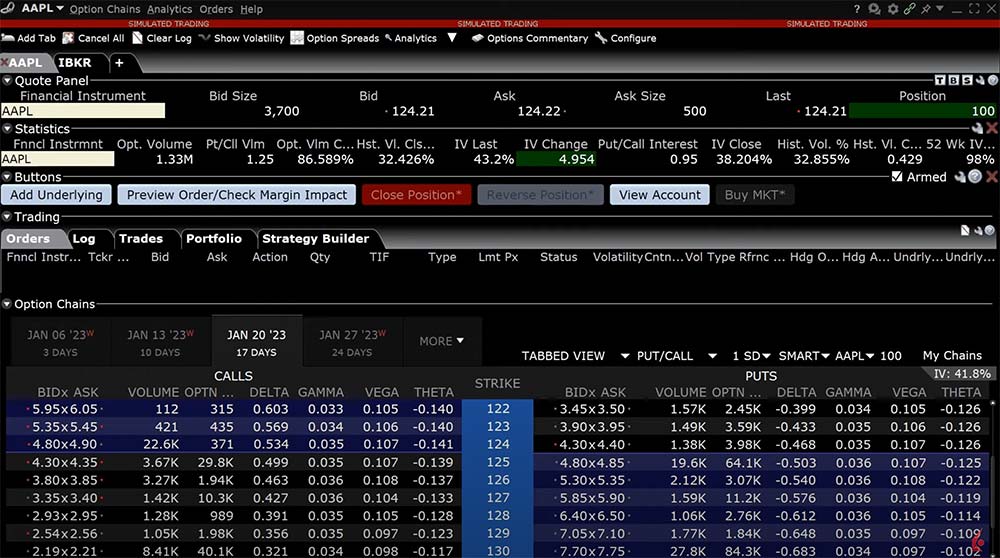
As is the case with most of the TWS tools, the OptionTrader settings in each panel can be configured by the investor to define columns, buttons, hotkeys, order presets, and other items.
At the top of the OptionTrader is the toolbar. Using the tool bar an investor can easily and quickly
The toggle set is in the upper right-hand corner of the IBKR TWS Option Trader. Each toggle allows the investor to display or hide features. Click “T” for the tool bar, “B” for the Buttons panel, and “S” for the Statistics panel.
The TWS OptionTrader Quote panel displays the underlying asset. Like many items in the Interactive Brokers’ Trader Workstation, the investor can edit the data columns by clicking on the Configure icon in the top right-hand corner of the panel.
An investor can create orders in the underlying from the Quote panel, clicking on the bid creates a sell order and clicking on the offer creates a buy order. Once created, the orders will be displayed in the Orders tab of the Trading panel.
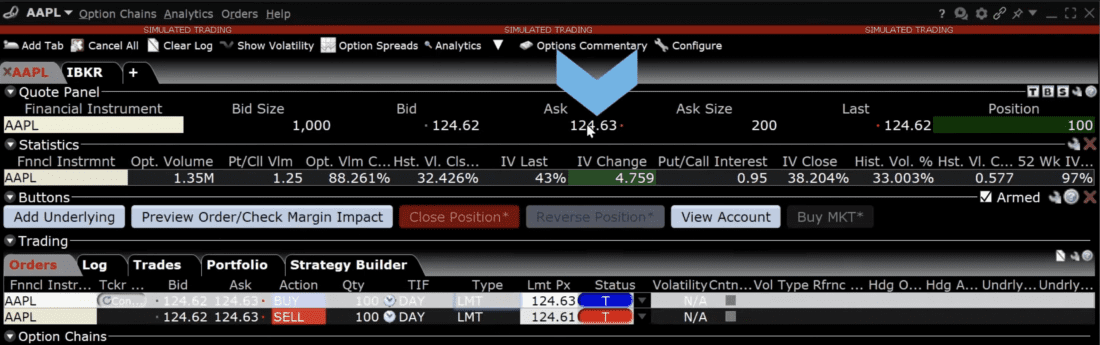
Directly below the Quote panel is the Statistics panel. The Statistics panel shows relevant option related data such as option volume, put/call volume, option volume change percentage, historical volatility information, and implied volatility information. The data columns can be edited by clicking on the Configure icon in the upper right-hand corner of the panel.
An investor can add action buttons to the IBKR OptionTrader that allow them to quickly create orders, bring up another Trader Workstation tool, or cancel orders. To create new buttons or edit existing ones, the investor should click the Edit icon in the top right-hand side of the panel. Once the configure area appears, the investor can:
Certain buttons can be armed for instantaneous transmission and will be identified by an asterisk next to the button name when armed.
Continuing downward on the OptionTrader is the Trading panel, which consist of five tabs:
An investor can choose a strategy from the drop-down menu and begin selecting strikes. Once selected, the investor can change the ratio, expiration, strike, add a stock order, and make delta neutral if they choose to. When ready to send the order, they click Transmit.
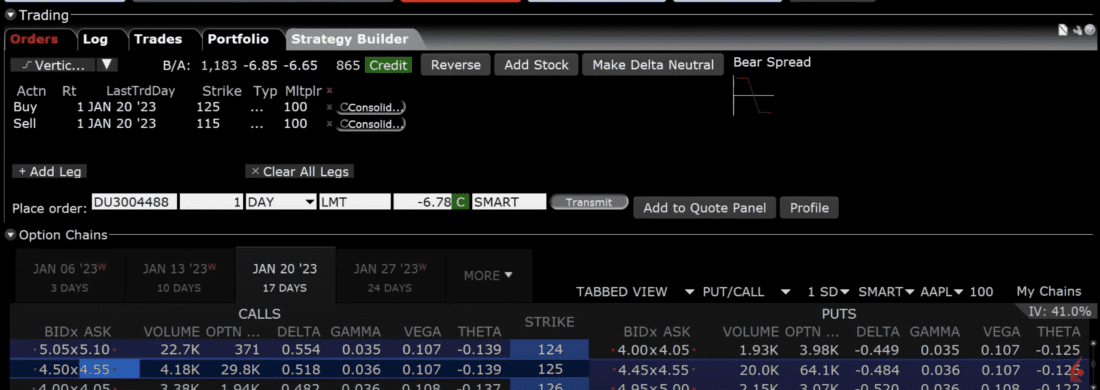
The investor can click on the Configure icon in the upper right-hand corner to add and remove the data columns in the Order, Trade, Portfolio, and Strategy Builder tabs.
For more information on the IBKR Options Strategy Builder, please see the lesson in Traders Academy.
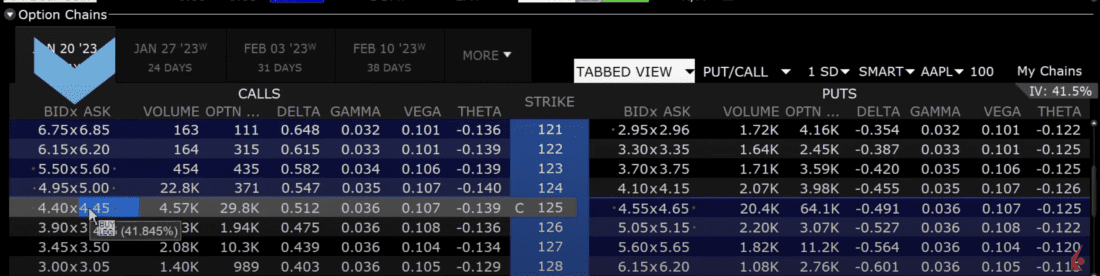
The OptionTrader Option Chain will automatically populate with the strikes of the underlying selected. The investor can choose between a list or tabbed view. In list view mode, the investor can scroll downward to see each expiration, while tab view will show one expiration per tab. To change the expirations shown, the investor clicks on more and chooses an expiration. That expiration will be shown along with the two previous ones and the following one.
The Option Chain can be adjusted to show either calls & puts, just calls, or just puts as well as the number of strikes to display, exchange, and trading class.
The Load My Chains feature is unique to the OptionTrader Option Chain and when clicked, it will bring up the option chains for existing option positions in the underlying in the investor’s portfolio.
To create an option order in the IBKR OptionTrader, the investor selects the expiration and hovers the mouse over either the Bid or Ask in the strike they are interested in. Notice that the background turns blue when the mouse is hovered over the Ask indicating a Buy and if hovered over the Bid the background turns red indicating a Sell.
To create an order, the investor should click on the appropriate side and the Order tab will populate. The size, Time in Force, Order Type, and price can be adjusted. When the investor is ready to send the order, they click on the “T” button in the status column. An order confirmation box will appear, and they can click Transmit.
The Interactive Brokers (IBKR) OptionTrader provides the investor with important data and tools useful when trading options. The OptionTrader allows for multiple tabs to be open at the same time so that the investor can monitor several different option chains.
For specific platform feedback and suggestions, please submit it directly to our team using these instructions.
If you have an account-specific question or concern, please reach out to Client Services.
We encourage you to look through our FAQs before posting. Your question may already be covered!
The analysis in this material is provided for information only and is not and should not be construed as an offer to sell or the solicitation of an offer to buy any security. To the extent that this material discusses general market activity, industry or sector trends or other broad-based economic or political conditions, it should not be construed as research or investment advice. To the extent that it includes references to specific securities, commodities, currencies, or other instruments, those references do not constitute a recommendation by IBKR to buy, sell or hold such investments. This material does not and is not intended to take into account the particular financial conditions, investment objectives or requirements of individual customers. Before acting on this material, you should consider whether it is suitable for your particular circumstances and, as necessary, seek professional advice.
The views and opinions expressed herein are those of the author and do not necessarily reflect the views of Interactive Brokers, its affiliates, or its employees.
Options involve risk and are not suitable for all investors. For information on the uses and risks of options, you can obtain a copy of the Options Clearing Corporation risk disclosure document titled Characteristics and Risks of Standardized Options by going to the following link ibkr.com/occ. Multiple leg strategies, including spreads, will incur multiple transaction costs.











What are the requirements to have a LEVEL three options trading account, thanks.
Hello, thank you for reaching out. If you feel that changes are necessary for your financial profile, please visit this link: https://www.interactivebrokers.com/AccountManagement/AmAuthentication?action=FINANCIAL_INFO
Please note that we do not disclose the eligibility requirements for specific trading permissions.
Hi there, I would like to group my strategies in my classic TWS (Leap, Hedges, Iron Condor, etc…). How can I move them from my options portfolio to the different tabs that I have already created in the Classic TWS? Thanks
Hello, thank you for reaching out and please accept our apologies. At this time, IBKR does not provide this functionality.
Has this been addressed yet?
Hi Justin, thank you for asking. No, this has not been addressed yet. If you have a specific suggestion(s) on how we can improve, we would like to hear it! Please review this FAQ on where you can leave your feedback: https://www.ibkr.com/faq?id=32653353
In the video at 4:50s, it shows the Option Trader > Portfolio tab shows the total aggregate position of for the selected ticker. However, when I do the set up in my TWS, it does not have the TOTAL row. How can I show the TOTAL row so that my portfolio greeks can be aggregated?
Hello, thank you for reaching out. To see aggregated Greeks for your entire portfolio in TWS, enable the “Total” row in the Portfolio window:
In the Portfolio window, right click on any column header
Select “Show Totals”
This will add a “Total” row at the bottom of the Portfolio window that sums the values for each column, including the Greeks. You can now see your overall portfolio Greeks like total Delta, total Theta etc. in this row.
Please view this FAQ for more information:
https://www.ibkr.com/faq?id=86685190
We hope this helps!
Hi,
In TWS Mosaic, the OptionTrader > Portfolio window doesn’t seem to have any “Show Totals” option when I right click on a column header.
For instance, if I right click on the MKT VALUE column header, what I see are option groupings for Continuous Sort, One-Time Sort, Column Layout & Formatting, none of which have a “Show Totals” option.
The FAQ link that was previously provided speaks to the Risk Navigator tool which from what I understand is different from the OptionTrader tool. (This is where we’re trying to view the aggregate Greeks)
Is there a solution the the OptionTrader tool?
Finally, how might I also enable the netted Greeks for the OptionTrader > Strategy Builder window?
For whatever reason, opening the Options Chain, then sliding the Strategy Builder ON will result in a view where Greeks are netted. However there doesn’t seem to be a way to aggregate portfolio/position info in the OptionTrader tool.
Would appreciate assistance. Thanks.
Is there a way to set limit prices on the a stock leg in a Buy Write option trade? I have the choice to put in a price for the option the +100 stock is linked but i cannot set my limit. Im guessing stock will be at market?
Thanks
Thank you for asking. It is not possible to set a limit for each individual leg. However, It is possible to set a limit for the overall price of the spread. We hope this answers your question.
En herramientas de negociación no me me aparece la opcion de renovacion de opciones. como lo puedo asignar
Hola, gracias por contactarnos. Consulta estas preguntas frecuentes para obtener instrucciones sobre cómo renovar una opción: https://www.interactivebrokers.com/faq?id=337466406 Renovar una opción significa vender el contrato o los contratos que están por vencer y comprar un contrato del mismo subyacente con un precio de vencimiento y de ejercicio actualizados. ¡Esperamos que esto responda a tu pregunta!
Como elijo Ejecutar un Call comprado antes del vencimiento? Como elijo el tipo de ejercicio(que me vendan las acciones y me depositen elefectivo o que me depositen las acciones)) ?
Hola, gracias por su pregunta. Las opciones largas se pueden ejercer a través de TWS (Trader Workstation) o IBKR Mobile:
En TWS:
Vaya al menú de la Cuenta Mosaic (o a la Operación Clásica) y seleccione “Ejercicio de Opciones”.
Seleccione la(s) opción(es) y elija “Ejercicio Total” para toda la posición o “Ejercicio Parcial” para una parte.
Haga clic en “T” para enviar la instrucción.
Esperamos que esto le ayude a responder su pregunta.
Hello, how do you calculate aggregated IV for 0DTE SPY options? It differs from each particular option IV by big number. For example, IV of 5 closest to the money strikes varies from 17 to 33 in both put and call sides, but aggregated IV is only 8.5.
Hello, thank you for asking. For instructions to see how implied volatility is being calculated: https://www.interactivebrokers.com/faq?id=81630337
We hope this helps!
Hello, how to prefill the value of the limit price when the options trade order is created by clicking on some BID or ASK price in the options chain on TWS, instead of leaving the limit price empty?