- Solve real problems with our hands-on interface
- Progress from basic puts and calls to advanced strategies
Interactive Options Course
Lesson 8 of 10
New to Interactive Brokers?
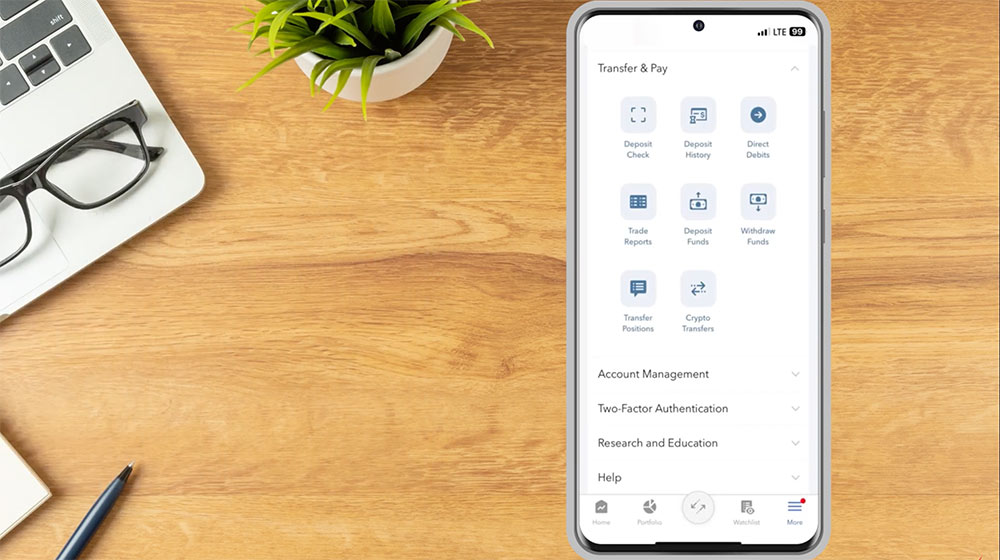
From the IBKR Mobile app, use the More menu in the bottom right corner to access additional tools.
Investors can define price, trade, and margin alerts with trigger notifications sent to their email address or sent as a text message. To create alerts, the investor can tap the Alerts button and then tap the + icon. Add a condition to the alert by tapping the green + icon and selecting the Condition Type. In this example, the investor would like to create an alert for if the price of SPY becomes less than or equal to $425. The investor taps Price, types SPY into the search bar, and taps stock. Next, the investor uses the Operator field to select less than or equal (<=) and, in the price field, enters 425. When finished, the investor selects Done in the upper right corner.
The Settings section of the alert allows investors to:

Deactivate, modify or delete an alert by tapping it from the Alerts list and then tapping the desired action at the bottom of the active alert.
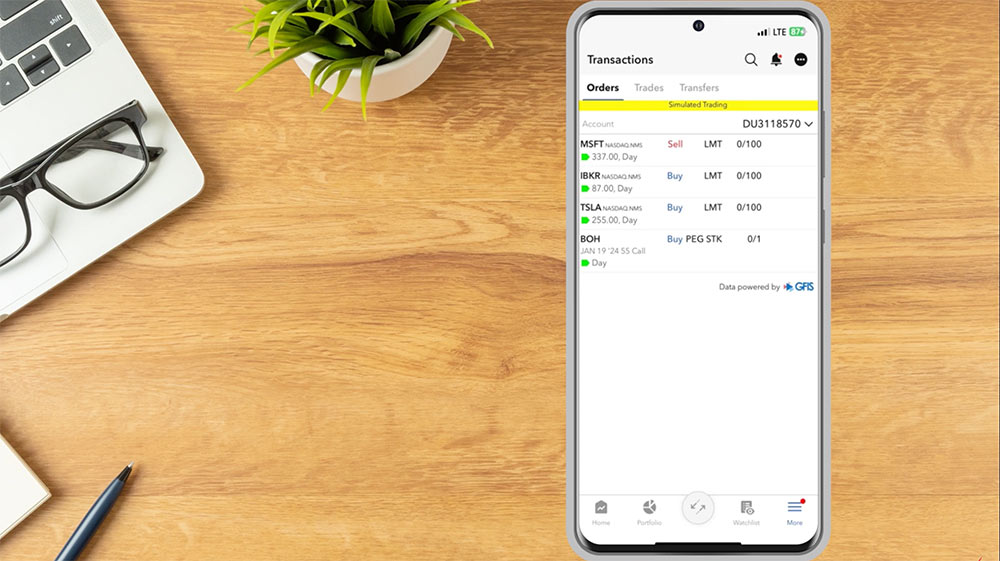
Investors can use the Transactions page to view orders, trades and transfers. From the menu, tap Transactions. There will be 3 tabs along the top of the page.
To view any pending orders, tap Orders and a list of all working orders will be displayed. If the investor has multiple linked accounts, they can tap the account number in the upper right hand corner to select the account they would like to view trades for. The investor can sort the list by tapping any header. To modify or cancel any pending orders, tap the order and, on the following page, tap Modify Order or Cancel Order.
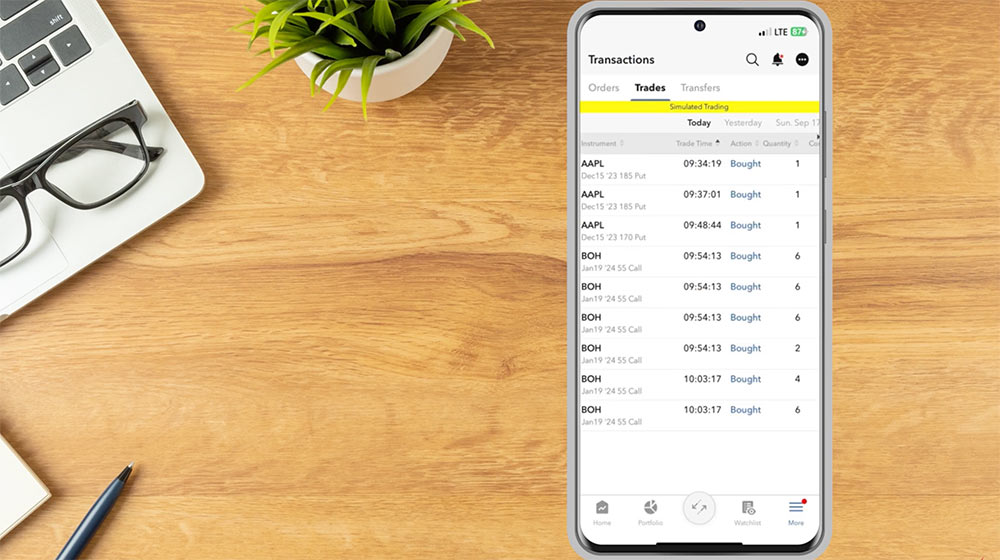
To view executed orders, tap the Trades tab. A list of the last seven days displays along the top. The investor can swipe through and tap on a date and a list of trades for that specific date will be displayed below. The investor can tap on an order to Change Tax Lots, Duplicate the Order, create an Opposite Order, Close the Position, create an Exit Strategy, or Create an Alert.
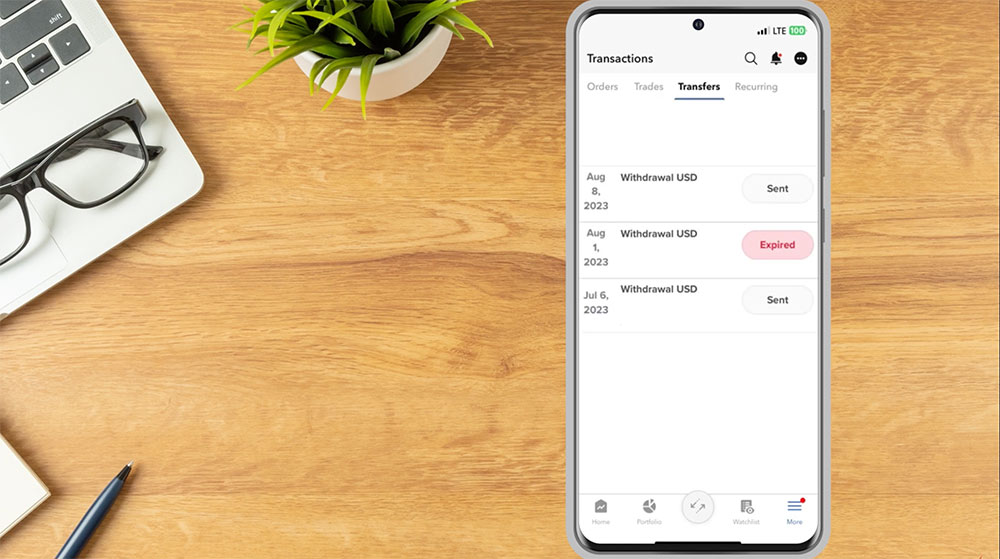
If the investor has done any recent transfers, they will be displayed on the Transfers tab.
Investors can use the IBKR Mobile app to deposit endorsed checks into their Interactive Brokers account. From the More tab, scroll down to Transfer & Pay, tap to expand the menu, and select Deposit Check. The following screen will display the investor’s account number which the deposit is for. In the Amount field enter the amount of the check being deposited. The investor will select Front and Back to scan an image of the check. To find out the daily limit and 30-day limit on check deposits for their account, investors can tap the “What is my daily limit?” on the Deposit Check screen. Once complete, tap Deposit Check. Once the deposit has been approved and processed, the funds are deposited into the investors IBKR account. Funds are generally available to use within six business days after the deposit has been approved.
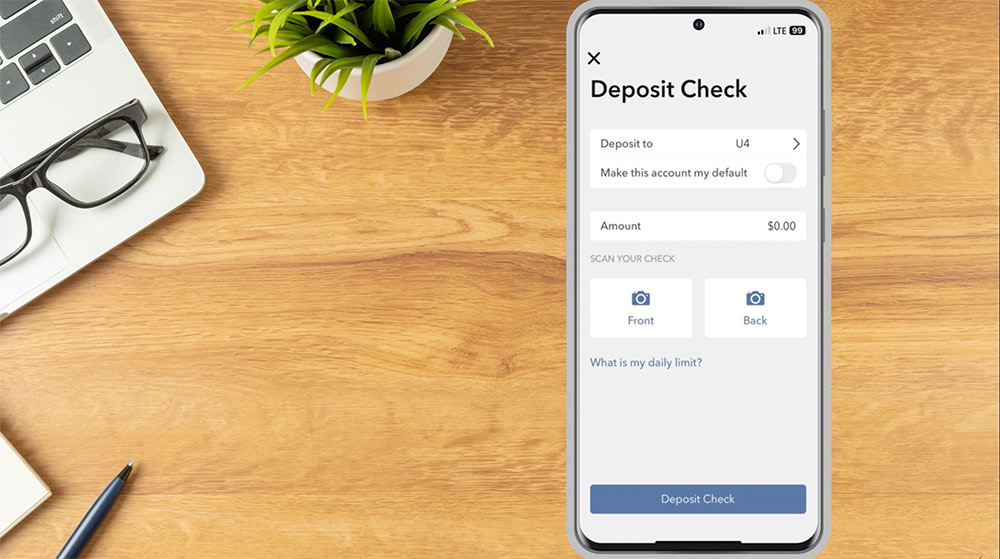
The Transfer & Pay menu of the IBKR Mobile app also allows investors to:
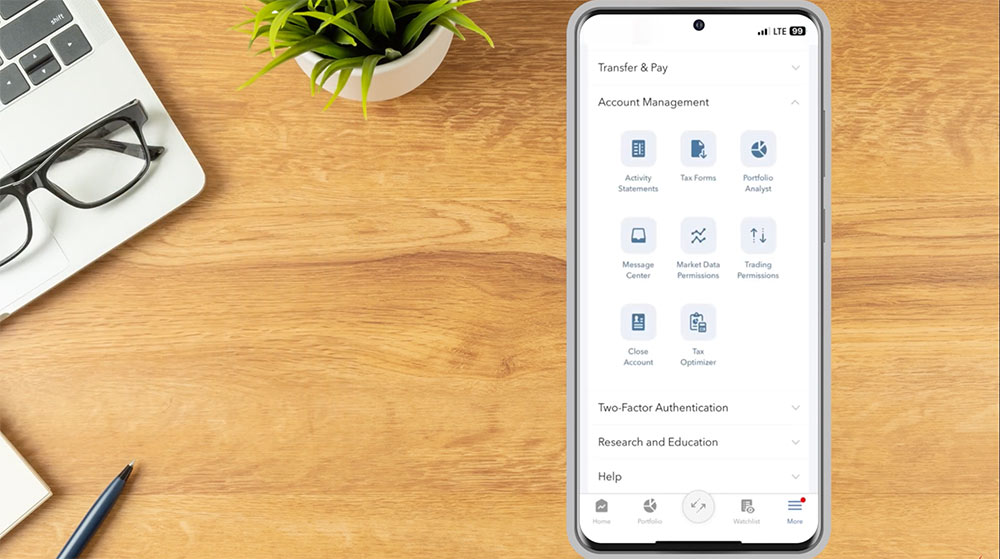
Investors can use the Account Management menu to
Resources:
For specific platform feedback and suggestions, please submit it directly to our team using these instructions.
If you have an account-specific question or concern, please reach out to Client Services.
We encourage you to look through our FAQs before posting. Your question may already be covered!
The analysis in this material is provided for information only and is not and should not be construed as an offer to sell or the solicitation of an offer to buy any security. To the extent that this material discusses general market activity, industry or sector trends or other broad-based economic or political conditions, it should not be construed as research or investment advice. To the extent that it includes references to specific securities, commodities, currencies, or other instruments, those references do not constitute a recommendation by IBKR to buy, sell or hold such investments. This material does not and is not intended to take into account the particular financial conditions, investment objectives or requirements of individual customers. Before acting on this material, you should consider whether it is suitable for your particular circumstances and, as necessary, seek professional advice.
The views and opinions expressed herein are those of the author and do not necessarily reflect the views of Interactive Brokers, its affiliates, or its employees.








the IBKR ap in my iphone does not have the “more” menu. how can I set up alerts?
Hello Margs, thanks for asking. In IBKR Mobile, you can click the notifications screen using the Bell icon. There you can configure which alerts you want to receive. You can also enable notifications for the app in your iPhone’s Settings under Notifications > IBKR to allow alerts to come through. Please reach back out with any additional questions. We are here to help!
One question, I recalled to have configured my IBKR mobile app to hide CFDs instrument some time ago, and now I´m don´t know how to enable them again, could you help me? Using desktop app, I can operate CFDs without problems. Thks.
Hello Arturo, thank you for reaching out. You can configure your trading settings using IBKR Mobile. After logging in, click the head and shoulders icon. Then click Settings > Trading Settings > Trading Presets > Contract for Differences. If you need any additional support, please contact Client Services via web ticket, phone call, or live chat: https://spr.ly/IBKR_ClientServicesCampus
I have been using IBKR mobile for around half a year now. Overall it’s a decent broker but it lacks basic key features like 1. Push notification for stock price alert not just via email or SMS 2. Overnight trading chart from 8 pm to 4 am I hope IBKR can implement these basic features in the near future.
Hello, thank you for asking. We have added the ability for clients to receive IBKR Desktop push notifications. Please review more information here: https://ibkrguides.com/releasenotes/ntws-v0.13.htm
You can view a chart outside of RTH. For instructions please review these FAQs: https://www.interactivebrokers.com/faq?id=98344899
https://www.interactivebrokers.com/faq?id=27271501
We hope this helps!
Hello where can I find recent training videos on actually placing orders with conditions like stop or trailing stops. The basics of placing a proper order.
Hello, I’m struggling to receive alert notifications on my phone. Although it is set up through the desktop, I only receive notifications for transactions and not my alerts. Moreover, the app does not let me set alerts to notify me on my phone, only through email. Is there a way to change this so I get notifications for alerts on my phone?
Hi, thank you for asking. For instructions to get alerts via SMS, please review: https://www.interactivebrokers.com/faq?id=200726909
You really need to be implementing push notifications for trades or alerts in iPhone. I get them for other events like logging on authorisations etc but cannot do it for trades…
Hi Daniel, thank you for asking. Push notifications for trades can be enabled on your mobile device. Here’s how to set them up:
From your mobile trading platform, tap the Menu followed by Settings
Tap Notifications
Tap the toggle next to Trade Push Notifications to enable
For accounts shared by multiple users, only the user who submitted the order will receive notifications. You will receive push notifications on all devices you’re logged into. We hope this helps!
I really hope that portfolio alerts (eg: price change exceeding 5%) can be provided through app notifications, not emails or SMS….