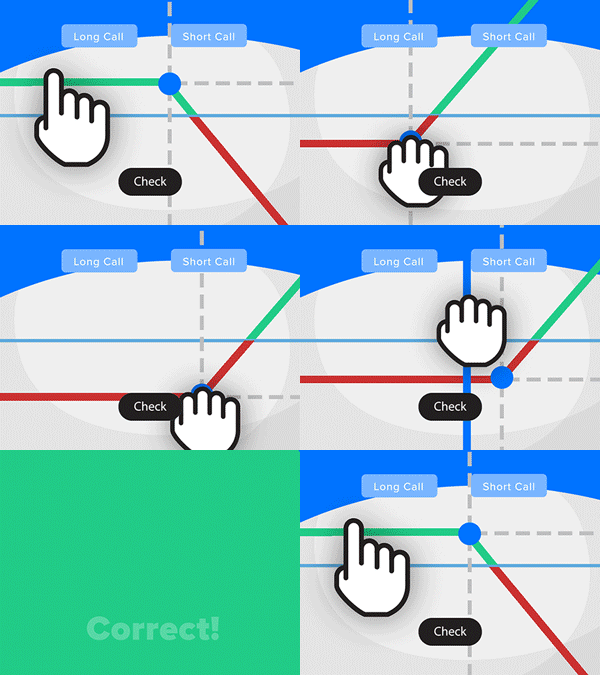
- Solve real problems with our hands-on interface
- Progress from basic puts and calls to advanced strategies
Interactive Options Course
Lesson 6 of 6
New to Interactive Brokers?
IBKR clients may select desired investment accounts and combine taxable income sources outside of their investment accounts and customize various tax rates to help determine their tax estimates. To access select Planning from the PortfolioAnalyst tab and select Tax Planner.
Click Continue to begin configuring your tax plan by adding to the required input fields on screen. Let’s establish some data for the user. Starting with wages and bonus we will enter $200,000. Add Dividend Income of $5,000 and Interest Income of $2,500. We will leave Business Income blank but add $1,000 for Other Income. The Total income value sums the data for us.
Under the Deduction input field, we will add $15,000. Under Withholdings let’s add Federal of $65,000 and State of $25,000. Click Continue.
On the next screen enter both Federal tax rates and State tax rates. Note the information button next to each input. Hover the mouse above for additional information button.
We will enter 28% for Federal Income Tax Rate, a 20% Long Term Capital Gains rate and enter zero for Other Tax Rate. Enter 10% for the local State Income Tax Rate and enter zero for the Local Tax Rate.
Click continue.
Now we will enter $2,000 Long-term and $5,000 Short-term Carryover loss amounts. At this point, you have entered the very basic information required.
Next, click View my Income and Tax Estimate to reveal the Tax Planner page. Remember that any completed fields maybe edited further by clicking on the pencil icon in the upper right of each panel.
Based upon the tax profile and the income data we provided, the screen is calculating income and tax estimates incorporating asset positions in the selected accounts. In this case, we have a single account. However, if the user has multiple accounts with Interactive Brokers, they can toggle on and off the required accounts.
On the right of the page there are two histograms. The left displays the breakdown of Taxable Income. The stack to the right displays the State and Federal Tax estimates.
Below you will see a table displaying Total Taxable Income, broken into different categories using your IBKR account data, such as, short-term and long-term gains and losses, Qualified and non-Qualified dividends and so on. Based upon the tax rates we assumed the Tax Planner calculates both Federal Tax and State Tax Estimates. The final column to the right combines the two to display a Total Tax Estimate.
Within the table you will see an expansion/ contraction arrow to the left of each line item. By expanding the ST Gains & Losses line, user may drill down further within an account to learn more about which account is responsible for income and tax values and whether they are due at State or Federal level.
Let’s dive a little further, this time by expanding the Long-Term Gains & Losses line. To drill down, click on the line containing the account number, which takes us to an Account Activity page on which there are five tabs. The Investment Income Summary displays Net Realized ST gains and losses and Net Realized long-term gains and losses. It adds in dividends and interest to provide a total investment income line.
Click the Realized & Unrealized Summary tab for an asset class level view of realized and unrealized short and long-term gains and losses. Stocks are displayed in alpha order and the user can click on Load More beneath to view more.
For example, if we expand the line item for symbol CLSK we see Transaction detail with buy and sell dates and whatever amount was gained or lost. The Tax Planner buckets the activity in this case to a Short-term Realized Gain.
The benefit for investors is twofold. Realized gains and losses help users better estimate taxes. However, knowing what unrealized gains or losses are, is a great way to manage positions tax efficiently for tax planning purposes.
From the Account Activity page click the Dividends tab to see dividend data broken out by stock symbol and further by qualified and non-qualified status. Use the Back button to the lower left to return to Account Activity.
The Interest tab breaks out non-tax exempt and Federal tax exempt interest payments for the user.
Your Account Match Method is displayed in the final tab, along with a history of changes to it. Use the Tax Optimizer button should you wish to change tax matching methods.
In it’s early release the Tax Planner is only able to read account details and activity from your accounts held at Interactive Brokers.
For further information use the link on the notes page:
https://www.ibkrguides.com/portfolioanalyst/tax-planner.htm
The analysis in this material is provided for information only and is not and should not be construed as an offer to sell or the solicitation of an offer to buy any security. To the extent that this material discusses general market activity, industry or sector trends or other broad-based economic or political conditions, it should not be construed as research or investment advice. To the extent that it includes references to specific securities, commodities, currencies, or other instruments, those references do not constitute a recommendation by IBKR to buy, sell or hold such investments. This material does not and is not intended to take into account the particular financial conditions, investment objectives or requirements of individual customers. Before acting on this material, you should consider whether it is suitable for your particular circumstances and, as necessary, seek professional advice.
The views and opinions expressed herein are those of the author and do not necessarily reflect the views of Interactive Brokers, its affiliates, or its employees.











Join The Conversation
For specific platform feedback and suggestions, please submit it directly to our team using these instructions.
If you have an account-specific question or concern, please reach out to Client Services.
We encourage you to look through our FAQs before posting. Your question may already be covered!