- Solve real problems with our hands-on interface
- Progress from basic puts and calls to advanced strategies
Interactive Options Course
Lesson 7 of 9
New to Interactive Brokers?
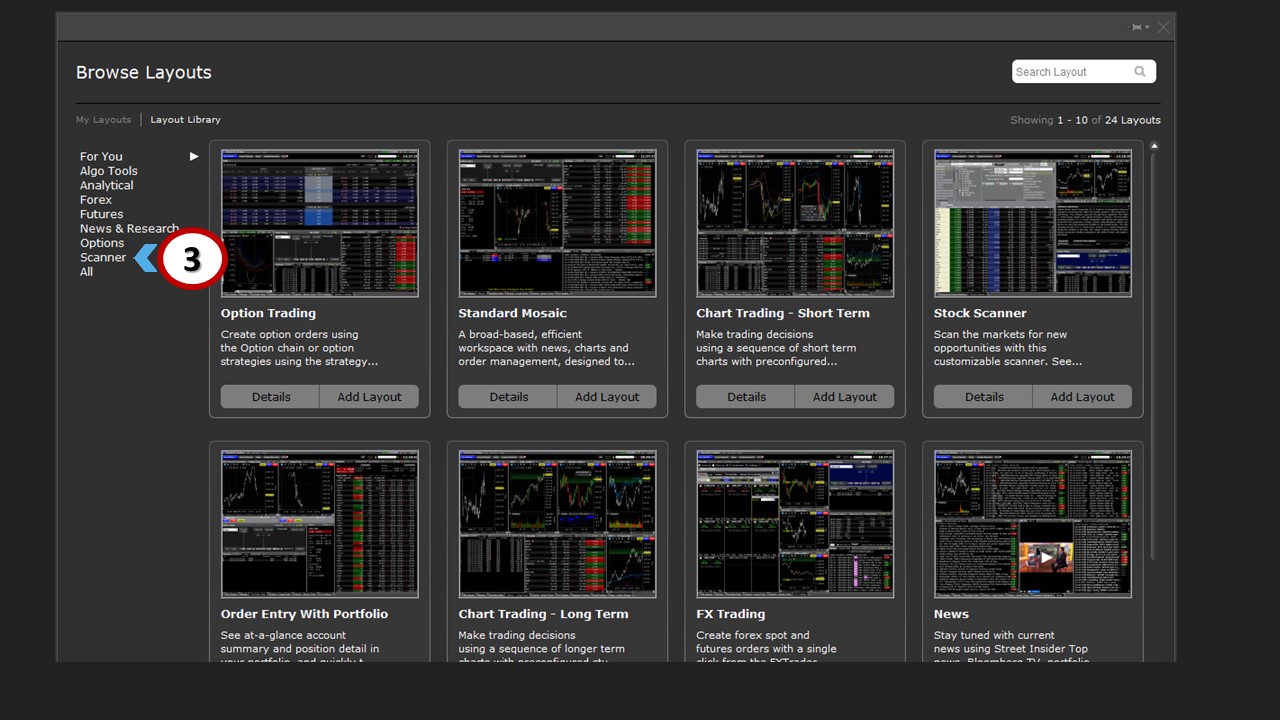
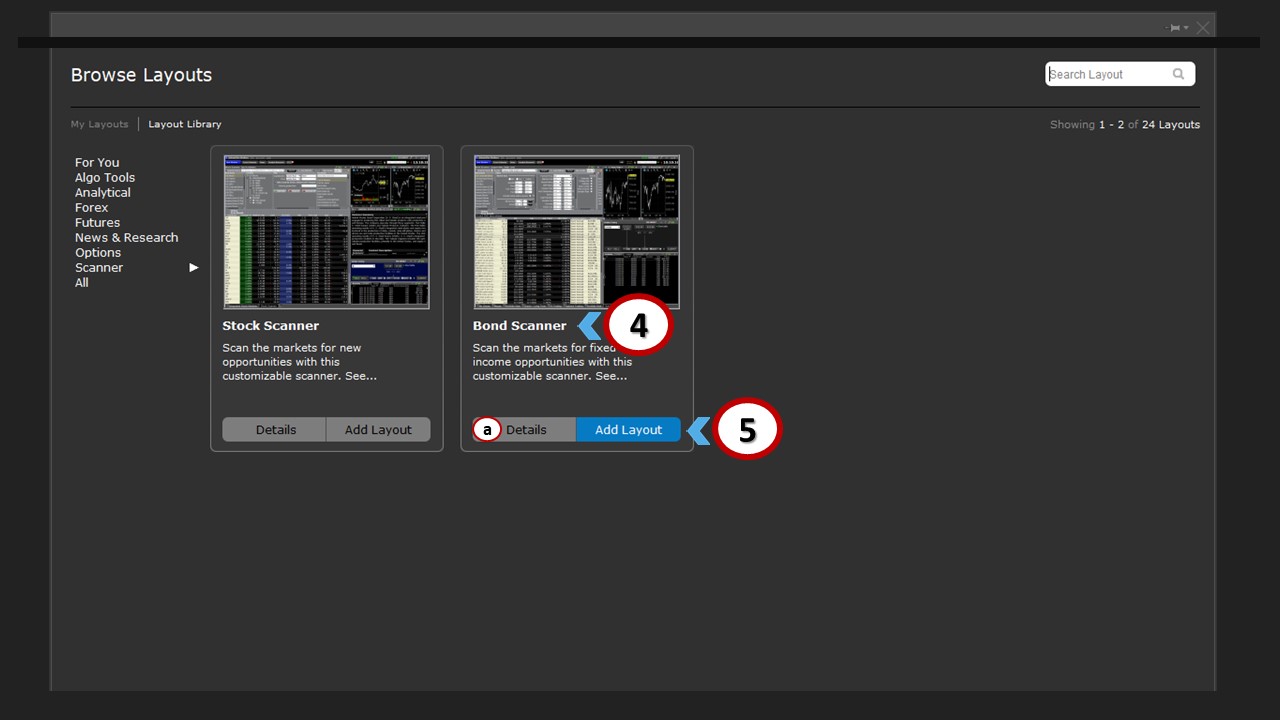
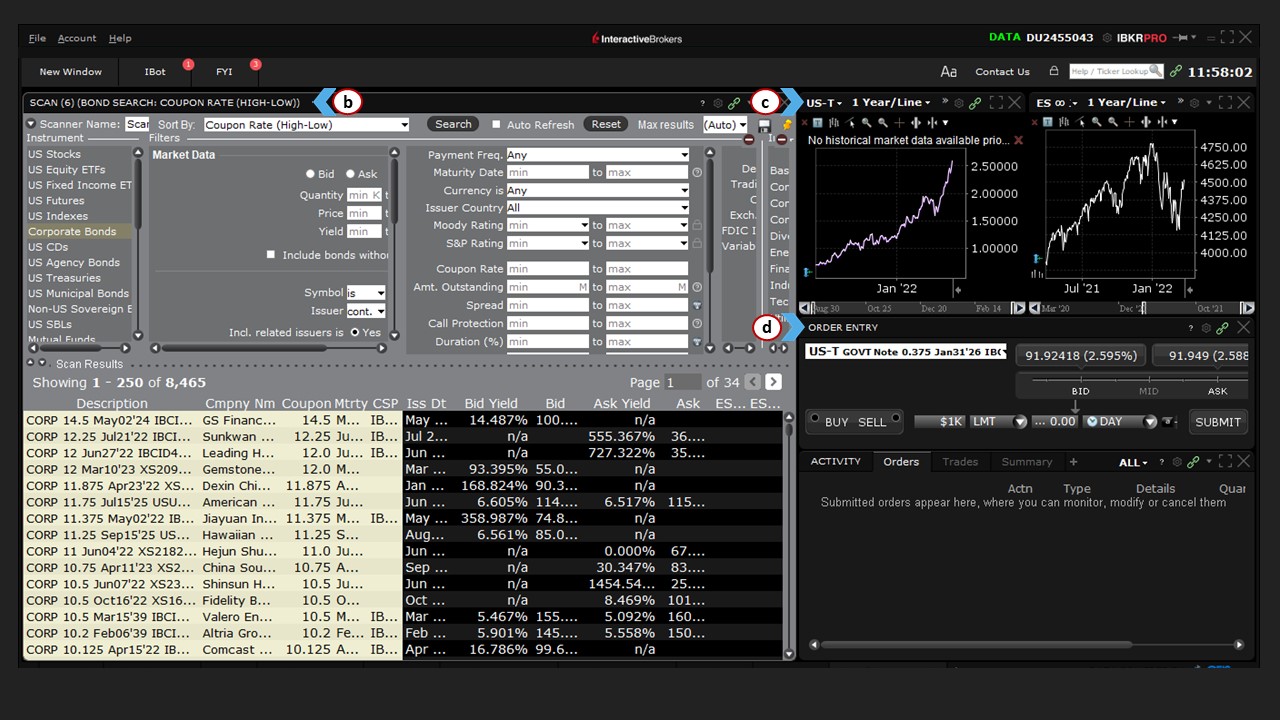
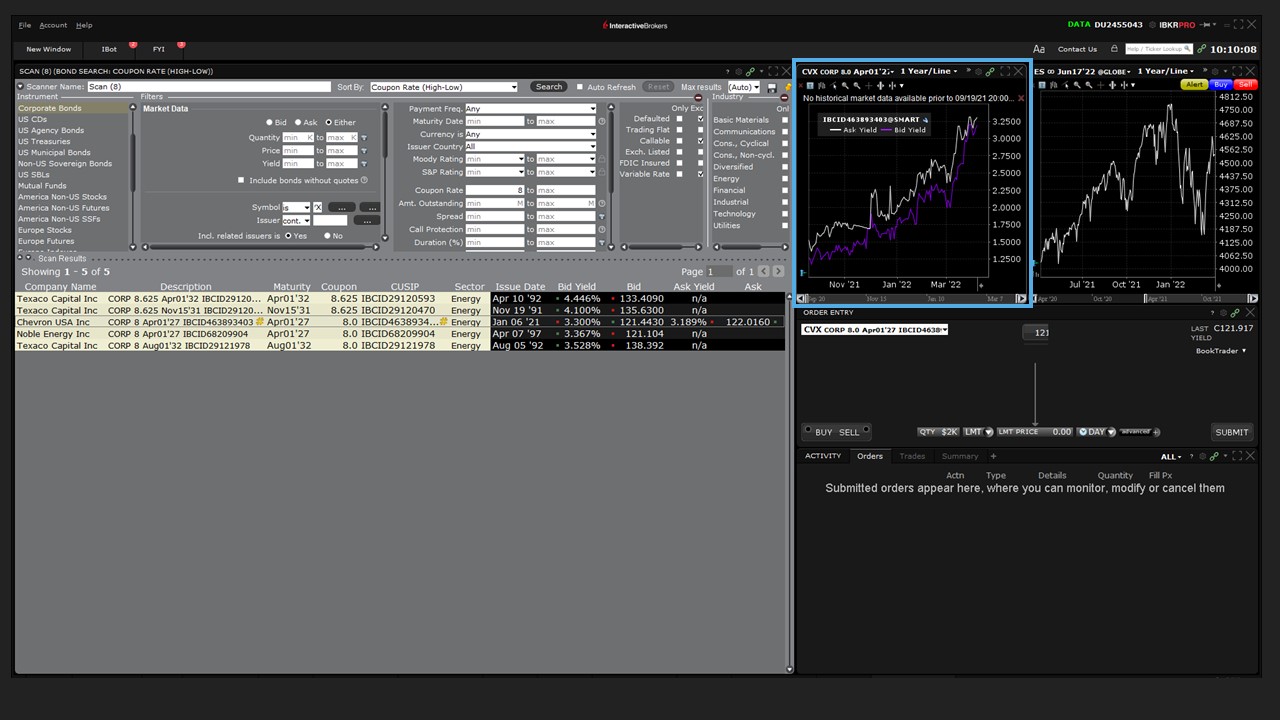
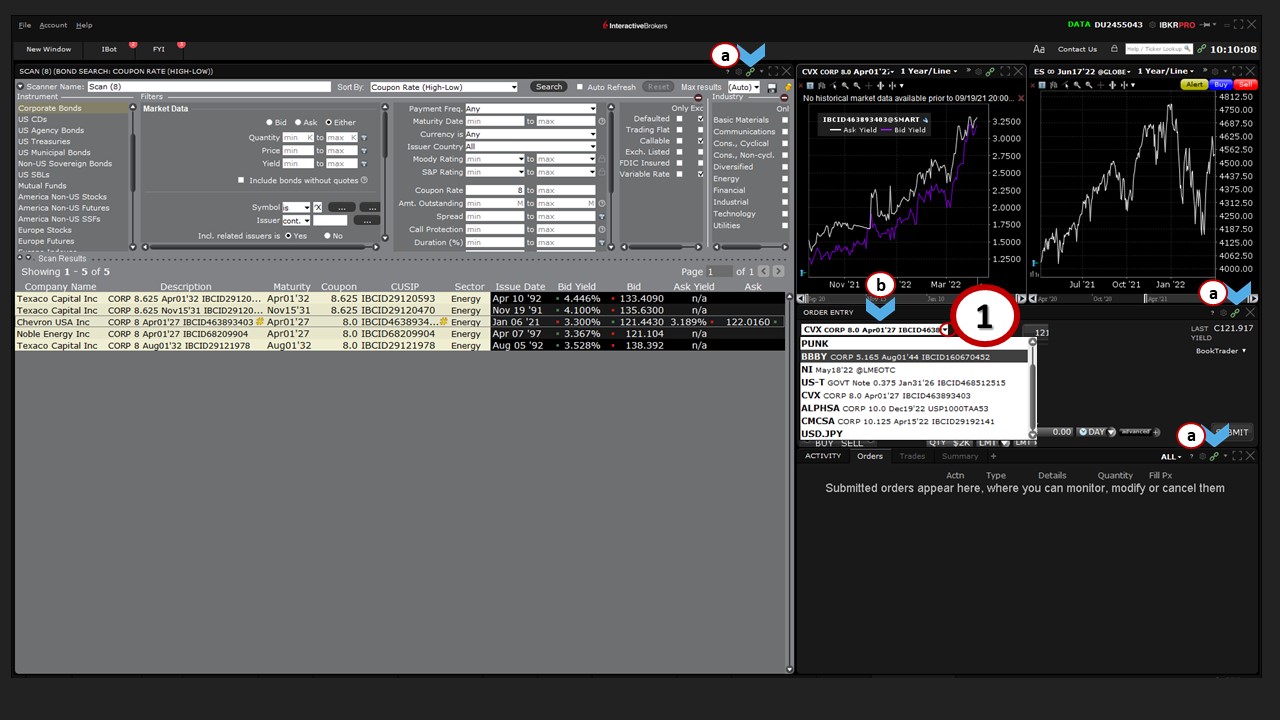
Now that we’ve covered ways in which you can use watchlists and scanners in TWS for trading and investing in fixed-income securities, we’ll now show you how you can use multiple tools in one dedicated place, including filtering bond criteria, creating charts, and entering orders. The Bond Scanner Layout provides all these tools in one location. To access it, (1) click File, (2) Open Layout Library, (3) choose Scanner from the list, and then (4) Bond Scanner. You can (a) read more details about the layout, or (5) simply add it to your workspace.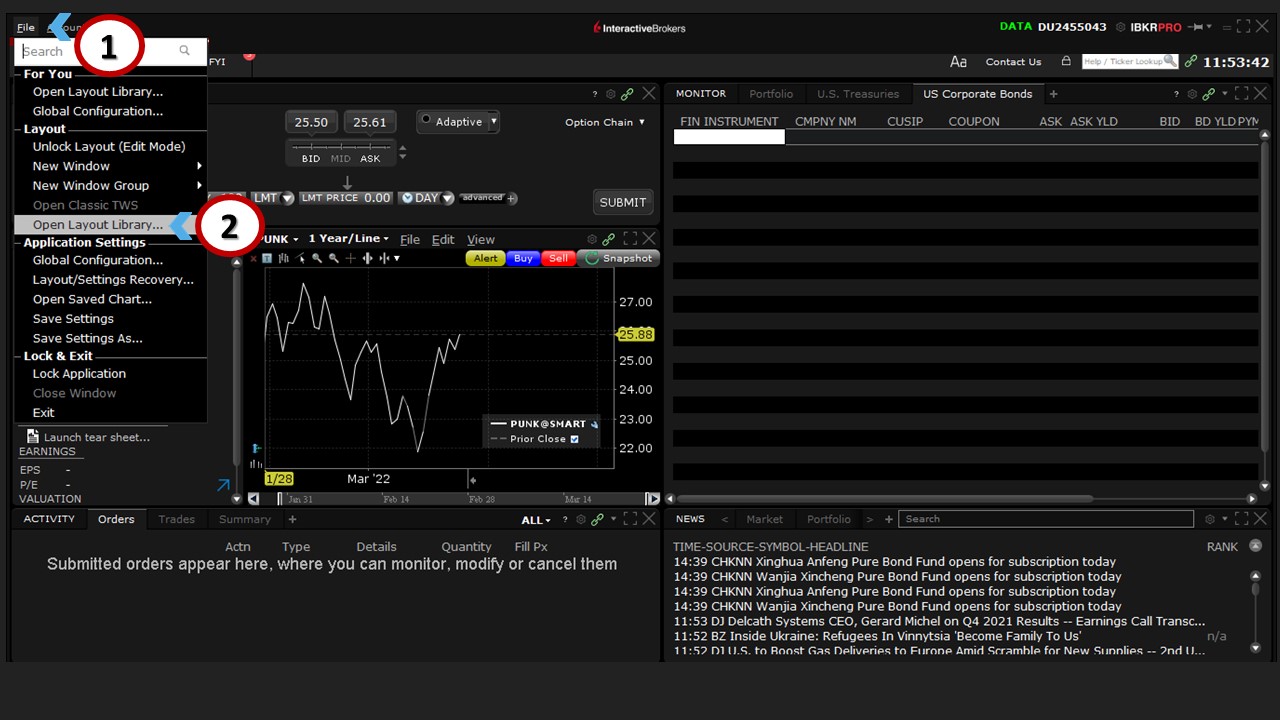
 A new window will then open with (b) the Advanced Market Scanner at the left, (c) charting tools at the right, as well as (d) the Order Entry panel, where you can make buy and sell decisions.
 How do these panels work together?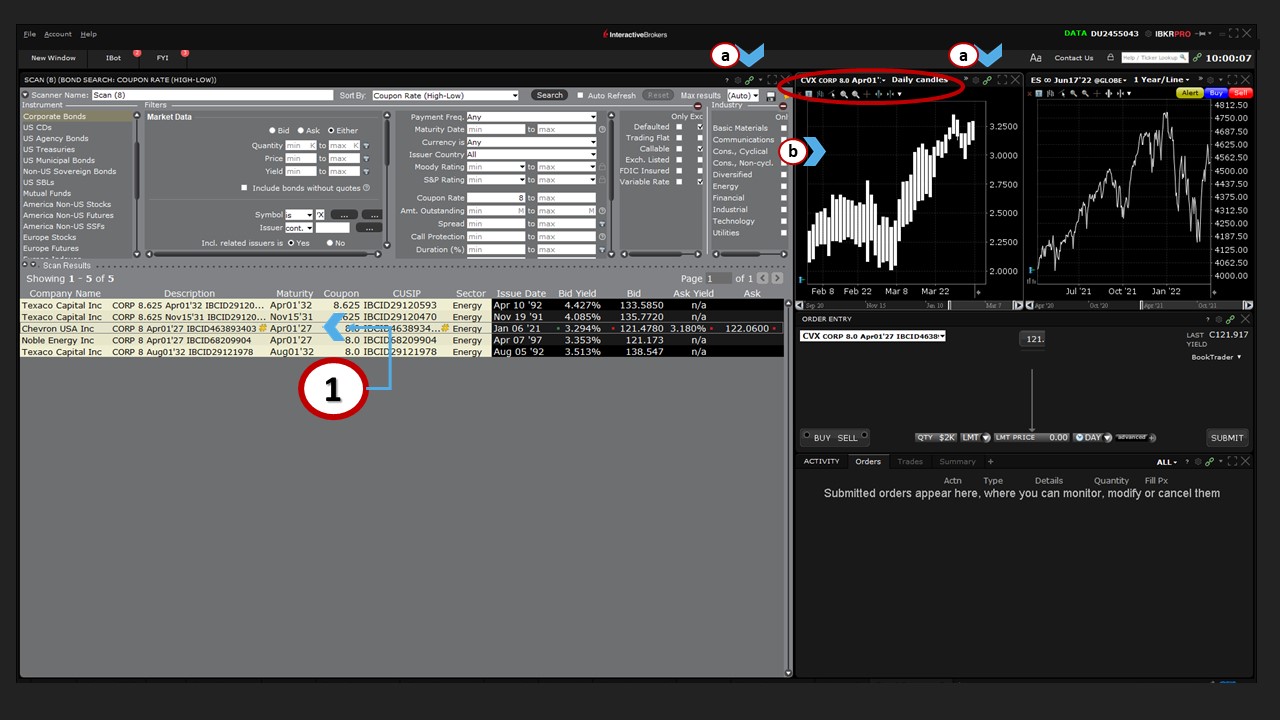
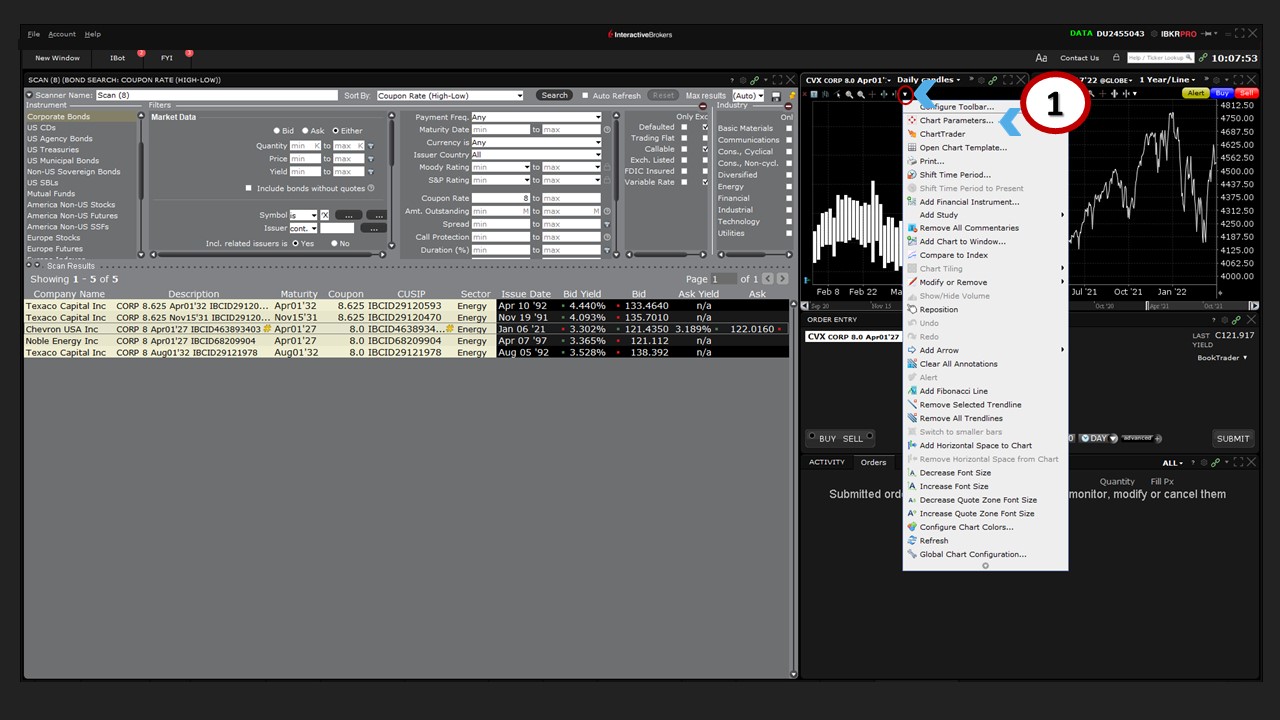
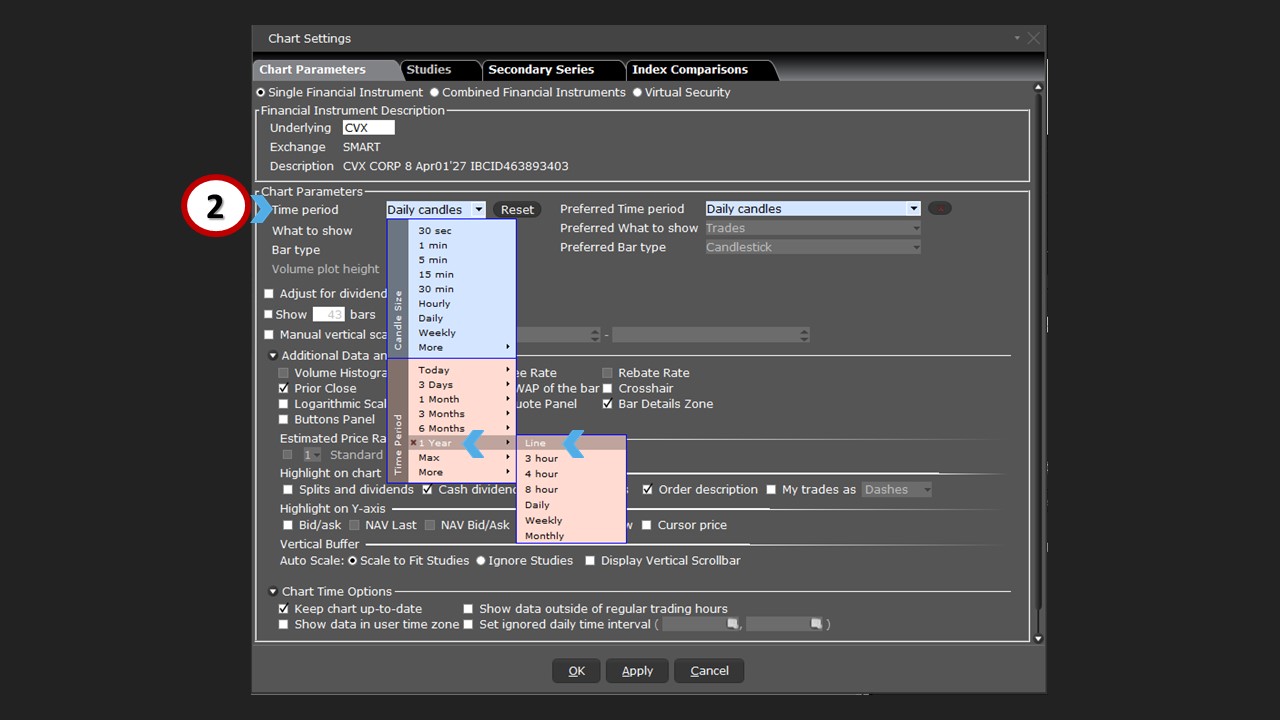
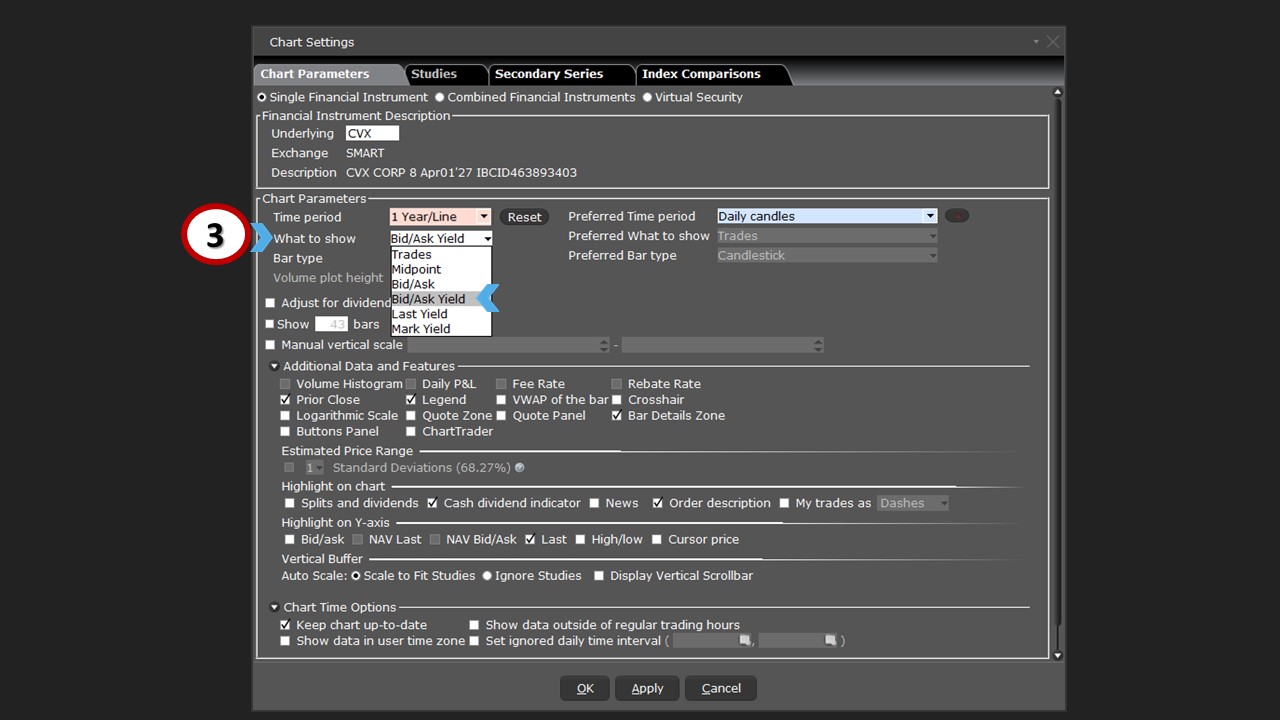
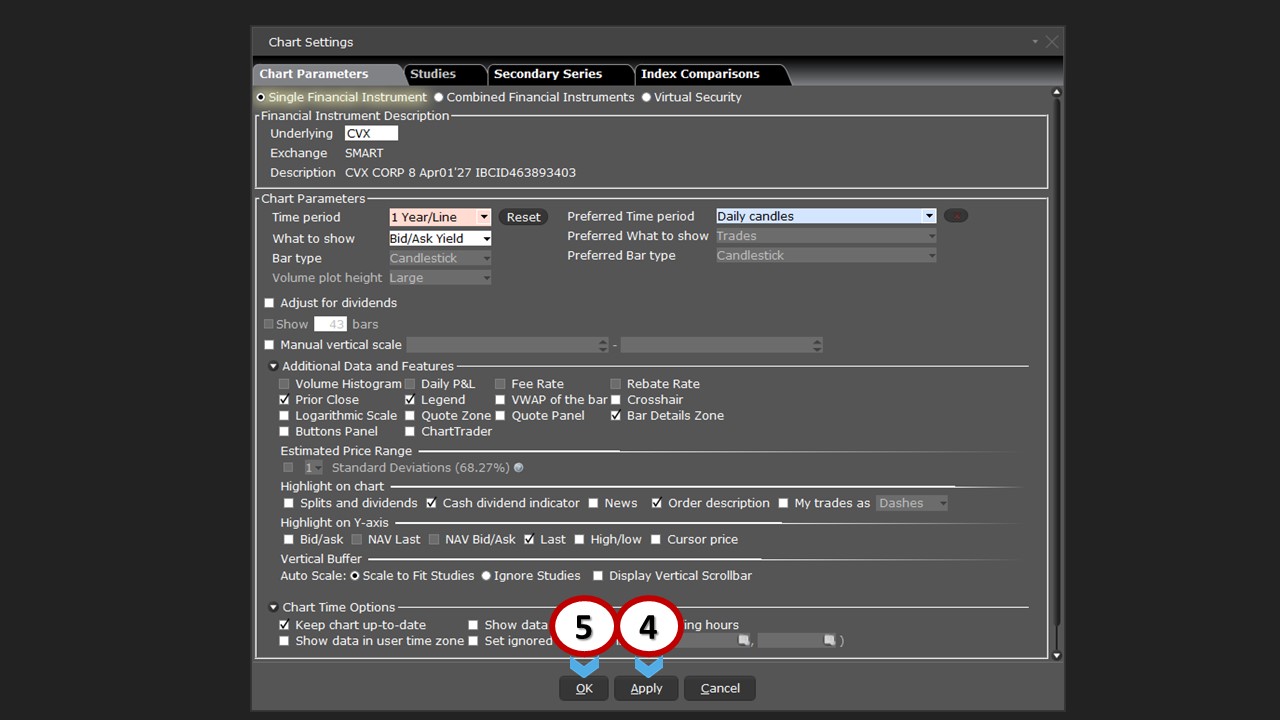
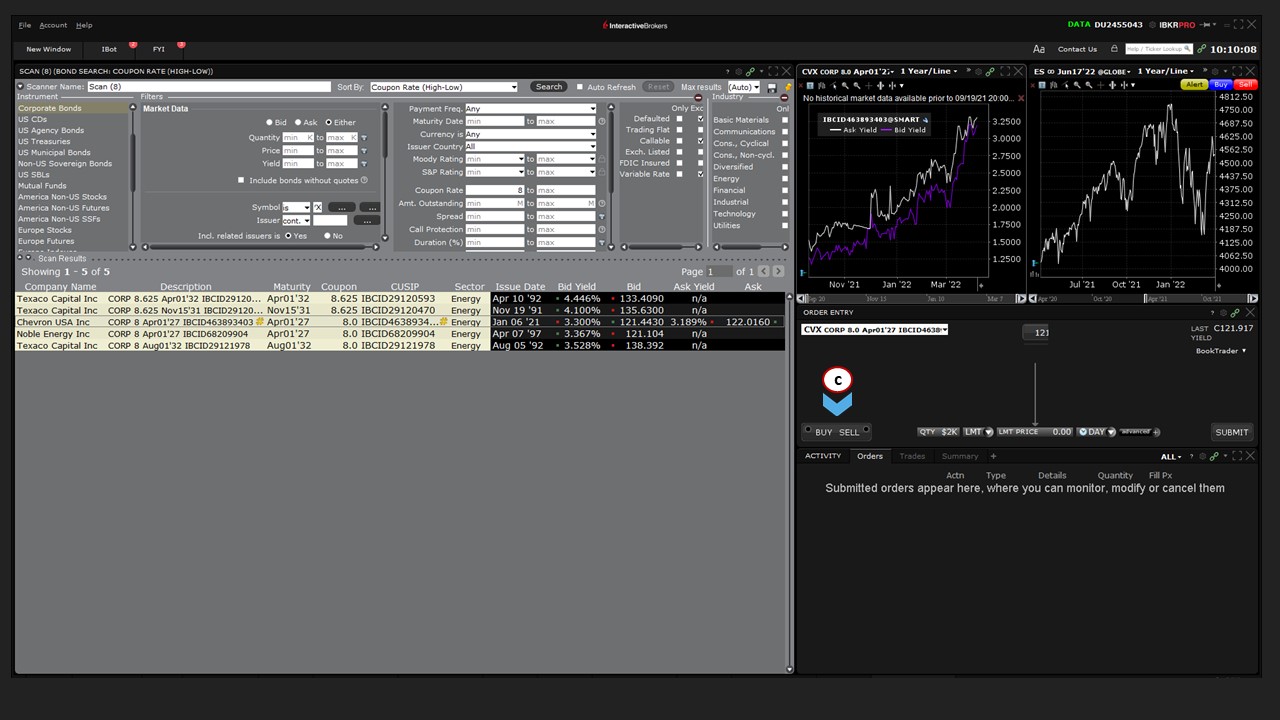
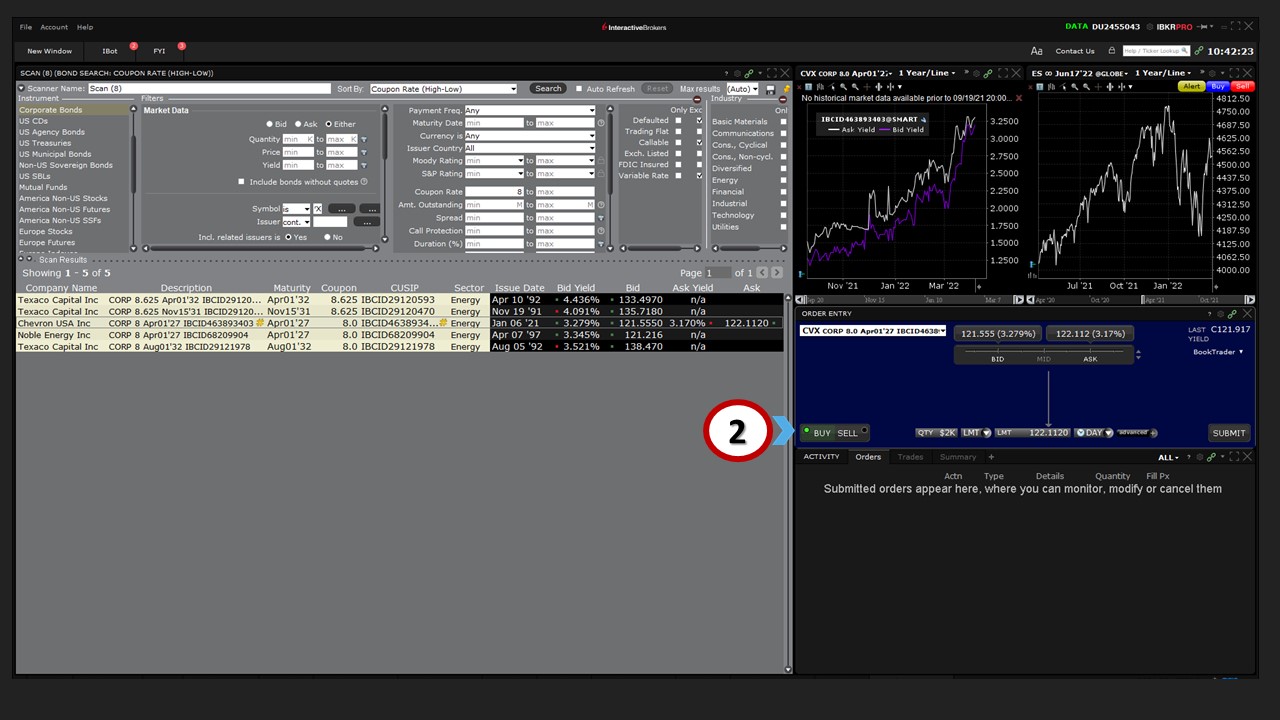
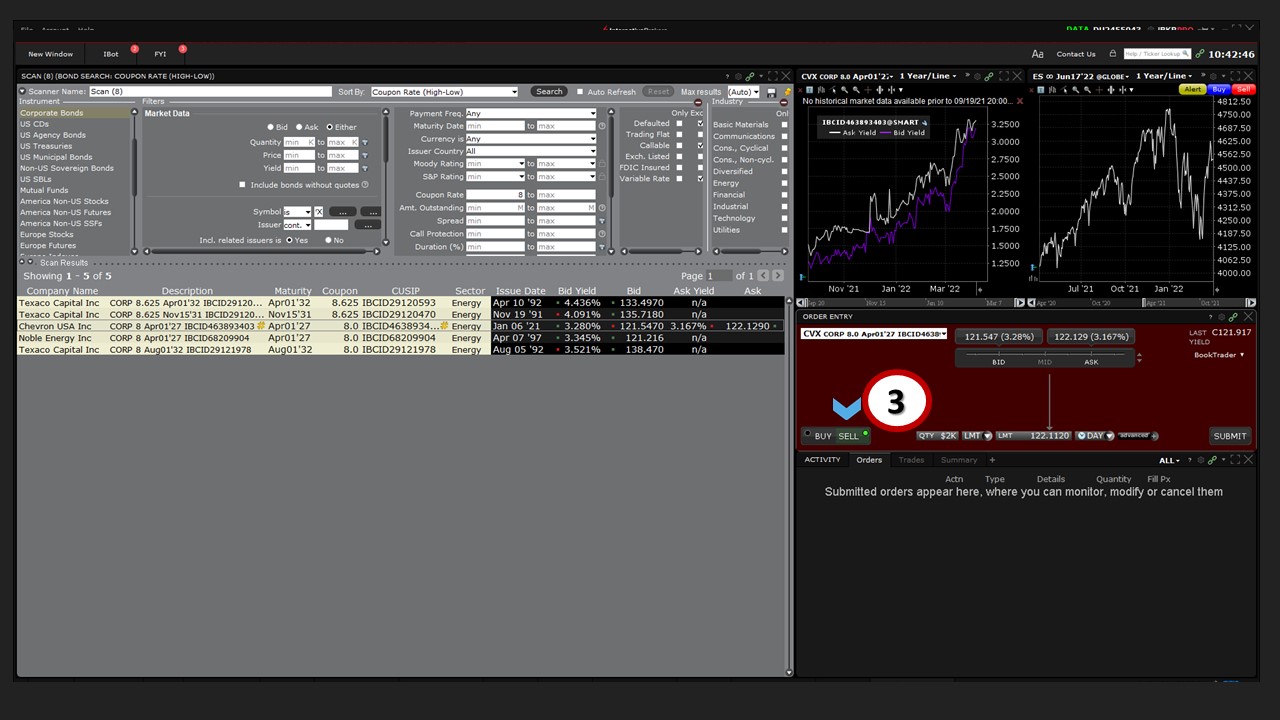 You should note that you can also select to buy or sell a bond directly from the Advanced Market Scanner. Simply (1) right click on a bond, and you’ll see options to buy or sell, alongside (a) other functions, including obtaining quote details, creating a new chart, and creating a specific alert.
 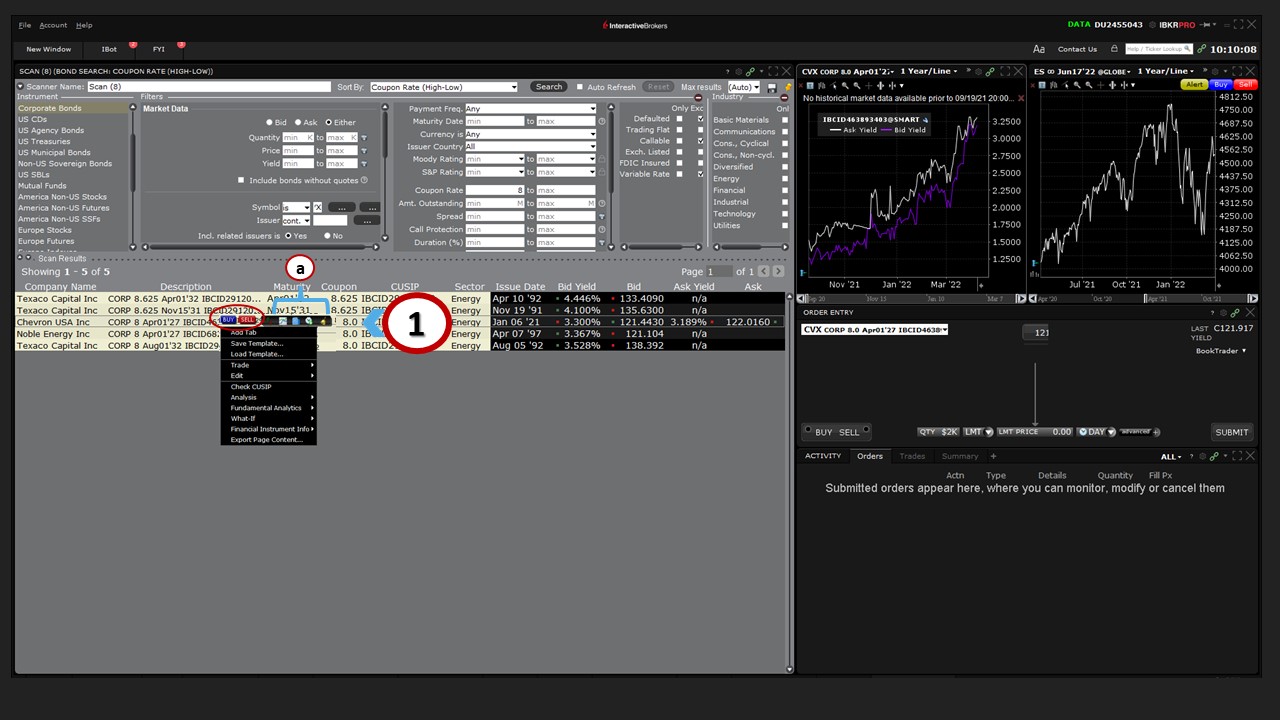 Note: The feature to buy or sell a bond directly from the standalone Advanced Market Scanner and Global Bond Scanner is also available, along with other functions, including obtaining quote details, creating a new chart, and creating a specific alert.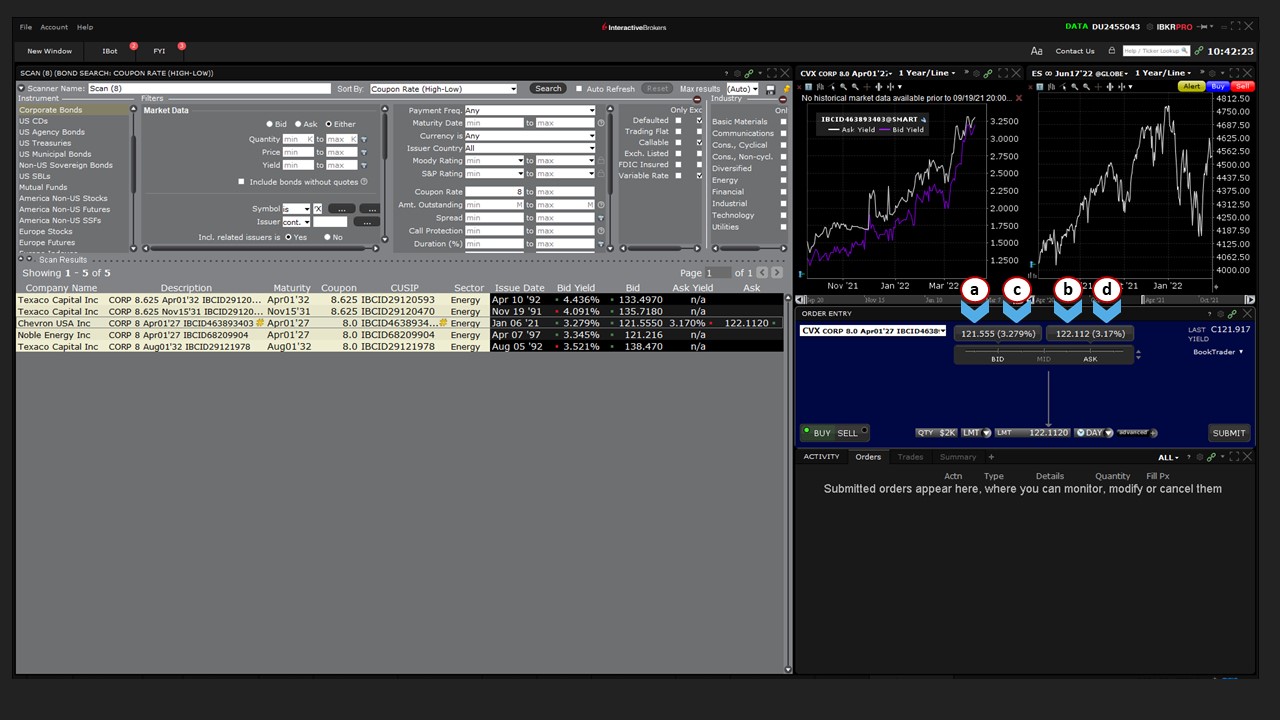
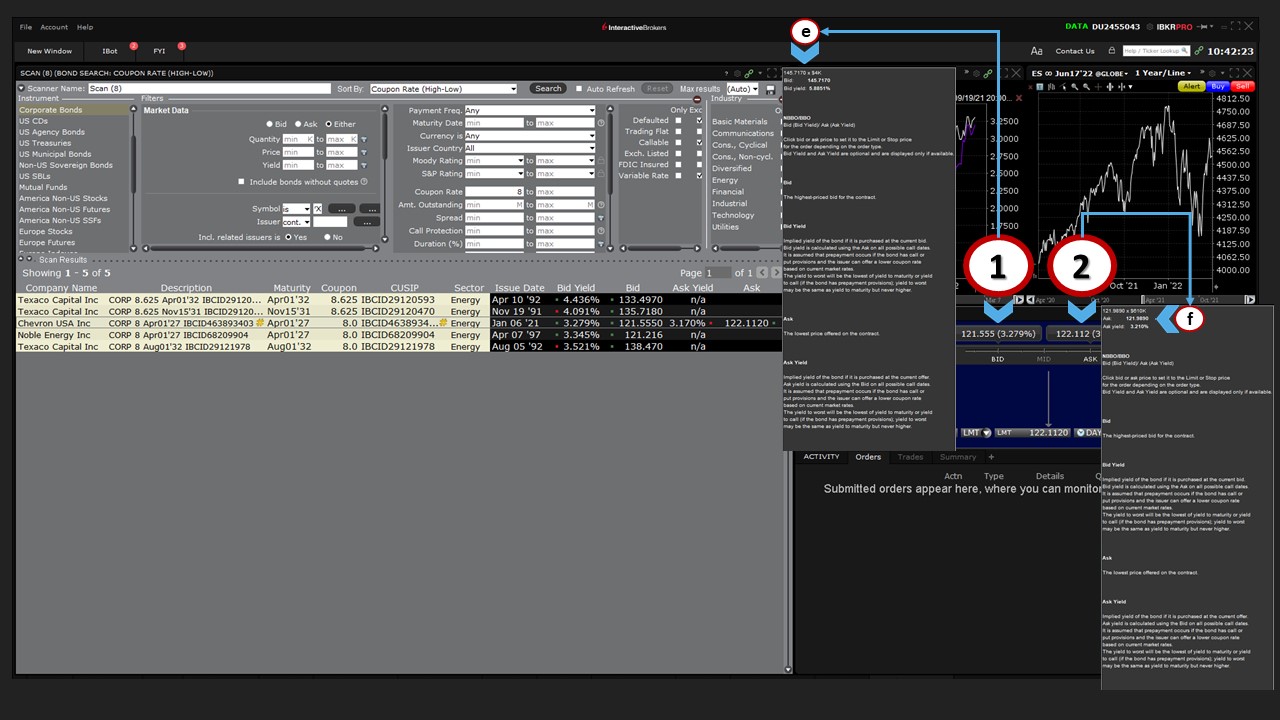 Immediately below the quote display is (a) a price slider. Here, you can slide the mouse and the quote display will show a single price point should you wish to choose a price relative to the bid or the ask – either above or below. If you (1) hover your cursor above the word ‘Mid’ on the price slider, the display will automatically calculate and display that price instead. In the upper right corner of the Order Entry panel, you will see (b) summary data displaying the last traded price of the bond and its current yield, based on the mid-point of the live quote.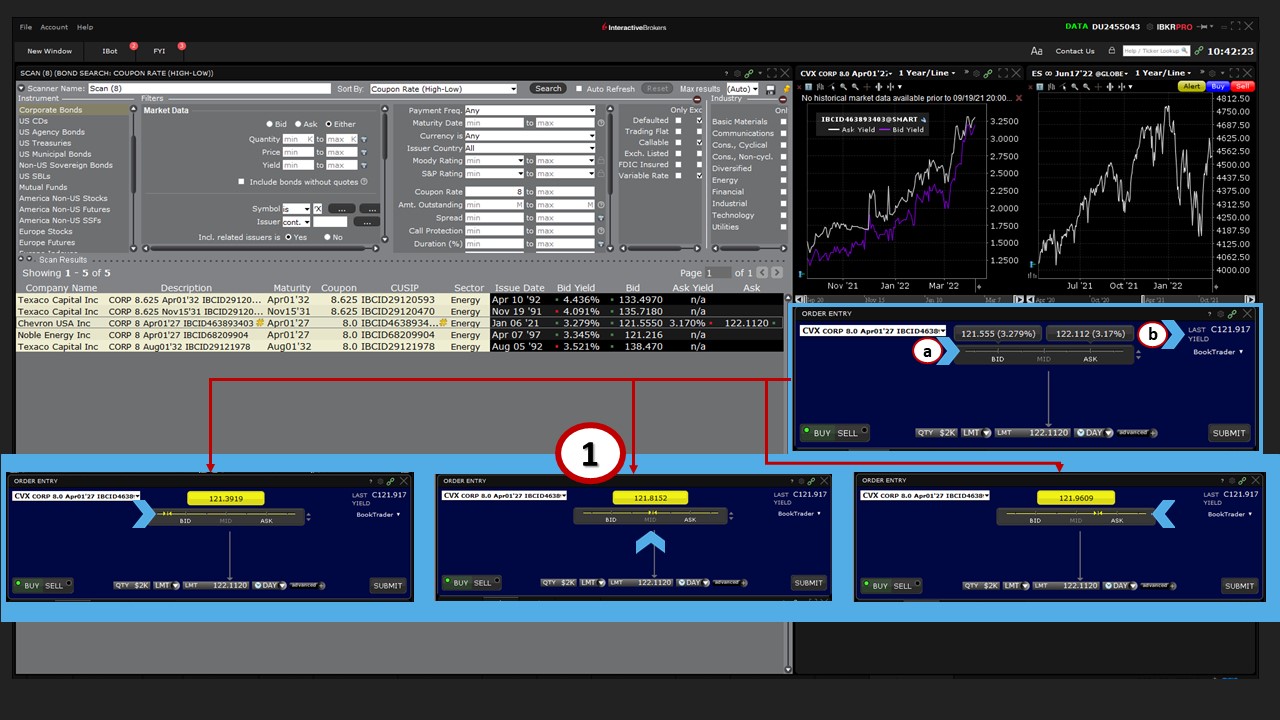
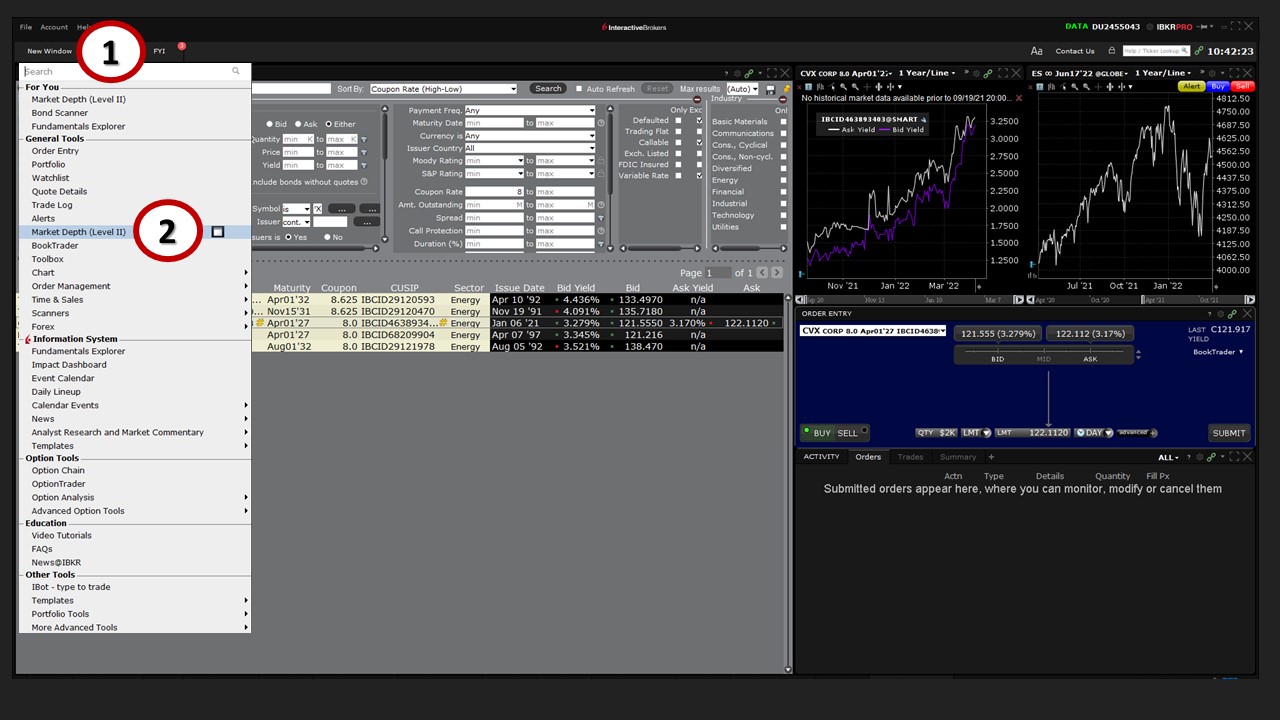
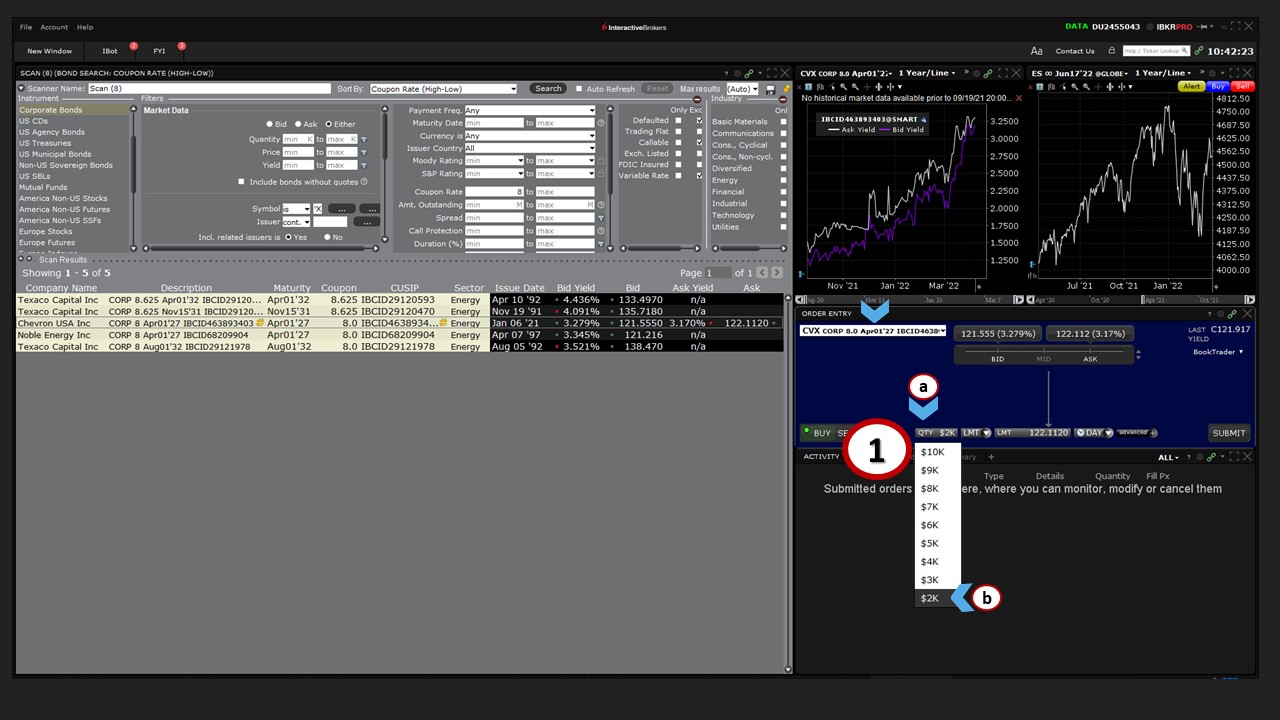 There may be other occasions when you may not be able to trade your chosen amount, due to market minimums. It may help to display the Level II Market Depth window from (1) the New Window button listed under (2) General Tools.
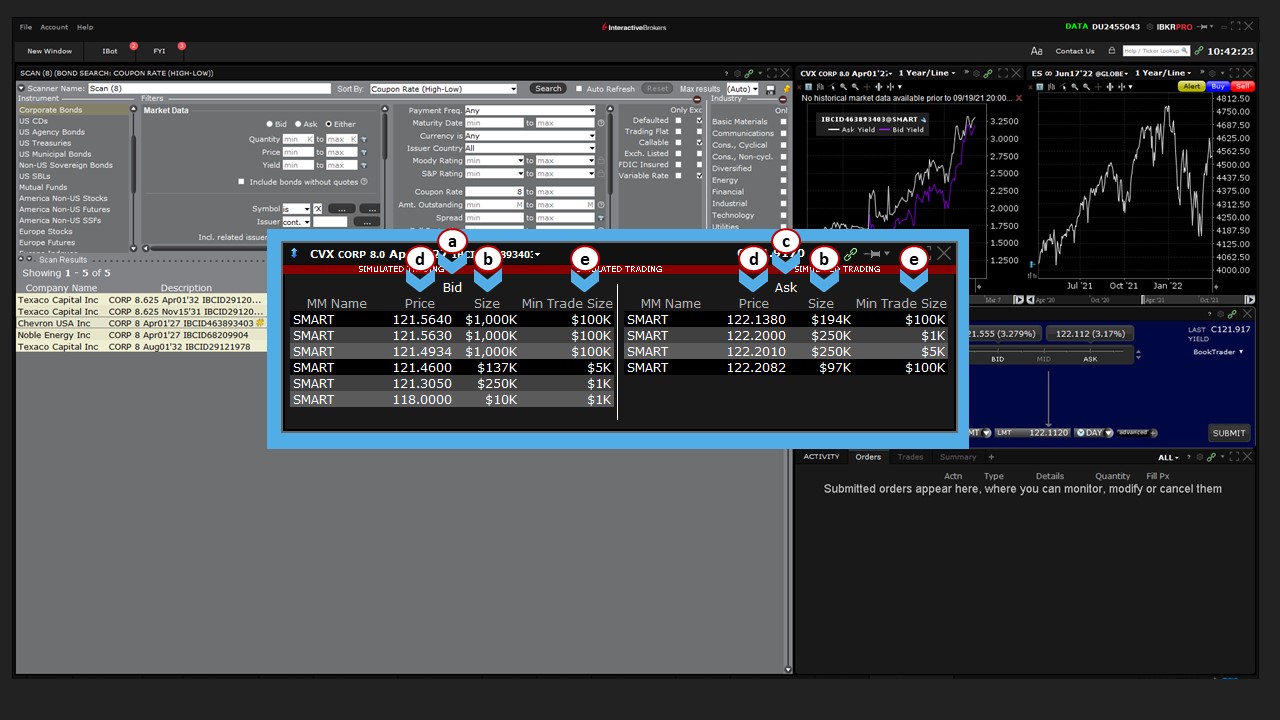
  In the Level II Market Depth window, to the left, are (a) bids at each price level, along with (b) the size column, which specifies how much the bid is good for. To the right are (c) best offers, which again lists the volume available for sale. On either side you can see the (d) value for (e) the minimum trade size.
  This should explain why, if you are trying to buy $1,000 worth of a specific bond with a market order, your order might not fill, because the only seller at that time and price is offering a minimum bond amount greater than what you want to purchase. You can buy or sell using TWS using the minimums we just discussed. However, should you wish to sell short a bond, due to market practice and regulations, the minimum order size is $100,000, and the minimum increment is $25,000.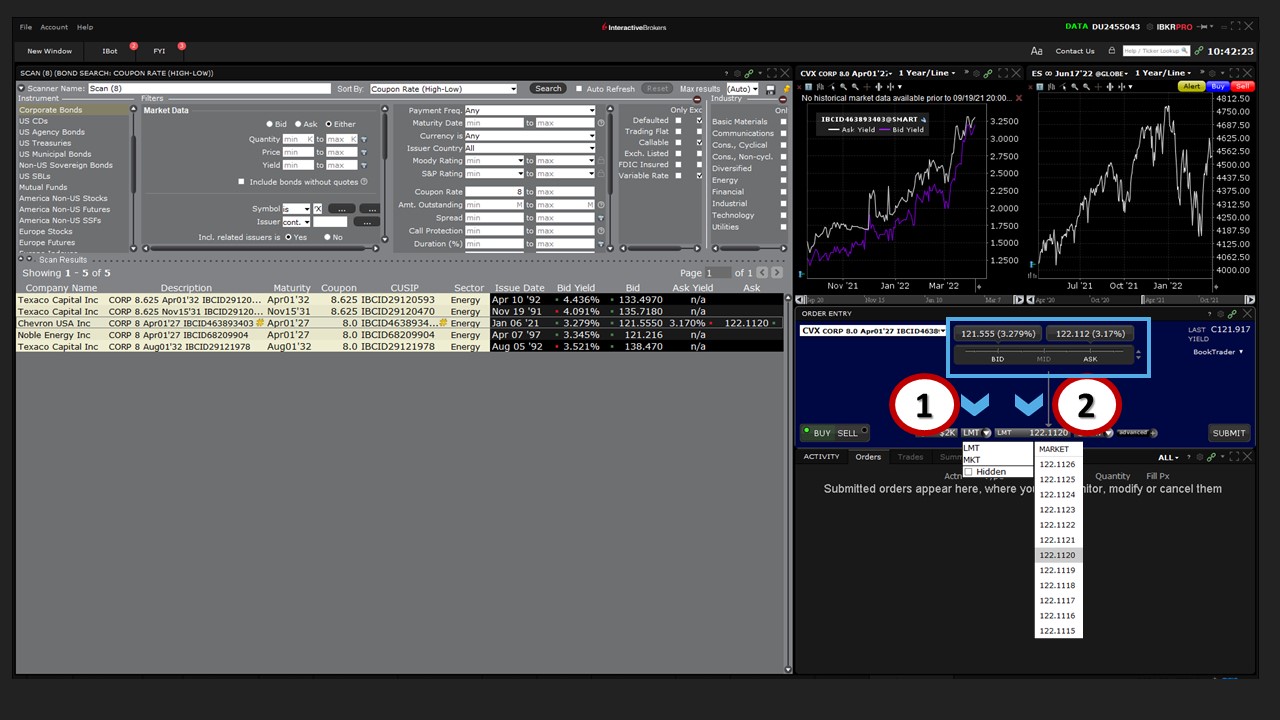
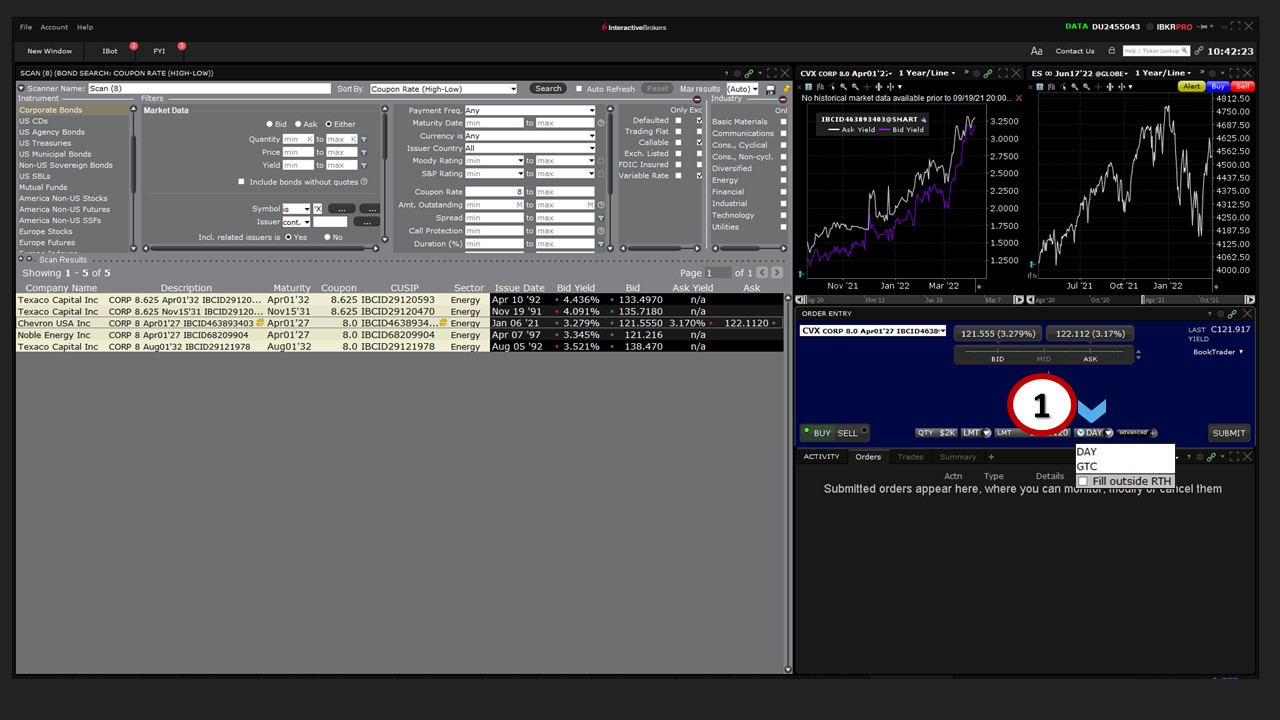
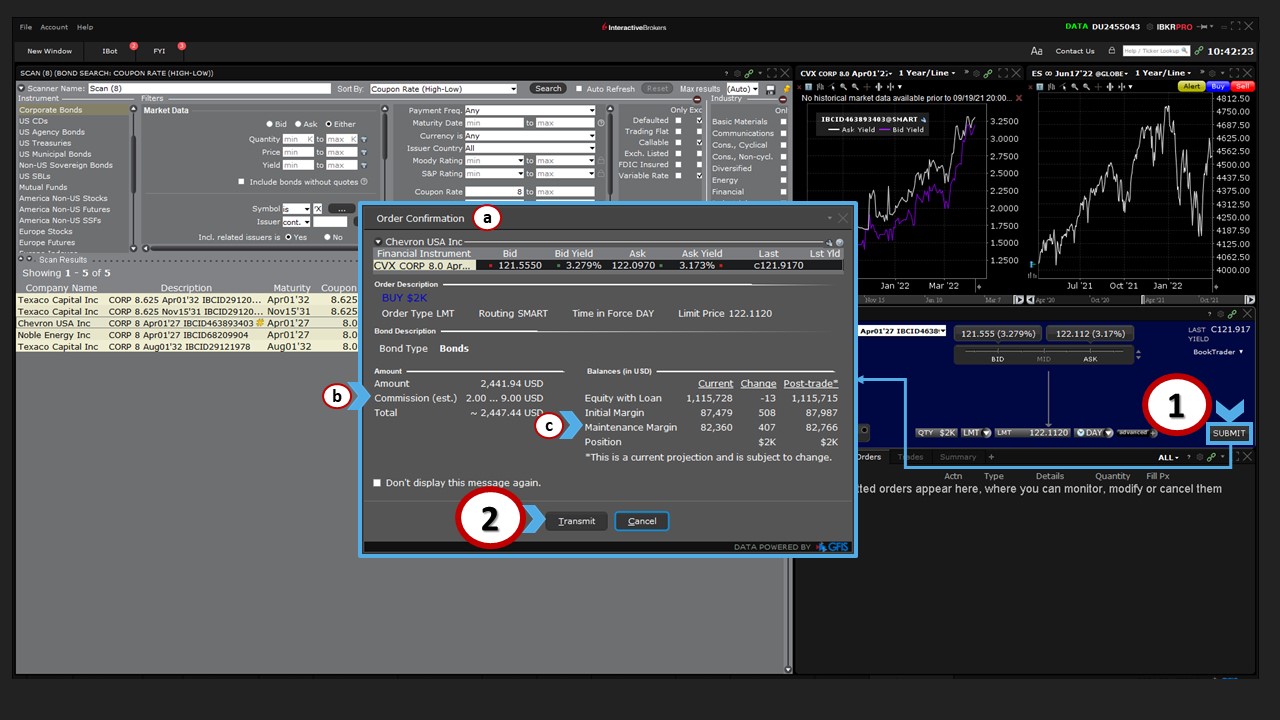
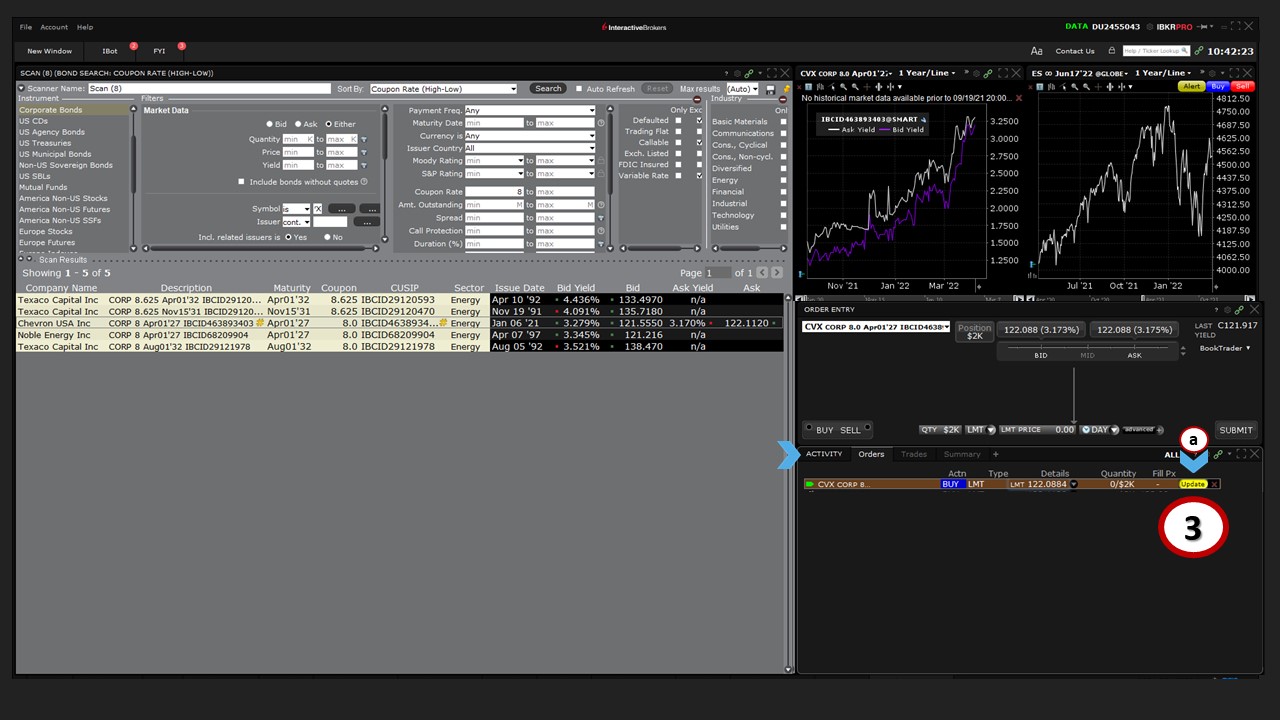
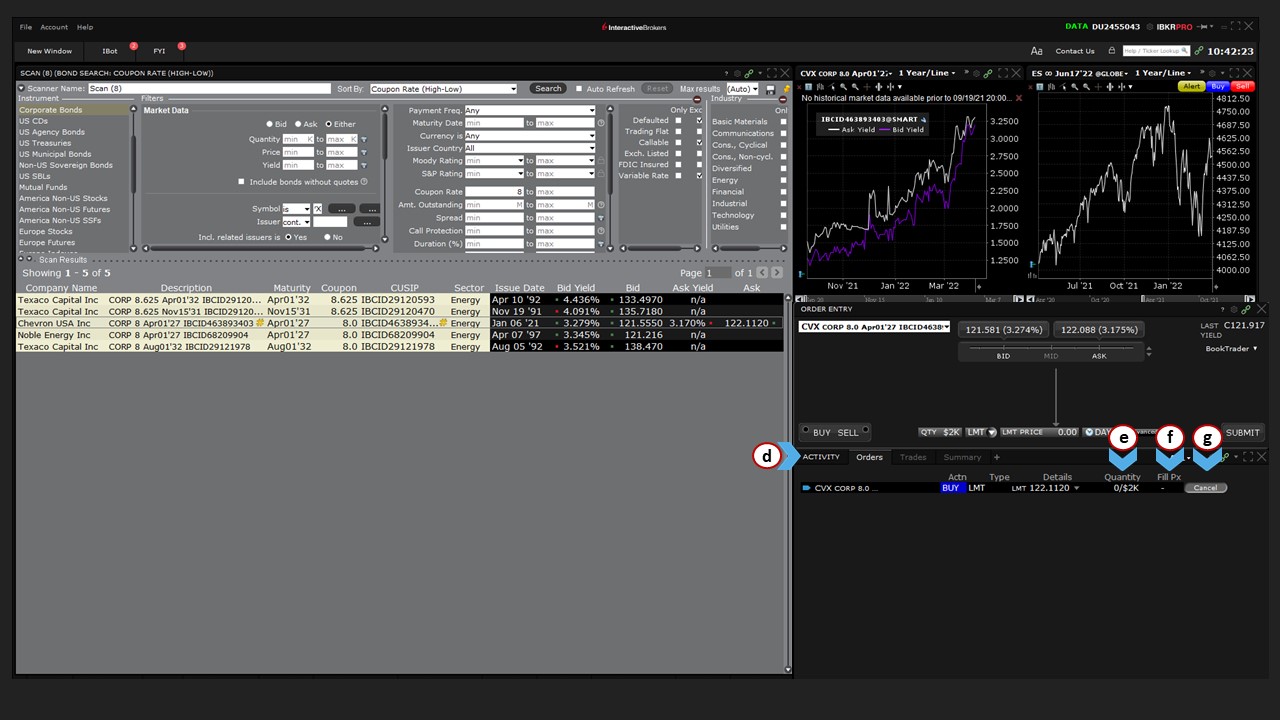 If you later decide to make changes to the price or other details of your order, you can do so from the Activity panel. In this example, we’ll (1) click on the price field and (2) change the limit price. The (a) Action Button has turned from Grey to Yellow. When you are ready with your changes, (3) click the Update button to reinstate the remaining portion of your order with updated details.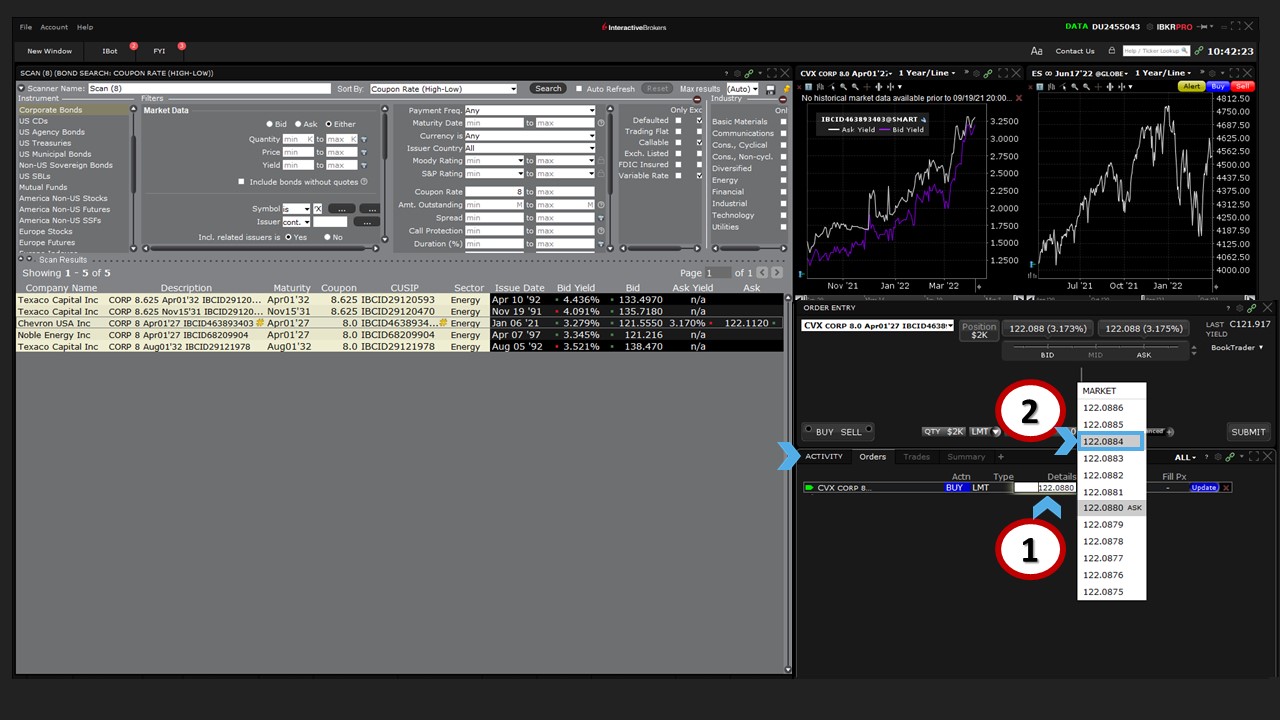
The analysis in this material is provided for information only and is not and should not be construed as an offer to sell or the solicitation of an offer to buy any security. To the extent that this material discusses general market activity, industry or sector trends or other broad-based economic or political conditions, it should not be construed as research or investment advice. To the extent that it includes references to specific securities, commodities, currencies, or other instruments, those references do not constitute a recommendation by IBKR to buy, sell or hold such investments. This material does not and is not intended to take into account the particular financial conditions, investment objectives or requirements of individual customers. Before acting on this material, you should consider whether it is suitable for your particular circumstances and, as necessary, seek professional advice.
The views and opinions expressed herein are those of the author and do not necessarily reflect the views of Interactive Brokers, its affiliates, or its employees.
The order types available through Interactive Brokers LLC's trading platforms are designed to help you limit your loss and/or lock in a profit. Market conditions and other factors may affect execution. In general, orders guarantee a fill or guarantee a price, but not both. In extreme market conditions, an order may either be executed at a different price than anticipated or may not be filled in the marketplace.
Any stock, options or futures symbols displayed are for illustrative purposes only and are not intended to portray recommendations.











Join The Conversation
For specific platform feedback and suggestions, please submit it directly to our team using these instructions.
If you have an account-specific question or concern, please reach out to Client Services.
We encourage you to look through our FAQs before posting. Your question may already be covered!