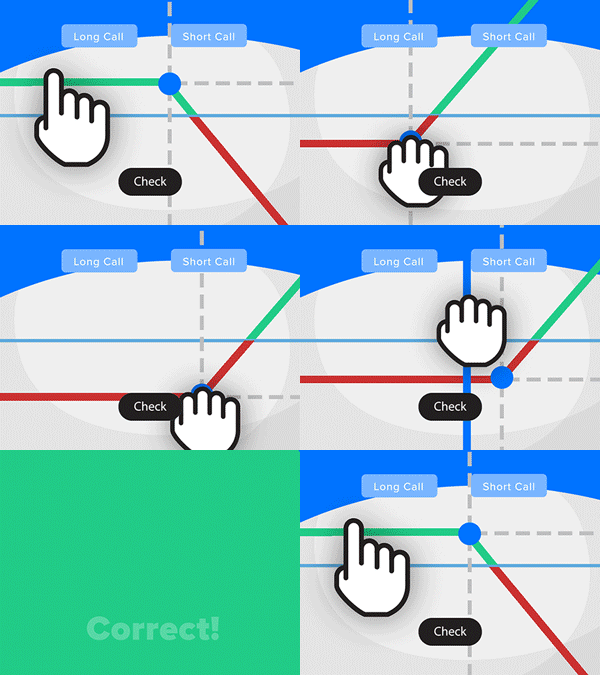
- Solve real problems with our hands-on interface
- Progress from basic puts and calls to advanced strategies
Interactive Options Course
Lesson 3 of 16
New to Interactive Brokers?
ScaleTrader is a sophisticated trading algorithm within Interactive Brokers’ platform that helps traders scale into large positions efficiently. The essence behind the algorithm is that it allows investors to buy at decreasingly lower prices or sell at increasingly higher prices. ScaleTrader can be used to buy or sell positions in single instruments, pair trades, or combinations. Investors can use ScaleTrader to trade Stocks, ETFs, Options, Futures, FOPs, Currencies, Bonds, and Warrants.
In this example, the investor will use ScaleTrader to create an order to buy shares of Amazon and then use the Profit Orders feature to submit profit taking orders based on the filled components. While this example will go over how to use ScaleTrader to buy a stock and then sell out at a profit it could be set up in reverse to sell first then cover the position with profitable buy orders if the underlying moves in the correct direction.
ScaleTrader can be accessed in Mosaic by clicking on the New Window button, scrolling down to More Advanced Tools, and selecting ScaleTrader. Once the ScaleTrader window appears, the investor will click on the Simple tab and enter the symbol AMZN, select stock. Next, they click Buy.
The investor now enters 5000 as the maximum position that they are willing to build using ScaleTrader. It is important to note that your actual position could be more or less than this amount depending on existing positions or other trades. The investor is going to set the initial component size to 400. This is the first order submitted and sets the foundation for the scaling strategy. They will set the subsequent component size to 200. The subsequent component size helps manage the position size and is the follow up order size to the initial trade. The size can also be randomized by plus or minus 55% and the order can be routed directly to the IBKR ATS. The default routing is IB SmartRouting, which will pass the order through the ATS as well as other exchanges.
The next step is choosing the starting price, since the investor is setting up a ScaleTrader buy order this will also be the Top price. The starting price can be set by either typing it in or dragging the blue line in the chart to the right. The chart’s time frame can be adjusted by clicking on the time frames above.
The investor then selects the price increment by either dragging the green line to the bottom price, which will automatically calculate the price increment, or by selecting the price increment which will calculate the bottom price. The investor enters 25 cents which calculates the bottom price. For more information on the order setup the investor can look at the Summary in bottom center of the screen which shows the number of price levels, average price, the total dollar amount of the order, and the range of the order in dollar and percentage terms. They choose Relative for the order type with a zero offset which means that the orders will be submitted on the bid. The investor wants to use a Good Til Cancelled order, so they click on the Time in Force Tab and select GTC from the drop-down, then click back on the Scale tab.
The next section is the Auto price adjustment section where ScaleTrader automatically modifies the order over time. For more information on this feature please see the video, “ScaleTrader – Pairs Trading”.
The investor can also use the Profit Orders feature to take advantage of market moves and lock in a profit if the market moves in the desired direction. The investor clicks on the box next to Create profit taking order and enters 50 cents into the box next to Profit Offset. With this feature enacted ScaleTrader will create a sell order for 50 cents above the filled buy order in an effort to lock in a 50-cent profit. This pattern will continue for each buy order submitted. The investor can also choose to restore the size after taking profit. If selected this will cancel the current scaled incremental order and send a buy order with the same price as the component that was closed out for a profit.
The Restart Scale Trader feature is only available if the investor is using the profit-taking and restore size instructions. The Restart instruction is designed to help the investor resume a cancelled or busted ScaleTrader order, starting from the point at which the scaled sequence left off. A busted scale order results in a lost connection between the scale and profit order processes, leaving only two independent scaled orders. For more information on this feature please visit the ScaleTrader user guide: https://www.ibkrguides.com/traderworkstation/example-5-restart-scale-trader.htm
When the investor is ready to submit the order, they click Transmit and the order confirmation window appears. Once they review, they click Transmit to start ScaleTrader. In the Activity panel two Amazon orders will be created, the buy and a profit taker order underneath. ScaleTrader specific data column can be added to the Activity panel by clicking on the gear icon, expanding the Scale Orders section and selecting from the choices: Auto Adjust Limit Price, Initial Component Size, Scale Increment, Scale Profit Offset, Scale Progress, and Subsequent Completion size. Once added the investor can easily follow the order’s progress.
ScaleTrader’s profit taker automatically submits sell orders at specified profit levels when the investor’s buy components fill, allowing systematic profit capture while maintaining their scaling strategy. The feature can be configured to either execute once per price level or continuously restoring size after taking profit, enabling flexible position management based on the investor’s trading objectives.
The analysis in this material is provided for information only and is not and should not be construed as an offer to sell or the solicitation of an offer to buy any security. To the extent that this material discusses general market activity, industry or sector trends or other broad-based economic or political conditions, it should not be construed as research or investment advice. To the extent that it includes references to specific securities, commodities, currencies, or other instruments, those references do not constitute a recommendation by IBKR to buy, sell or hold such investments. This material does not and is not intended to take into account the particular financial conditions, investment objectives or requirements of individual customers. Before acting on this material, you should consider whether it is suitable for your particular circumstances and, as necessary, seek professional advice.
The views and opinions expressed herein are those of the author and do not necessarily reflect the views of Interactive Brokers, its affiliates, or its employees.
The order types available through Interactive Brokers LLC's trading platforms are designed to help you limit your loss and/or lock in a profit. Market conditions and other factors may affect execution. In general, orders guarantee a fill or guarantee a price, but not both. In extreme market conditions, an order may either be executed at a different price than anticipated or may not be filled in the marketplace.











Join The Conversation
For specific platform feedback and suggestions, please submit it directly to our team using these instructions.
If you have an account-specific question or concern, please reach out to Client Services.
We encourage you to look through our FAQs before posting. Your question may already be covered!