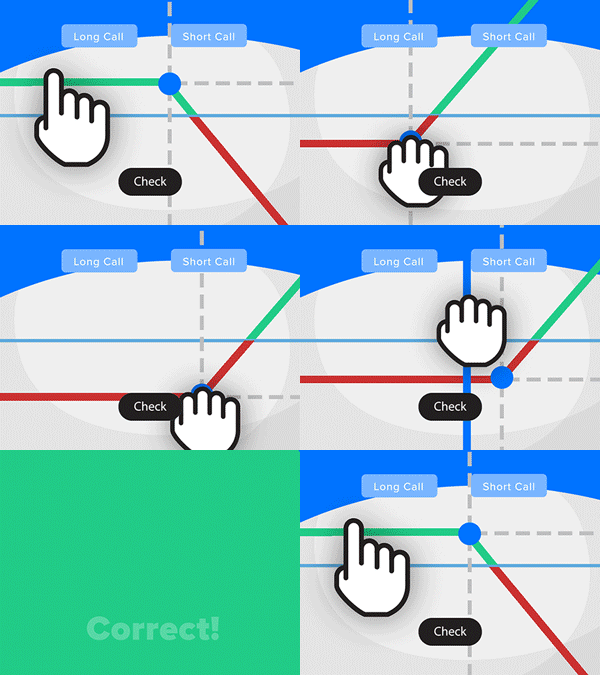
- Solve real problems with our hands-on interface
- Progress from basic puts and calls to advanced strategies
Interactive Options Course
Lesson 2 of 16
New to Interactive Brokers?
ScaleTrader is a sophisticated trading algorithm within Interactive Brokers’ platform that helps traders scale into large positions efficiently. The essence behind the algorithm is that it allows investors to buy at decreasingly lower prices or sell at increasingly higher prices. ScaleTrader can be used to buy or sell positions in single instruments, pair trades, or combinations. Investors can use ScaleTrader to trade Stocks, ETFs, Options, Futures, FOPs, Currencies, Bonds, and Warrants.
In this example, the investor will use ScaleTrader to create an order to buy shares in Costco and sell Walmart shares as the price differential between the two changes.
An investor may decide that the fortunes of two competing companies, as portrayed by their respective market capitalizations, are about to change. The basic idea is that the share price of Company A will outpace that of Company B over time. The investor may position for such a move by buying shares in Company A while at the same time selling shares in Company B. Such moves might occur following a period of underperformance by Company A relative to either the broad market or to its industry peers. It could be the result of management change or the release of a new product. Such under or out performance may happen rapidly or slowly over time. Investors could design pairs positions with the intention of profiting from such relative performance in mind.
In the following example, shares of Costco are more expensive than those of Walmart by a factor of about tenfold. As we set up the trade in ScaleTrader, we need to allow for that factor.
ScaleTrader can be accessed in Mosaic by clicking on the New Window button, scrolling down to More Advanced Tools, and selecting ScaleTrader. Once the ScaleTrader window appears, the investor will click on the Pairs tab and click on “Edit Pair” on the upper right-hand side. First the investor fills in the Buy side underlying with COST and selects stock; next, they type in WMT and select stock in the sell side underlying.
The investor then selects the pricing method:
In this scenario, the investor is going to use the select net amount, click on create the pair. It’s important to note that the combo can only be executed as non-guaranteed. As noted earlier Costco’s price is roughly 10 times that of Walmart’s, so the investor adjusts the component size accordingly, first they put in one for Costco and 10 for Walmart to show the difference in the ratio. However, using this for the actual component is not practical since it would be submitting very small trades so they change Costco to 100 and Walmart to 1,000. Notice that the chart has updated to reflect this multiplier.
Next, the investor inputs the maximum position that they are willing to trade. They enter 10,000 for Costco and the Walmart position automatically updates to 100,000 to keep the ratio constant. The investor can select the starting price either by typing it in or selecting a spot on the chart, and a blue line will appear to mark it. Since this is a buy order the top price will match the starting price and represents the highest price that the Scaletrader will submit an order for. They can then either move the green line to the bottom price and ScaleTrader will calculate the price increment or enter a price increment and ScaleTrader will calculate the bottom price. They choose to use 50 cents for the increment, and the bottom price is calculated.
The investor chooses the order type, Limit and Market, which submits one or both sides as a limit order and once the first leg is filled, the second is submitted as a market order. The investor sets the Time in Force to GTC by clicking on the TIF tab and selecting GTC from the drop-down menu. Once done, click back on the Scale Tab.
The investor is going to use the auto price adjustment feature for this order. This auto price adjustment modifies the order price based on time intervals when trades aren’t immediately filled, helping to improve execution rates by gradually adjusting to market conditions. The investor will set it for 10 cents every two minutes, and they have to set the Limit price value above the starting price.
ScaleTrader also allows the investor to set a profit taking order. This feature is discussed in detail in the video lesson, “ScaleTrader – Setting Profit Taking Orders”.
There is a Summary of the order information underneath the chart. This also shows the number of price levels, average price, the total dollar amount of the order, and the range of the order in dollar and percentage terms.
When ready, the investor clicks on the Transmit button at the bottom of the screen and an Order Confirmation window appears. Once they review, they can click on Transmit and ScaleTrader is activated. The order will be displayed in the Activity panel, and ScaleTrader specific data columns may be added by clicking on the gear icon and selecting, Choose from Auto Adjust Limit Price, Initial Component Size, Scale Increase, Scale Profit Offset, Scale Progress, and Subsequent Completion Size.
ScaleTrader’s pair trading functionality allows the investor to execute simultaneous trades in two correlated securities, automatically buying one stock while selling another at predefined price differences. All stock-stock pair combinations must be traded as non-guaranteed orders, and the scale chart displays the price difference between the two contracts over time, helping the investor monitor and adjust their pair trading strategy
The analysis in this material is provided for information only and is not and should not be construed as an offer to sell or the solicitation of an offer to buy any security. To the extent that this material discusses general market activity, industry or sector trends or other broad-based economic or political conditions, it should not be construed as research or investment advice. To the extent that it includes references to specific securities, commodities, currencies, or other instruments, those references do not constitute a recommendation by IBKR to buy, sell or hold such investments. This material does not and is not intended to take into account the particular financial conditions, investment objectives or requirements of individual customers. Before acting on this material, you should consider whether it is suitable for your particular circumstances and, as necessary, seek professional advice.
The views and opinions expressed herein are those of the author and do not necessarily reflect the views of Interactive Brokers, its affiliates, or its employees.
The order types available through Interactive Brokers LLC's trading platforms are designed to help you limit your loss and/or lock in a profit. Market conditions and other factors may affect execution. In general, orders guarantee a fill or guarantee a price, but not both. In extreme market conditions, an order may either be executed at a different price than anticipated or may not be filled in the marketplace.









Join The Conversation
For specific platform feedback and suggestions, please submit it directly to our team using these instructions.
If you have an account-specific question or concern, please reach out to Client Services.
We encourage you to look through our FAQs before posting. Your question may already be covered!