- Solve real problems with our hands-on interface
- Progress from basic puts and calls to advanced strategies
Interactive Options Course
Lesson 5 of 6
New to Interactive Brokers?
In this lesson, we will review how to configure general order settings, specify SMART routing defaults and select favorite IB Algos to be displayed within Trader Workstation or TWS in order to better suit your trading needs and preferences. These items can all be managed within Global Configuration and are available in either Mosaic or Classic TWS, although certain items may be specific to just Mosaic or Classic TWS.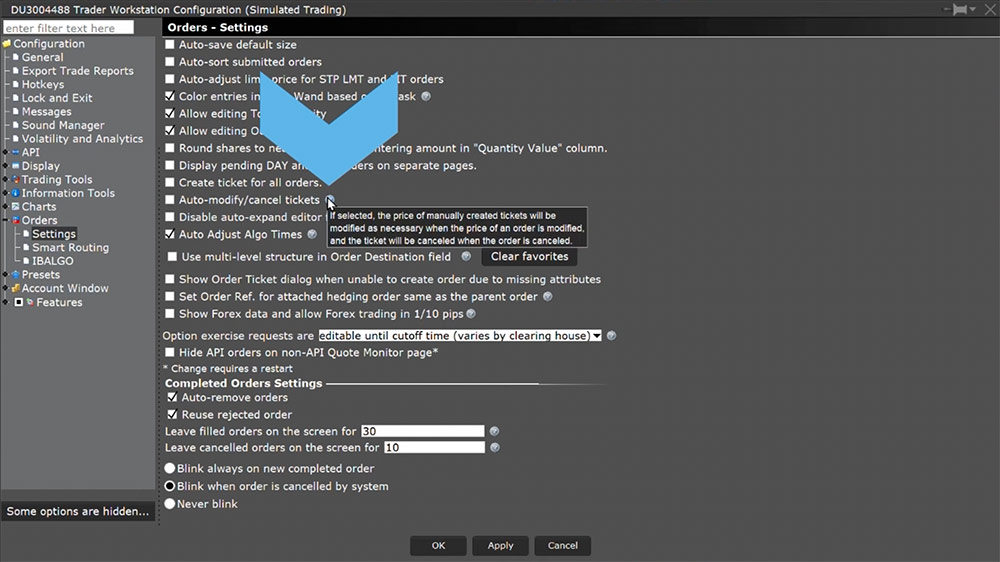 As an example, I can select to display the order destinations using collapsible categories to display the order destinations instead of a list without categories. Currently, the Order Destinations are displayed in a single list. However, I can navigate to Global Configuration and select Orders then Settings and check the box next to Use multi-level structure in Order Destination field. Now, within the order entry, the order destinations are broken into collapsible categories for Smart Routing, Direct Routing or Algorithms. Next, we will focus on the configurations available for IBKR’s SMART routing algorithm. The IBKR SMART routing algorithm seeks to achieve the best overall price and continuously evaluates fast changing market conditions and dynamically re-routes all or parts of your order seeking to achieve optimal execution. For IBKR PRO clients who want even more control of their orders, you can specify different stock and options SMART routing strategies for non-marketable orders within TWS based on your trading objectives. Note, these configurations are only available to IBKR PRO customers. Under the Orders page within Global Configuration, select Smart Routing. For Stock and Warrant orders only, you can elect to have the Smart Routing algorithm bypass all dark pool destinations by checking the box to the left of Do not route to dark pools.
 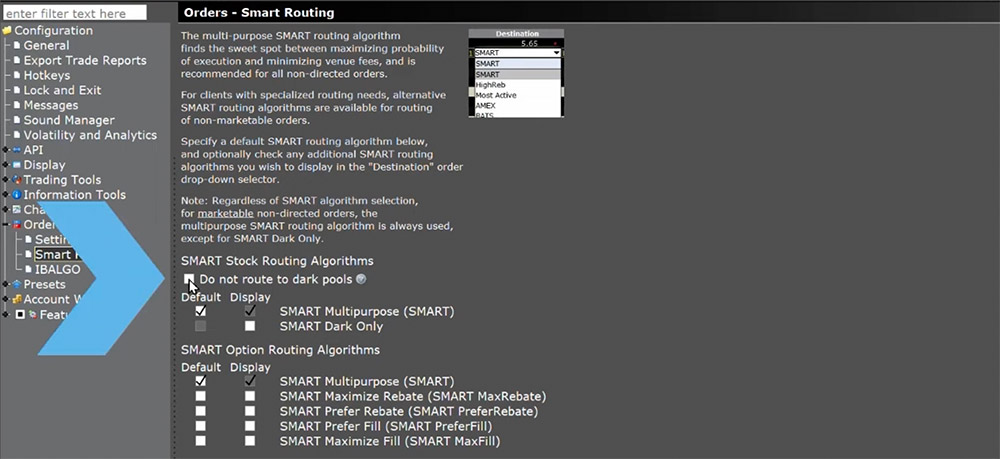 Additionally, you can choose from a list of different Smart Routing strategies to complement your own trading strategy.
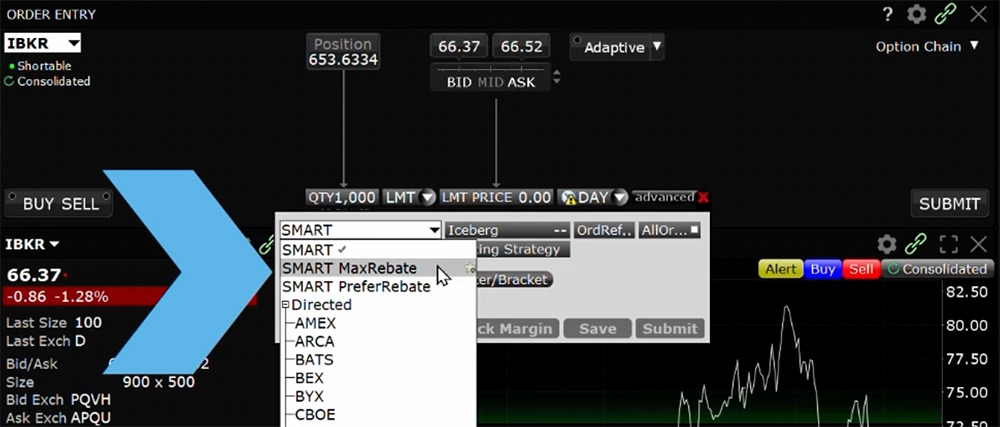 Within TWS, traders also have the ability to select their favorite IB Algorithm order types which will display the algo directly from the Order Type drop down box in the Order Entry. This will eliminate one full click when selecting the algo. When the algo is not a favorite, you need to select IBALGO from the Order Type drop down and then click on the algo. Currently, I do not have any favorites configured for algos. In the Order Type drop down, I need to click IBALGO in order to see the list of available algos and click on the algo I would like to use.
 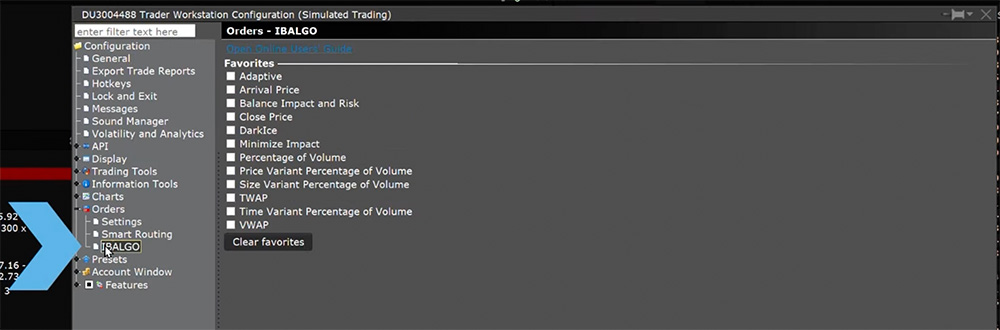 Now, I will configure a few favorites from Global Configuration and select Orders then IBALGO on the left side menu. I will check the boxes for Adaptive, TWAP and VWAP. Once satisfied, click Apply then OK to activate the changes. In the Order Type drop down, you can now see that Adaptive, TWAP and VWAP are now listed directly in the drop down and the other algos that were not selected as Favorites are still located under IB Algo. As we have reviewed, Trader Workstation allows for customization of an array of order settings to better suit your trading needs.
The analysis in this material is provided for information only and is not and should not be construed as an offer to sell or the solicitation of an offer to buy any security. To the extent that this material discusses general market activity, industry or sector trends or other broad-based economic or political conditions, it should not be construed as research or investment advice. To the extent that it includes references to specific securities, commodities, currencies, or other instruments, those references do not constitute a recommendation by IBKR to buy, sell or hold such investments. This material does not and is not intended to take into account the particular financial conditions, investment objectives or requirements of individual customers. Before acting on this material, you should consider whether it is suitable for your particular circumstances and, as necessary, seek professional advice.
The views and opinions expressed herein are those of the author and do not necessarily reflect the views of Interactive Brokers, its affiliates, or its employees.











Join The Conversation
For specific platform feedback and suggestions, please submit it directly to our team using these instructions.
If you have an account-specific question or concern, please reach out to Client Services.
We encourage you to look through our FAQs before posting. Your question may already be covered!