- Solve real problems with our hands-on interface
- Progress from basic puts and calls to advanced strategies
Interactive Options Course
The article “How to Set Up Interactive Brokers and ORATS in Claude” was originally published on ORATS blog.
Connect your IBKR account to Claude, add ORATS options data in Claude Code, and have Claude stage a trade for you to review.
Summary
A step-by-step guide to connecting the Interactive Brokers connector in Claude and installing the ORATS CLI in Claude Code. Once both are set up, Claude can check IBKR positions against ORATS implied volatility, search pre-run backtests for the best-ranked strategies, and stage option order instructions that wait in IBKR until you submit or reject them.
If you trade options at Interactive Brokers, you can connect your account to Claude and give it ORATS options data to work with. Claude can then check your positions against ORATS implied volatility, look up what has worked in past markets, and stage an order instruction in your account for you to review. This guide walks through the setup one step at a time.
The setup has two parts. First you connect Interactive Brokers to your Claude account. Then you install Claude Code and the ORATS CLI on your computer. The steps are written for a Mac, with notes where Windows is different.

The two parts of the setup.
This part happens in your Claude account, so you only do it once. Claude Code picks it up later.
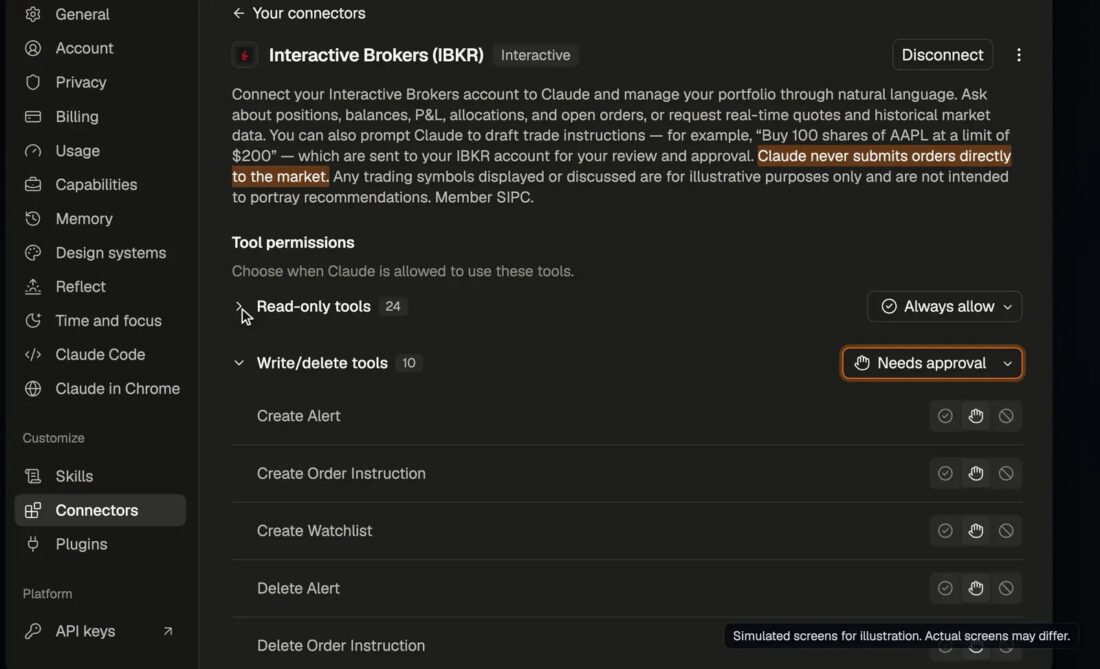
The connector’s page in Claude, with write and delete tools set to Needs approval. The screens shown here are simulated, and yours may look different.
Once you’re connected, Claude can read your positions, balances and orders, and pull market data. It can draft order instructions, but it can’t place orders. The connector’s description says, “Claude never submits orders directly to the market.” An instruction shows up in IBKR Desktop under Portfolio > AI Instructions. Nothing goes to the market until you click Review & Submit, and Reject removes it.
To disconnect later, click Disconnect on the connector’s page in Claude. You can also revoke access in the IBKR Portal: click the head-and-shoulders icon at the top right, then Settings > Manage Third-Party Consents > Revoke Access. IBKR’s AI Instructions guide and its webinar AI-Powered Portfolio Insights: Connecting Claude to IBKR go into more detail on the connector.
This part happens on your computer. Claude Code runs Claude in your terminal, where it can use command-line tools like the ORATS CLI. Open Terminal (press Cmd+Space and type Terminal), then work through these steps. On Windows, use PowerShell, which you can open from the Start menu.
1. Install Claude Code. Skip this if you already have it.
bash
curl -fsSL https://claude.ai/install.sh | bash
On Windows, run irm https://claude.ai/install.ps1 | iex instead.
2. Check your Node version.
bash
node -v
You need version 22 or later. If you don’t have Node, get the LTS installer from nodejs.org, then open a new Terminal window.
3. Install the ORATS CLI.
bash
npm install -g @orats/cli
It finishes with a single line such as “added 38 packages in 3s.”
4. Install the ORATS skill.
bash
orats skills
The skill teaches Claude what each ORATS field means and which data answers which question. The command saves the skill to ~/.agents/skills/orats and links it into Claude Code if a ~/.claude folder exists. The installer in step 1 creates that folder, which is why Claude Code goes in first. On Windows, turn on Developer Mode before you run it (Settings > System > For developers on Windows 11, or Update & Security > For developers on Windows 10).

The end of step 1, then steps 2 through 4.
5. Save your ORATS API token. Copy your token from the API Console in your ORATS account. Then run the line below with your token in place of paste-your-token-here, keeping the quotes:
bash
echo 'export ORATS_TOKEN=paste-your-token-here' >> ~/.zshrc
Nothing prints, which is normal. Open a new Terminal window (Cmd+N) so the token loads. If your shell is bash, use ~/.bash_profile on a Mac or ~/.bashrc on Linux instead of ~/.zshrc. On Windows, run setx ORATS_TOKEN “paste-your-token-here” and open a new PowerShell window.
6. Start Claude Code in a working folder. First make a folder for your trading work and move into it:
bash
mkdir -p ~/trading && cd ~/trading
On Windows, use mkdir $HOME\trading; cd $HOME\trading. Then start Claude Code:
bash
claude
When it asks for a login method, choose Claude account with subscription, then sign in with the same Claude account you connected to Interactive Brokers. A browser window opens, and you click Authorize. Back in Terminal, press Return through the welcome screens and choose Yes, I trust this folder.
7. Check that Interactive Brokers is there. Type /mcp. You should see claude.ai Interactive Brokers (IBKR) in the list. Connectors you add to your Claude account are available in Claude Code when you sign in with that same account.

The /mcp list in Claude Code, showing the Interactive Brokers connector.
8. Test ORATS. Ask Claude something only ORATS would know:
What's SPX's 30-day implied vol?
If Claude runs an orats command and gets a number back, the CLI and your token are working. Claude Code asks before it runs a new kind of command. Choose Yes, and don’t ask again for the ones you trust; it may ask once for each kind of orats command. For Interactive Brokers tools that create or delete something, such as order instructions, choose Yes instead, so Claude Code asks every time.

Claude runs an ORATS command and answers with SPX’s 30-day implied volatility (ORATS end-of-day data, September 24, 2026).
npm shows EACCES or another permission error. Don’t use sudo. Point npm at a folder you own, open a new window, and run the install again:
bash
mkdir -p ~/.npm-global && npm config set prefix ~/.npm-global && echo 'export PATH="$HOME/.npm-global/bin:$PATH"' >> ~/.zshrc
A Node version manager such as nvm, fnm or Volta also avoids this.
“orats: command not found.” Open a new Terminal window. If it still fails, run npm prefix -g and make sure the bin folder inside that path is on your PATH.
ORATS commands fail with an auth error. Run echo $ORATS_TOKEN (on Windows, echo $env:ORATS_TOKEN). If it prints nothing, open a new window or run source ~/.zshrc. If it prints paste-your-token-here, run open -e ~/.zshrc, replace the placeholder with your token, save the file, and open a new window.
A command says your plan doesn’t include it. The Backtest Finder needs an ORATS Tools API subscription, and live data needs the live-data agreement in the API Console.
Interactive Brokers isn’t in the /mcp list. Make sure Claude Code is signed in with a Claude subscription account, the same one that has the connector. If you see “Show unused connectors,” choose it.
Here is one request typed into Claude Code:
Check my positions against ORATS. Find what’s worked in a market like this. Stage the top-ranked idea for my review.
Claude works through it in three steps. The account in this example is a paper account with made-up positions. The ORATS numbers are real data from September 24, 2026, and they will have changed by the time you read this.
1. Check the positions. Claude pulls your positions from Interactive Brokers and runs ORATS commands to compare each name’s 30-day implied volatility with ORATS’s volatility forecast. In this example, Micron had earnings coming the next week, and its options were pricing in a move of about 7.9%. Netflix’s implied volatility was 1.42 times the forecast, which looks expensive. With earnings taken out, the ratio was 1.02, in line with the forecast.
2. Find what’s worked in a market like this. ORATS has already run more than 300 million backtests. Claude asks the Backtest Finder for its best-ranked short put spreads on the S&P 500 index (SPX). The top one: sell a put between 27 and 40 delta (aiming for 33), buy a put between 2 and 10 delta, 15 to 39 days out, and hold to expiration. The backtest opens a new spread on each day that qualifies, with up to 27 open at once. Claude also pointed out its worst stretch. All 13 spreads that expired in January 2008 lost money, $98,968 against $101,529 of maximum risk.
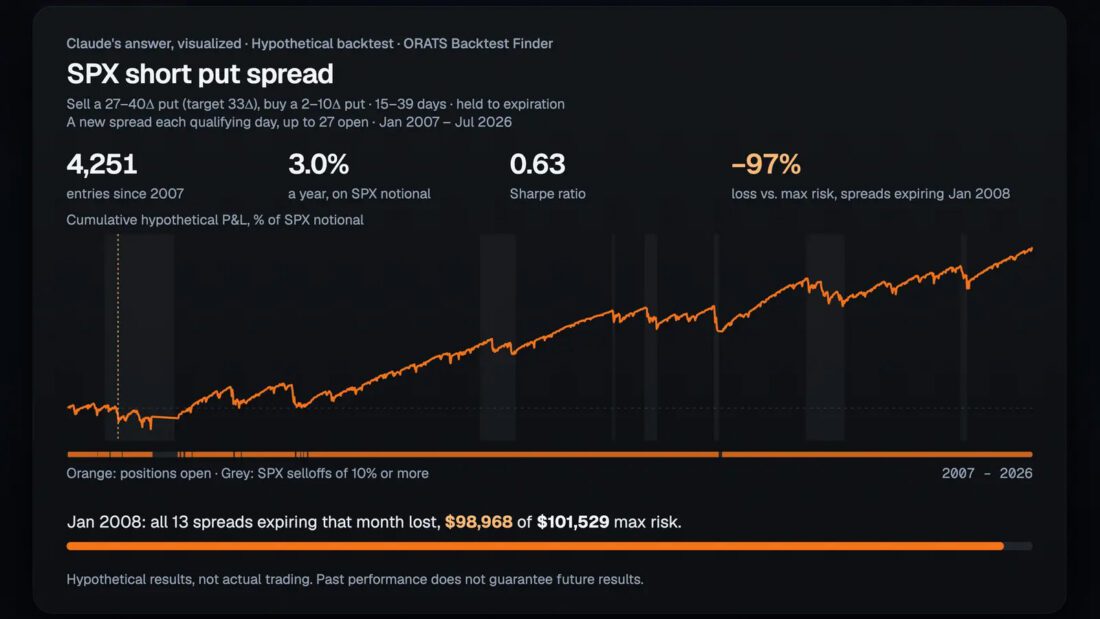
Claude’s summary of the best-ranked Backtest Finder result, shown as a chart. Hypothetical backtested results, not actual trading. The best result from a large set of pre-run backtests tends to overstate future results, and returns are shown as a percentage of SPX notional. Past performance does not guarantee future results.
3. Stage the trade. Claude finds a spread that fits the backtest’s rules today and checks it against your account. Here, that was one SPX October 19, 2026 7625/7100 put spread at a limit credit of $52.30, or $5,230. The most it can lose is $47,270, about 11% of the example account. Claude asks before it stages anything. Review it in IBKR Desktop under AI Instructions.

The staged instruction in IBKR Desktop’s AI Instructions tab (paper account, simulated screen). Example only, not a recommendation.
Claude Code can also take on longer research jobs. For example, “Stress-test my book against every major selloff since 2007. Where does it break?” was split across five agents working in parallel, and the answer came back in about five minutes. Replaying 2008 on today’s weights, the example account’s stocks fell about 65% from peak to trough, and Nvidia made up about 40% of that drop. The test covers stock positions only and isn’t a forecast.
Two follow-ups to try. Ask them in the same session, after the backtest search, and swap in a stock you hold for NVDA:
Run orats –help to see the rest of what the CLI covers. Check the numbers before you trade. Claude can make mistakes, and backtests are hypothetical.
Already an Interactive Brokers Client?
New to Interactive Brokers?
The opinions and ideas presented herein are for informational and educational purposes only and should not be construed to represent trading or investment advice tailored to your investment objectives. You should not rely solely on any content herein and we strongly encourage you to discuss any trades or investments with your broker or investment adviser, prior to execution. None of the information contained herein constitutes a recommendation that any particular security, portfolio, transaction, or investment strategy is suitable for any specific person. Option trading and investing involves risk and is not suitable for all investors.
All opinions are based upon information and systems considered reliable, but we do not warrant the completeness or accuracy, and such information should not be relied upon as such. We are under no obligation to update or correct any information herein. All statements and opinions are subject to change without notice.
Past performance is not indicative of future results. We do not, will not and cannot guarantee any specific outcome or profit. All traders and investors must be aware of the real risk of loss in following any strategy or investment discussed herein.
Owners, employees, directors, shareholders, officers, agents or representatives of ORATS may have interests or positions in securities of any company profiled herein. Specifically, such individuals or entities may buy or sell positions, and may or may not follow the information provided herein. Some or all of the positions may have been acquired prior to the publication of such information, and such positions may increase or decrease at any time. Any opinions expressed and/or information are statements of judgment as of the date of publication only.
Day trading, short term trading, options trading, and futures trading are extremely risky undertakings. They generally are not appropriate for someone with limited capital, little or no trading experience, and/ or a low tolerance for risk. Never execute a trade unless you can afford to and are prepared to lose your entire investment. In addition, certain trades may result in a loss greater than your entire investment. Always perform your own due diligence and, as appropriate, make informed decisions with the help of a licensed financial professional.
Commissions, fees and other costs associated with investing or trading may vary from broker to broker. All investors and traders are advised to speak with their stock broker or investment adviser about these costs. Be aware that certain trades that may be profitable for some may not be profitable for others, after taking into account these costs. In certain markets, investors and traders may not always be able to buy or sell a position at the price discussed, and consequently not be able to take advantage of certain trades discussed herein.
Be sure to read the OCCs Characteristics and Risks of Standardized Options to learn more about options trading.
Information posted on IBKR Campus that is provided by third-parties does NOT constitute a recommendation that you should contract for the services of that third party. Third-party participants who contribute to IBKR Campus are independent of Interactive Brokers and Interactive Brokers does not make any representations or warranties concerning the services offered, their past or future performance, or the accuracy of the information provided by the third party. Past performance is no guarantee of future results.
This material is from ORATS and is being posted with its permission. The views expressed in this material are solely those of the author and/or ORATS and Interactive Brokers is not endorsing or recommending any investment or trading discussed in the material. This material is not and should not be construed as an offer to buy or sell any security. It should not be construed as research or investment advice or a recommendation to buy, sell or hold any security or commodity. This material does not and is not intended to take into account the particular financial conditions, investment objectives or requirements of individual customers. Before acting on this material, you should consider whether it is suitable for your particular circumstances and, as necessary, seek professional advice.
Options involve risk and are not suitable for all investors. For information on the uses and risks of options, you can obtain a copy of the Options Clearing Corporation risk disclosure document titled Characteristics and Risks of Standardized Options by going to the following link ibkr.com/occ. Multiple leg strategies, including spreads, will incur multiple transaction costs.
Interactive Brokers does not guarantee the accuracy or completeness of the data and information provided through the AI service that you choose independently. Information provided using AI integration is not investment advice or a recommendation from Interactive Brokers. Interactive Brokers is not responsible for any investment decision you take in reliance on information generated through the AI integration. You should independently verify information before more making any trading or investment decisions. The Instructions are created based on information provided by your AI service and may not be accurate or reflect what you wish to do. You are responsible for carefully reviewing the Instructions, editing them as appropriate, and deciding if you wish to convert your Instruction to an order on the IBKR platform. All trademarks, logos, and brand names are the property of their respective owners and are used for identification purposes only and does not imply endorsement.
Please keep in mind that the examples discussed in this material are purely for technical demonstration purposes, and do not constitute trading advice. Also, it is important to remember that placing trades in a paper account is recommended before any live trading.
The order types available through Interactive Brokers LLC's trading platforms are designed to help you limit your loss and/or lock in a profit. Market conditions and other factors may affect execution. In general, orders guarantee a fill or guarantee a price, but not both. In extreme market conditions, an order may either be executed at a different price than anticipated or may not be filled in the marketplace.
For specific platform feedback and suggestions, please submit it directly to our team using these instructions.
If you have an account-specific question or concern, please reach out to Client Services.
We encourage you to look through our FAQs before posting. Your question may already be covered!









I got this web page from my buddy who shared with me on the topic of this web site and at the moment this time I am visiting
this web site and reading very informative articles or reviews at
this place.