- Solve real problems with our hands-on interface
- Progress from basic puts and calls to advanced strategies
Interactive Options Course

Posted March 7, 2025 at 10:43 am
The post “GrapheneX: An Introductory Guide to System Hardening” was originally published on AlgoTrading101 blog,
The author of this article is not affiliated with Interactive Brokers. This software is in no way affiliated, endorsed, or approved by Interactive Brokers or any of its affiliates. It comes with absolutely no warranty and should not be used in actual trading unless the user can read and understand the source. The IBKR API team does not support this software.
Table of contents:
GrapheneX is a framework developed for Linux and Windows users that are interested in hardening their devices.
In computing, hardening is the process of securing a system by reducing the potential points of vulnerability.
GrapheneX is used for hardening and securing Windows and Linux systems automatically through various commands and modules. GrapheneX also features a GUI that can be used for improving your security.
Yes, GrapheneX is an open-source project and thus completely free.
To get started with GrapheneX, you will need to install the framework to your device. There are a couple of ways that we can perform this action. The first way is through Python’s pip package manager and the second one is with Docker.
I’ll personally install it the Python way and use the Linux Ubuntu distro as this is what you will most often use for trading, especially on the cloud. To install GrapheneX with pip, we run the following command:
pip install graphenex
Collecting graphenex
  Downloading GrapheneX-1.3.1-py3-none-any.whl (1.5 MB)...
If you face any issues, you can try this command too:
python3 -m pip install graphenex
To install GrapheneX with Docker, we first need to clone the GitHub repository by running the following command:
sudo git clone https://github.com/grapheneX/grapheneX.git
After that, we can build and run the Docker image:
docker build -t graphenex .
docker run --rm --name graphenex -p 8080:8080 --privileged graphenex
To start GrapheneX from the CLI, we run sudo grapheneX. If it doesn’t start, you might need to cd to where it is executable by running cd /home/USERNAME/.local/bin. Then run ./graphenex. If you are using Ubuntu 22.04 and facing issues, visit this example guide.
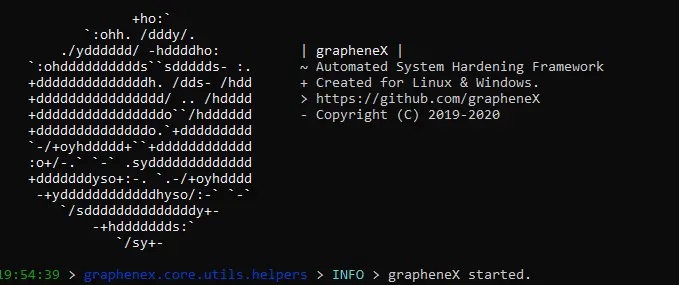
If you want to use the command line, the main arguments of GrapheneX are these:
positional arguments:
  host:port      host and port to run the web interface

optional arguments:
  -h, --help     show this help message and exit
  -v, --version  show version information
  -w, --web      run the grapheneX web server
  --open         open browser on web server start
I’m more interested in the GUI and you might be too, so let us start it up.
To use the GrapheneX web GUI, we write python -m graphenex -w. This will start a server on port 8080 that you can access by clicking this URL. Moreover, you will get a special access token that you will use to be able to access the GUI.
GrapheneX presets are scripts that contain particular modules for automating the hardening operations. Presets can be customized with the modules.json file and they can contain any supported module.
The preset command shows the available module presets and preset [PRESET] runs the hardening commands in a preset.
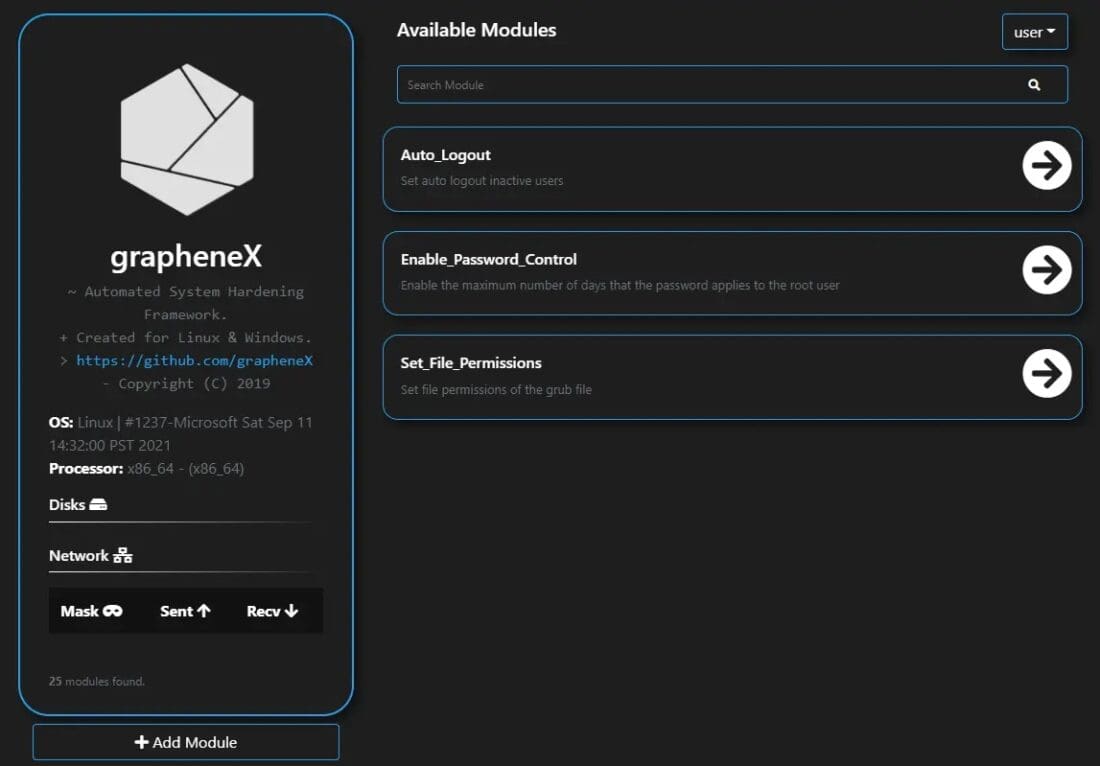
You will notice that your GUI features several modules that have to do with different categories of your system such as the user, network and etc. To add a new module, you can edit the modules namespaces in the modules.json file.
When a new element is created in the JSON file, it will show up as a new module. An example looks like the following:
"namespace": [
        {
            "name": "Module_Name",
            "desc": "module description.",
            "command": "echo 'hardening command'",
            "require_superuser": "True/False",
            "target_os": "linux/win"
        }
    ]
You can also add modules through the GUI by clicking the “Add Module” button in the lower left side of your screen. It is highly recommended to use either the CLI or GUI for adding modules and not editing the modules.json file directly.
To harden and secure your system user with GrapheneX, navigate to the user tab and click on the modules you want to enable. When you click on them, execute the run command that will enable this feature for your system.
To harden your trading server, I recommend enabling all three modules (Auto_Logout, Enable_Password_Control, and Set_File_Permissions). This will ensure that you are logged out after a period of inactivity, that your passwords are rotated, and that the file permissions are adequate.
To harden and secure your system network with GrapheneX, navigate to the network tab and click on the modules you want to enable. When you click on them, execute the run command that will enable this feature for your system.
Here, you will want to be careful when enabling features as your system might need some of them depending on your trading instance architecture. Because most traders only use one instance for trading with their cloud providers, I will enable the following modules:
There are more modules that you might want to explore and do research on. It all depends on what you’re aiming for.
To harden and secure your system network with GrapheneX, navigate to the services tab and enable the modules of your liking. I’ll personally enable both of them.
The Syslog Service will enable logging for our system so that those logs can be inspected and scanned for any malicious activity. The Set Permissions Preload File module will set permissions of the sysctl preload/configuration file.
To harden and secure your system network with GrapheneX, navigate to the kernel tab and enable the modules of your liking. I’ll personally enable all of them.
These modules will restrict access to our log files and also restrict pointers. They will also enable system protection and randomize memory to reduce the risk of memory attacks and corruption. These are some standard kernel hardening procedures that everyone should have enabled.
To harden and secure your system network with GrapheneX, navigate to the filesystem tab and enable the modules of your liking. I’ll personally enable both of them.
The Hard/Soft Link Protection secures our system from common exploits to these links. First, let’s cover what they are.
A soft link is a link to the original file, whilst a hard link is a mirror copy of the original file. If you delete the original file, the soft link has no value, because it points to a non-existent file. But in the case of hard link, it is the opposite.
A common vulnerability is the symlink race. It comes about when a program insecurely creates files (e.g., temporary files), and a malicious system user can create a symbolic (soft) link to such a file.
Disable Uncommon FS will disable filesystems that aren’t commonly used. If you are an average trader that doesn’t tinker with your filesystems, you shouldn’t face any issues by enabling this module.
To harden and secure your SSH presets with GrapheneX, navigate to the other tab and enable the modules of your liking. I’ll personally enable both of them.
These will disable the option to login directly as root via SSH and force us to use keys (e.g., pem keys) for our SSH authentications. This is a very important best practice as you don’t wish anyone to exploit your SSH connections to a trading instance.
To learn more about GrapheneX, I suggest visiting their GitHub repository which has solid documentation.
Information posted on IBKR Campus that is provided by third-parties does NOT constitute a recommendation that you should contract for the services of that third party. Third-party participants who contribute to IBKR Campus are independent of Interactive Brokers and Interactive Brokers does not make any representations or warranties concerning the services offered, their past or future performance, or the accuracy of the information provided by the third party. Past performance is no guarantee of future results.
This material is from AlgoTrading101 and is being posted with its permission. The views expressed in this material are solely those of the author and/or AlgoTrading101 and Interactive Brokers is not endorsing or recommending any investment or trading discussed in the material. This material is not and should not be construed as an offer to buy or sell any security. It should not be construed as research or investment advice or a recommendation to buy, sell or hold any security or commodity. This material does not and is not intended to take into account the particular financial conditions, investment objectives or requirements of individual customers. Before acting on this material, you should consider whether it is suitable for your particular circumstances and, as necessary, seek professional advice.












Join The Conversation
For specific platform feedback and suggestions, please submit it directly to our team using these instructions.
If you have an account-specific question or concern, please reach out to Client Services.
We encourage you to look through our FAQs before posting. Your question may already be covered!