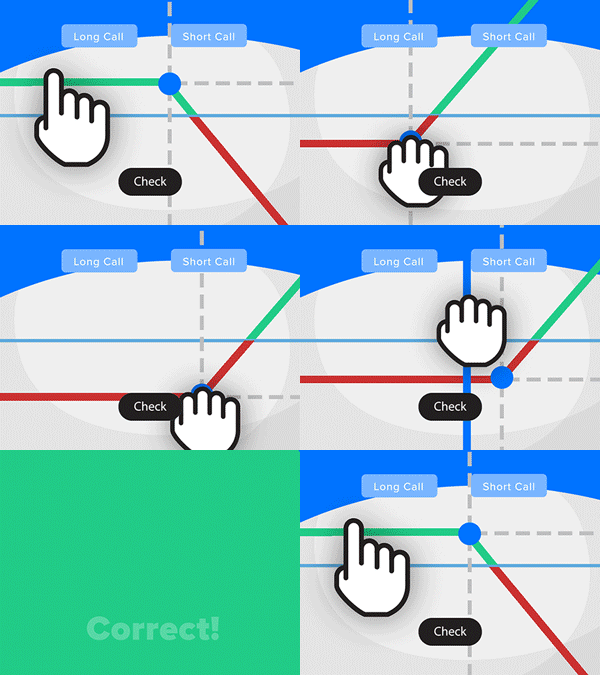
- Solve real problems with our hands-on interface
- Progress from basic puts and calls to advanced strategies
Interactive Options Course
Lesson 6 of 16
Bracket orders are designed to help limit your loss and lock in a profit by “bracketing” an order with two opposite-side orders. These two opposing child orders become active when the parent order executes, but only one of them can be triggered, and if it does, the other is immediately cancelled.
A parent BUY order is bracketed by a high-side limit order to sell – a profit-taker – and a low-side stop loss order aiming to sell in order to limit open losses.
A parent Sell order is bracketed by a low-side limit order to buy– a profit-taker – and a high-side stop loss order aiming to buy in order to limit open losses.
In this illustration, let’s assume you want to pay a specific price to buy shares in a company. Let’s say it’s the tech sector giant Amazon. Once the investor chooses the symbol and selects buy in the order window, they choose the quantity, order type, in this video lesson the investor chooses to use a limit order, and price. Please note bracket orders may not be available for all order types.
To limit any losses, this order should include a Stop Loss to sell the position at a specific price below the entry price, as well as a Profit Taking order should the share price rise to a predetermined level above the entry price. Underneath price the investor clicks on the plus sign next to “Attached Orders” and clicks on the box next to “Profit Taker” and selects a value above the parent order price, notice when the price is adjusted the profit percentage and amount is updated. Next choose the Time-in-Force, and if they would like the order to be active outside regular trading hours.
The investor then clicks the box next to Stop Loss and selects a value below the parent order price and the Time-in-force, trading is not available outside regular trading hours. When satisfied with both orders, the investor can either click the preview button to review the orders or select Submit. In this case the investor clicks preview and then clicks transmit once satisfied with the order details.
*Remember untriggered GTC orders are automatically cancelled by the system at the end of the calendar quarter following the one in which they were originally entered.
Orders can be monitored by clicking on “Orders” on the Portfolio page.
For specific platform feedback and suggestions, please submit it directly to our team using these instructions.
If you have an account-specific question or concern, please reach out to Client Services.
We encourage you to look through our FAQs before posting. Your question may already be covered!
The analysis in this material is provided for information only and is not and should not be construed as an offer to sell or the solicitation of an offer to buy any security. To the extent that this material discusses general market activity, industry or sector trends or other broad-based economic or political conditions, it should not be construed as research or investment advice. To the extent that it includes references to specific securities, commodities, currencies, or other instruments, those references do not constitute a recommendation by IBKR to buy, sell or hold such investments. This material does not and is not intended to take into account the particular financial conditions, investment objectives or requirements of individual customers. Before acting on this material, you should consider whether it is suitable for your particular circumstances and, as necessary, seek professional advice.
The views and opinions expressed herein are those of the author and do not necessarily reflect the views of Interactive Brokers, its affiliates, or its employees.
Any stock, options or futures symbols displayed are for illustrative purposes only and are not intended to portray recommendations.
The order types available through Interactive Brokers LLC's trading platforms are designed to help you limit your loss and/or lock in a profit. Market conditions and other factors may affect execution. In general, orders guarantee a fill or guarantee a price, but not both. In extreme market conditions, an order may either be executed at a different price than anticipated or may not be filled in the marketplace.








Hi, How do I set a bracket order, but for crypto currencies trading? When I want to do it with a crypto currency, I do not get options called “Profit taker” and “Stop Loss” to set my SL and TK within my desktop IB app. Thank you.