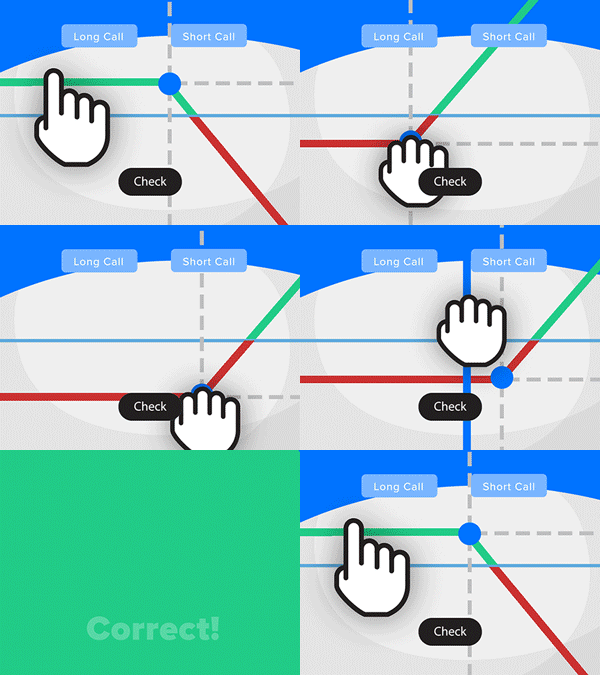
- Solve real problems with our hands-on interface
- Progress from basic puts and calls to advanced strategies
Interactive Options Course

Posted January 5, 2026 at 10:26 am

The article “Install Python and Set Up Development on Windows, macOS, Linux” was originally published on PyQuant News.
Python has surged in popularity as one of the top programming languages globally. Its readability, versatility, and vast libraries make it a favorite among developers. Whether you’re a newbie to coding or a seasoned programmer, setting up a Python development environment is essential. This guide will walk you through installing Python and configuring a development environment on Windows, macOS, and Linux to ensure a smooth start.
Python is extensively used in areas like web development, data science, and artificial intelligence. To leverage its capabilities fully, you need a well-configured Python development environment. By the end of this guide, you will have Python installed and a productive coding setup on your Windows, macOS, or Linux system.
Before you start, ensure your system meets these requirements:
python --version and press Enter to see the installed Python version..pkg file and follow the on-screen instructions to complete the installation.python3 --version and press Enter. Note that macOS comes with Python 2.x pre-installed, so ensure you’re checking for Python 3.x.sudo apt update for Debian-based distributions (e.g., Ubuntu) or sudo dnf update for Red Hat-based distributions (e.g., Fedora).sudo apt install python3.sudo dnf install python3.python3 --version and press Enter to confirm the installation.IDEs offer a comprehensive environment for coding, debugging, and project management. Popular Python IDEs include:
For those who prefer lightweight tools, text editors are a great alternative:
Anaconda package for Python-specific features.ide-python package for Python support.Creating a virtual environment helps manage dependencies and avoid conflicts between projects:
python3 -m venv myenv in your project directory. Replace myenv with your preferred environment name.myenv\Scripts\activate.source myenv/bin/activate.deactivate.sudo for administrative privileges on macOS and Linux.Setting up a Python development environment is a key step in your programming journey. By following this guide, you should now have Python installed and a robust development environment configured on your Windows, macOS, or Linux system. With the right tools and resources, you’re well on your way to becoming a proficient Python developer. Remember, continuous learning and practice are essential to mastering any programming language. Happy coding!
Information posted on IBKR Campus that is provided by third-parties does NOT constitute a recommendation that you should contract for the services of that third party. Third-party participants who contribute to IBKR Campus are independent of Interactive Brokers and Interactive Brokers does not make any representations or warranties concerning the services offered, their past or future performance, or the accuracy of the information provided by the third party. Past performance is no guarantee of future results.
This material is from PyQuant News and is being posted with its permission. The views expressed in this material are solely those of the author and/or PyQuant News and Interactive Brokers is not endorsing or recommending any investment or trading discussed in the material. This material is not and should not be construed as an offer to buy or sell any security. It should not be construed as research or investment advice or a recommendation to buy, sell or hold any security or commodity. This material does not and is not intended to take into account the particular financial conditions, investment objectives or requirements of individual customers. Before acting on this material, you should consider whether it is suitable for your particular circumstances and, as necessary, seek professional advice.










Join The Conversation
For specific platform feedback and suggestions, please submit it directly to our team using these instructions.
If you have an account-specific question or concern, please reach out to Client Services.
We encourage you to look through our FAQs before posting. Your question may already be covered!