- Solve real problems with our hands-on interface
- Progress from basic puts and calls to advanced strategies
Interactive Options Course

Posted February 13, 2026 at 11:02 am

The article “Chat with LLMs on Your R Environment” was originally posted on Ozancan Ozdemir blog.
LLM provides many advantages to the users, especially for coding. Once user had to switch the windows from the coding environment to the browser to search for the solution. But now, thanks to the newly advancements, users can chat with the LLM and get the solution for their queries on the same coding environment in R.
There are several packages publicly available in that manner on CRAN and GitHub such as chattr, tidyllm etc. Among these packages, ellmer is the one of most comprehensive one such that you can chat with almost all languages available.
ellmer is a package that creates an interface to chat with different language models. The full list alongside the key function is given below.
In this tutorial, I’ll summarize the steps of using Gemini in R using ellmer package since Google allows to use an api key for free.
There is no free account for API keys of OpenAI, the service costs by amount of data that you use. Thus, I am proceeding with Google Gemini in this tutorial, however I also provide the functions and instructions that you can also use other language models.
Step 1: Install the package from CRAN
install.packages("ellmer")library(ellmer)
Step 2: Set Up your Gemini Api Key
In order to get an api key from Google Gemini you need to create an account on Gemini first, which is most probably something you have. Then, you can visit Google AI Studio and create your api key for free of charge.
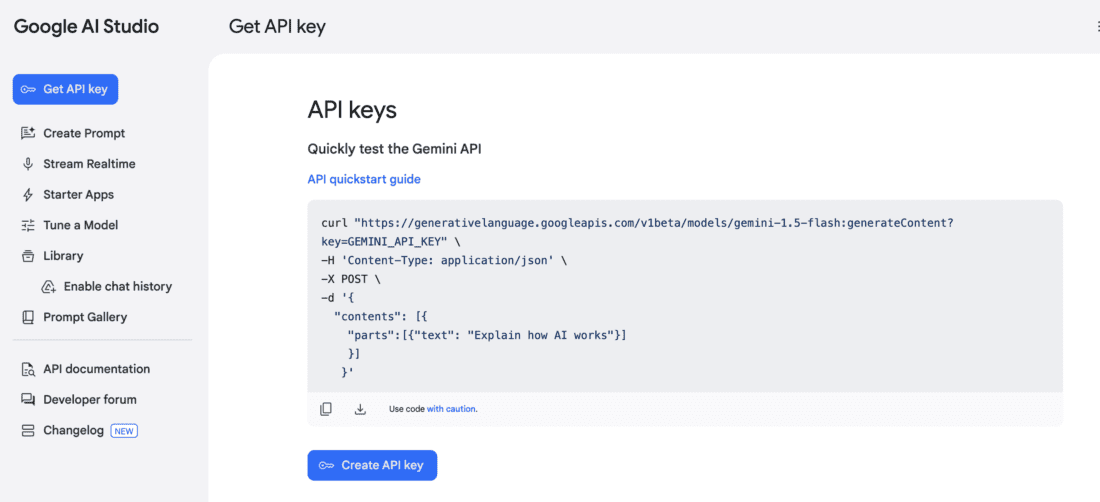
After your api key, you employ Sys.setenv() function to set your api key as follows.
google_api_key = "your_api_key"
Sys.setenv(GOOGLE_API_KEY = google_api_key)
If you would like to use other language models, the syntax that you need to use is given below.
Sys.setenv(ANTHROPIC_API_KEY = "YOUR-ANTHROPIC-API-KEY")
Sys.setenv(OPENAI_API_KEY = "YOUR-OPENAI-API-KEY")
Sys.setenv(GOOGLE_API_KEY = 'YOUR-GOOGLE-API-KEY')
Sys.setenv(MISTRAL_API_KEY = "YOUR-MISTRAL-API-KEY")
Sys.setenv(GROQ_API_KEY = "YOUR-GROQ-API-KEY")
Sys.setenv(PERPLEXITY_API_KEY = "YOUR-PERPLEXITY-API-KEY")
Step 3: Chat with your model.
After setting up your environment with your api key, you should create a chat object by using a function that is related to your model. In this tutorial, I’ll use Google Gemini, thus I’ll use chat_gemini() function.
If I used OpenAI, I would use chat_openai() function.
There are three ways of getting a response from the model for your query, but these three ways have one common point; you should create a chat object first.
chat <- chat_gemini()
chat
With this function, you activate your language model to chat. If you would like to start to get response for your query, you should call the activated model by $ function.
chat$chat("how to create a heatmap in ggplot2", echo = FALSE)Step 4: Get your answers from an interface.
As you may see above, chat object provides an answer on your R console, which is not in tidy format so that difficult to follow. If you would like to get your answer in a tidy format, you can use live_browser function.
Also see live_console()
live_browser() function opens an interactive dashboard on your viewer screen and enables you to chat with your language as on your browser. To be able to use this function, it is enough to insert your chat object as input to the function as given below.
`live_browser(chat)
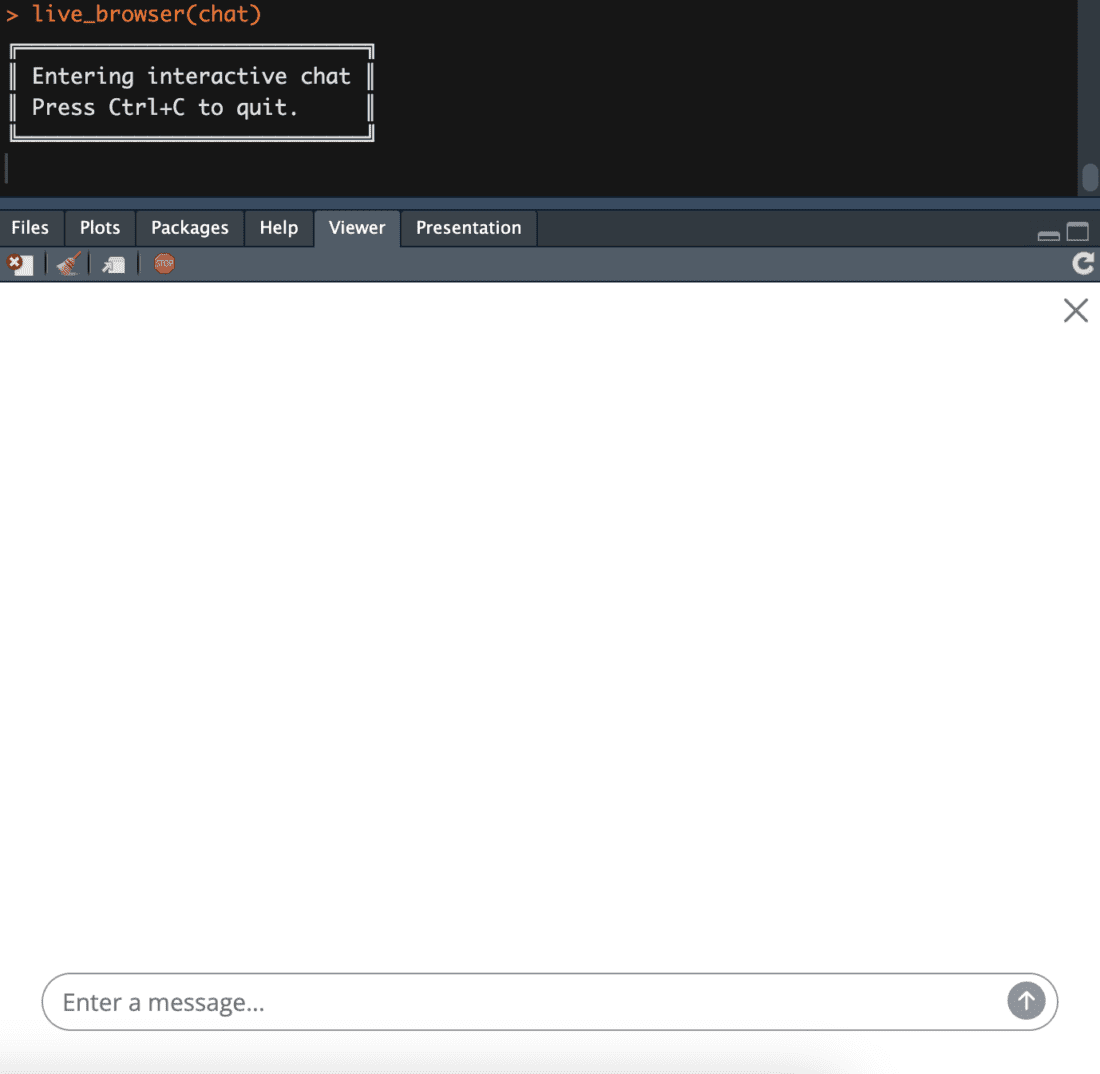
Then, write your query and get your answer.
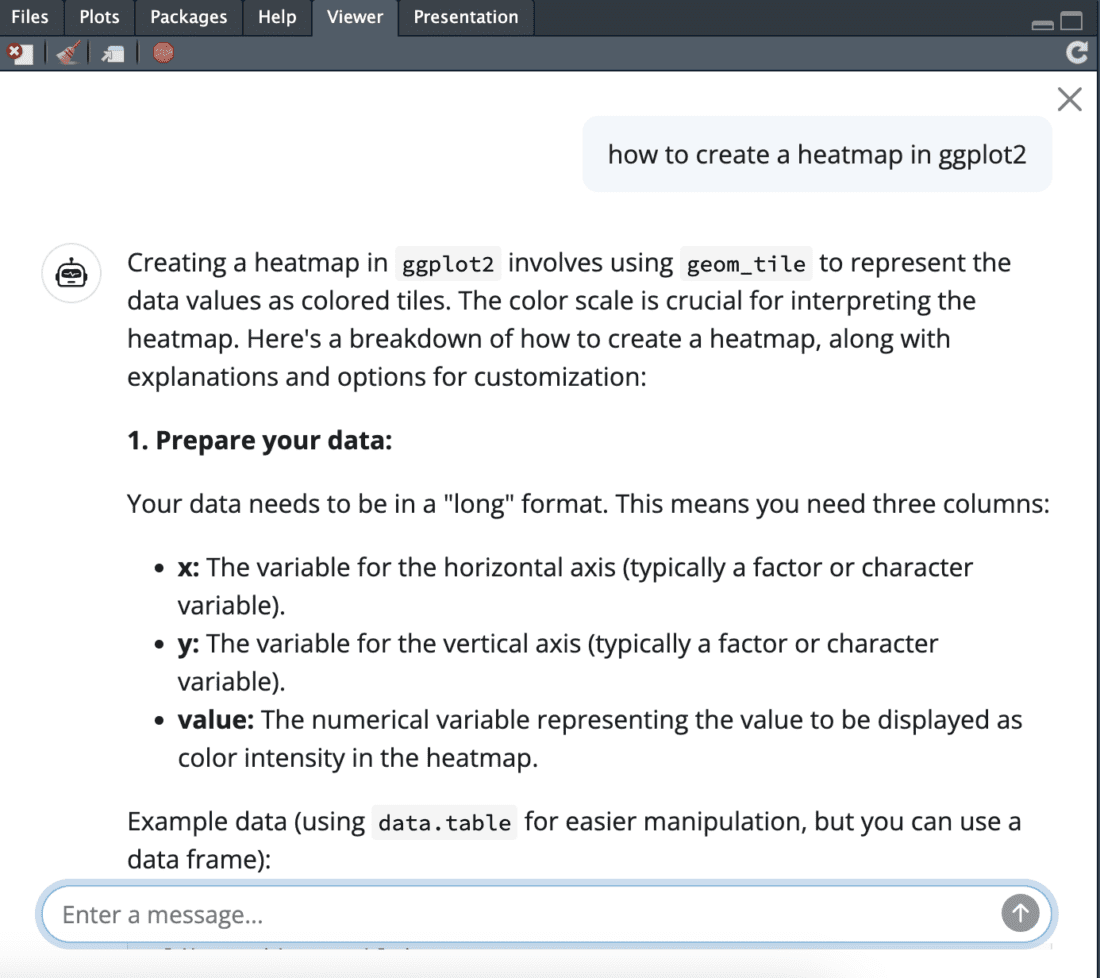
Step 5: Close your chat object
To close your browser, you may either press Esc or click on the red stop button on your viewer screen.
Information posted on IBKR Campus that is provided by third-parties does NOT constitute a recommendation that you should contract for the services of that third party. Third-party participants who contribute to IBKR Campus are independent of Interactive Brokers and Interactive Brokers does not make any representations or warranties concerning the services offered, their past or future performance, or the accuracy of the information provided by the third party. Past performance is no guarantee of future results.
This material is from Ozancan Ozdemir Blog and is being posted with its permission. The views expressed in this material are solely those of the author and/or Ozancan Ozdemir Blog and Interactive Brokers is not endorsing or recommending any investment or trading discussed in the material. This material is not and should not be construed as an offer to buy or sell any security. It should not be construed as research or investment advice or a recommendation to buy, sell or hold any security or commodity. This material does not and is not intended to take into account the particular financial conditions, investment objectives or requirements of individual customers. Before acting on this material, you should consider whether it is suitable for your particular circumstances and, as necessary, seek professional advice.
Please keep in mind that the examples discussed in this material are purely for technical demonstration purposes, and do not constitute trading advice. Also, it is important to remember that placing trades in a paper account is recommended before any live trading.








Join The Conversation
For specific platform feedback and suggestions, please submit it directly to our team using these instructions.
If you have an account-specific question or concern, please reach out to Client Services.
We encourage you to look through our FAQs before posting. Your question may already be covered!