

Refresh Rate
Microsoft RTD interface has a ThrottleInterval property that determines the interval between data refreshes. By default, the value is set to 2000 milliseconds, which means Excel waits at least 2000 milliseconds between checks for updates. You are able to manually change the Throttle Interval to a smaller value* so as to increase the refresh rate of real time data.
The easiest way to change the ThrottleInterval property is through VBA:
- In Excel, go to the Visual Basic Editor window by pressing Alt_F11.
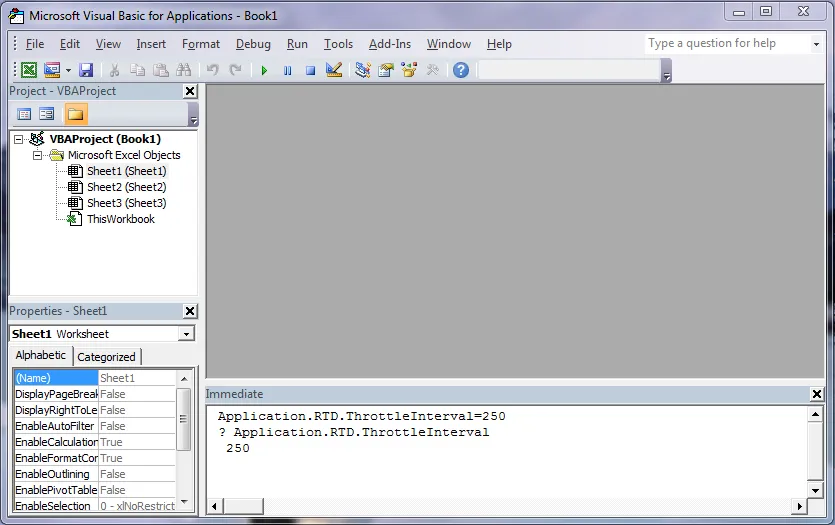
- On the Visual Basic Editor window, click on View -> Immediate Window or hold Ctrl_G to open the Immediate Window.
- On the Immediate Window, type in the following code and then click Enter:
Application.RTD.ThrottleInterval=250 - To verify that it is set correctly, type this line of code on the Immediate Window and click Enter:
? Application.RTD.ThrottleInterval - Verify the next line should display 250. If this value is changed, the new value will persist when Microsoft Excel is restarted.
*Warning: As the ThrottleInterval is lowered, updates can come in so frequently that Excel is continuously updating values and doing calculations, Excel might end up in a state where it never gives the user a chance to do anything, effectively getting in a hung state. If this happens, set the Excel throttle interval higher.
Source: Microsoft Real-Time Data: Frequently Asked Questions How Do I Configure the RTD Throttle Interval in Excel?.