OverviewCopy Location
Copy Location
Mass Upload is a streamlined process designed for Advisors and Brokers looking to efficiently transfer 20+ client accounts to Interactive Brokers (IBKR). This process eliminates the need to complete individual applications by enabling bulk account opening through specialized workbooks.
Workbook StructureCopy Location
Copy Location
IBKR provides dedicated workbooks for each supported account type:
| Account Type | Sub Types |
|---|---|
| Individual | Individual |
| Joint | Joint Tenants Tenants by Entirety Joint Tenants with Rights of Survivorship |
| Retirement | Traditional IRA Rollover IRA SEP IRA Roth IRA Inherited IRA Roth Inherited IRA |
| Trust | Revocable Testamentary Irrevocable ERISA Plan Trust Other Self Managed Super Fund |
| Organizations | Corporation LLC Partnership |
Each workbook contains multiple sheets that correspond to different application components, allowing for comprehensive data collection in a structured format.
Note: UTMA and UGMA accounts are not supported via Mass Upload. These application types can be created within your Advisor/Broker Portal > “Add Account”.
AudienceCopy Location
Copy Location
IBKR’s Mass Upload is available by request to Registered Advisors and Introducing Brokers only. This service is designed specifically for advisors and brokers conducting bulk account migrations.
Minimum Requirements
Due to the structured nature of the process—with separate workbooks required for each account type—we typically require a minimum of 20 accounts per workbook/upload to ensure operational efficiency.
- For submissions falling below this threshold, the IBKR hosted application offers a more streamlined and efficient solution.
Key BenefitsCopy Location
Copy Location
Bulk Account Creation
Create client account applications efficiently in bulk.
Prefilled Client Applications
Streamline the client onboarding experience with prefilled applications using the comprehensive data provided in your Mass Upload workbook.
Getting StartedCopy Location
Copy Location
We understand that migrating client accounts can often be complex. To assist with this transition, we have a designated Mass Upload team (massupload@interactivebrokers.com) that will support you throughout the process. To begin your Mass Upload migration, please follow the preliminary steps listed below.
Preliminary StepsCopy Location
Copy Location
- Send an email to massupload@interactivebrokers.com with the following:
- Firm Name
- Firm Role (i.e. Registered Investment Advisor OR Introducing Broker)
- IBKR Account Number (if available)
- Brief overview on migration including expected number of accounts by type, AUM, and timeline.
- A representative from our Mass Upload team will schedule a 30-minute introductory call to assess your migration needs and review the process.
- Mass Upload team will provide you with IBKR’s Mass Upload workbooks and confirm the next steps to begin the Mass Upload process.
WorkflowCopy Location
Copy Location
| Phase | Step | Description |
|---|---|---|
| Phase 1: Data Preparation | a) Workbook Completion | Counterparty completes the Mass Upload workbooks with comprehensive client data required for client account creation. |
| b) Secure Data Submission | Counterparty provides the completed Mass Upload workbooks to IBKR via email. – If IBKR requires any clarification regarding the submitted data, the Mass Upload support team will contact you directly. – Mass Upload Support Team: massupload@interactivebrokers.com Important: Ensure all mass upload workbooks are password-protected before sending via email. | |
| Phase 2: Data Processing | Workbook Processing | Once Mass Upload workbooks have been completed in good order, the Mass Upload team processes the provided workbooks under your IBKR Master Account using the information provided in each workbook. Workbooks are processed within 1-3 business days. |
| Credential Generation | Once IBKR processes the workbooks, IBKR will provide file that contains account credentials. File will contain the following: – Client ID (Established by Counterparty) – IBKR Account Numbers – Unique Usernames – Temporary Passwords | |
| Phase 3: Client Onboarding | Credential Distribution | Counterparty distributes the IBKR account credentials to their respective clients. |
| Application Completion | Clients log in to IBKR’s Hosted Application using their provided credentials to: 1. Complete remaining application steps 2. Submit their application for final review and approval Information provided in IBKR’s Mass Upload workbooks will be pre-filled in IBKR’s Fully Electronic Application. This means, the more information provided in the workbook, the less the client will be prompted to complete within the IBKR Hosted Application. |
Fully Disclosed/Advisor ClientsCopy Location
Copy Location
Supported AccountsCopy Location
Copy Location
- Individual
- Joint
- Retirement
- Trust
- Revocable
- Testamentary
- Irrevocable
- SMSF
- ERISA Plan Trust
- Organization
- Corporation
- LLC
- Partnership
Note: UTMA and UGMA accounts are not supported via Mass Upload. These application types can be created within your Advisor/Broker Portal > “Add Account”.
ACATS Transfer ConsiderationsCopy Location
Copy Location
Holding PeriodCopy Location
Copy Location
- Funds transferred via ACATS are subject to a 10-day holding period
- Important: Clients will not be able to withdraw funds during this 10-day period.
Required Minimum Distributions (RMD)
- Special attention must be paid to RMD (Required Minimum Distribution) expectations for IRA accounts being transferred to IBKR. If ACATS instructions are included in your Mass Upload workbook, ACATS requests will be triggered as soon as the client account has been approved and opened at IBKR. It is recommended that RMDs be completed prior to ACATS requests.
Security Transfers
If you plan to include ACATs instructions in your Mass Upload workbooks, we strongly recommend providing massupload@interactivebrokers.com with a comprehensive list of assets that will be transferred to Interactive Brokers. Our Mass Upload team will verify these assets in our system to ensure all securities can be accepted by IBKR, preventing potential transfer delays or rejections.
- Note: Master Limited Partnerships (MLP’s) must be liquidated prior to transfer
Fee Configuration DetailsCopy Location
Copy Location
For Advisor Clients, the client will be prompted to acknowledge Client Fees when completing the online application, avoiding the need for users to log-in after the client account has been opened.
Online StepsCopy Location
Copy Location
In this section we cover the client experience for completing the online portion of account opening following the initial upload. Estimated completion time: 10 minutes or less.
What Clients Will Need:
- Email access
- User ID and temporary password (provided by their advisor/broker)
- Mobile device (optional)
Important Notes:
- The online workflow will vary depending on account type (Individual, Joint, IRA, Organization, or Trust)
- If white-label branding is enabled, clients will see your firm’s logo and branding throughout the application; otherwise, IBKR branding will appear
- Client information entered in the mass upload workbook will be pre-populated in the online application
- Clients will have the ability to update or make changes to any fields that were provided via Mass Upload and appear as pre-populated fields within the online application
- Set Password and Complete Email Verification (Optional)
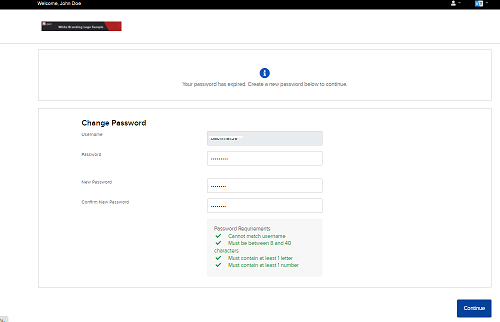
- Upon accessing IBKR Portal, user will be prompted to enter temporary password (that was included in the response file) + set new password.

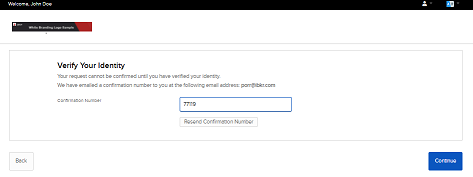
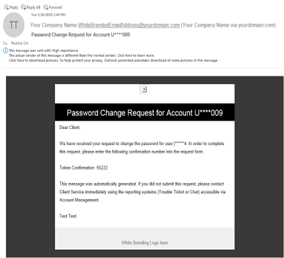
IBKR will send email confirmation toke to verify the identity. Email will be branded with your company logo and return email address.
Sample email
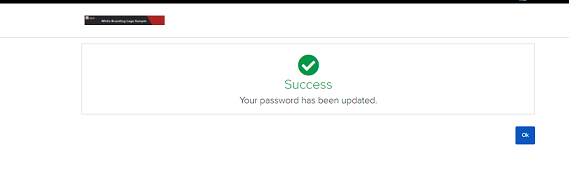
Password change has been processed. - Option 2: Set Password Post Approval
- Counterparty will direct user to IBKR’s Password Reset Tool to set password.
- User enters IBKR username and date of birth.
- IBKR will send SMS token to verify identity.
- User will set password and complete email verification.
- Upon accessing IBKR Portal, user will be prompted to enter temporary password (that was included in the response file) + set new password.
- User completes remaining application steps.
- Application will be pre-filled with information that was included in the XML file to create the account.
- Screen 1: About You
- Screen 2: Configure Your Trading Account
- Screen 3: Agreements and Disclosures
- Screen 4: Application Status
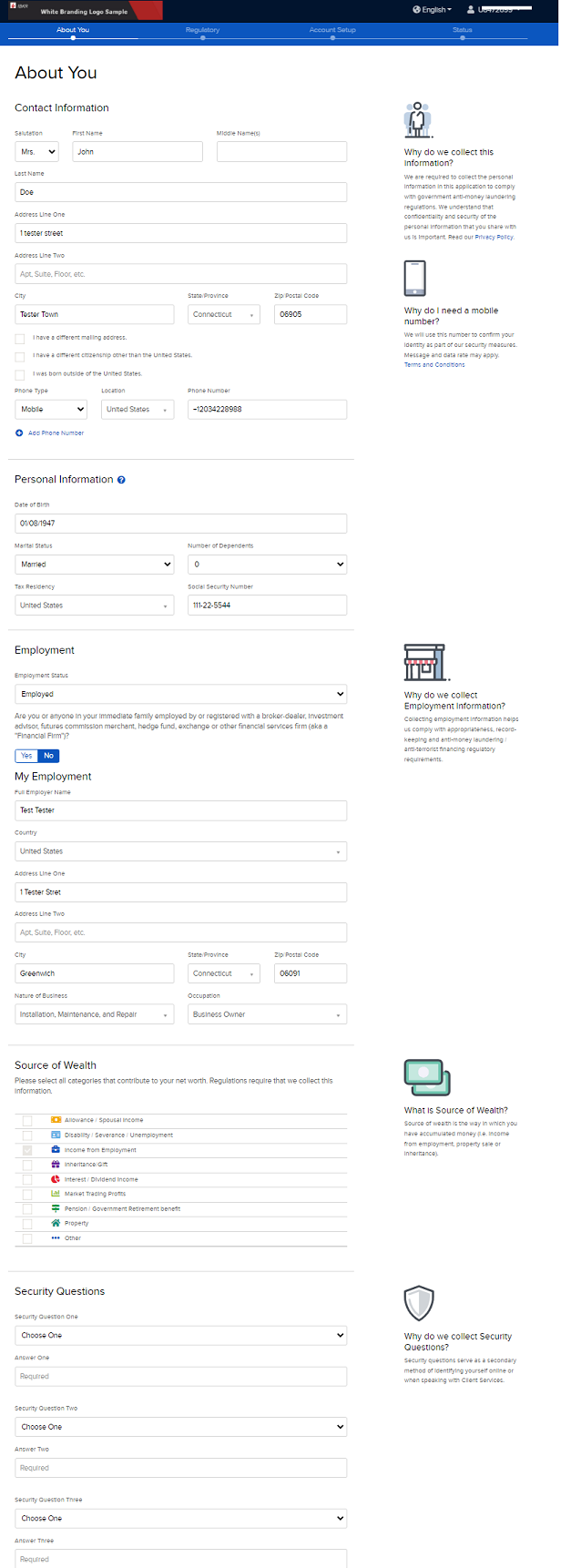
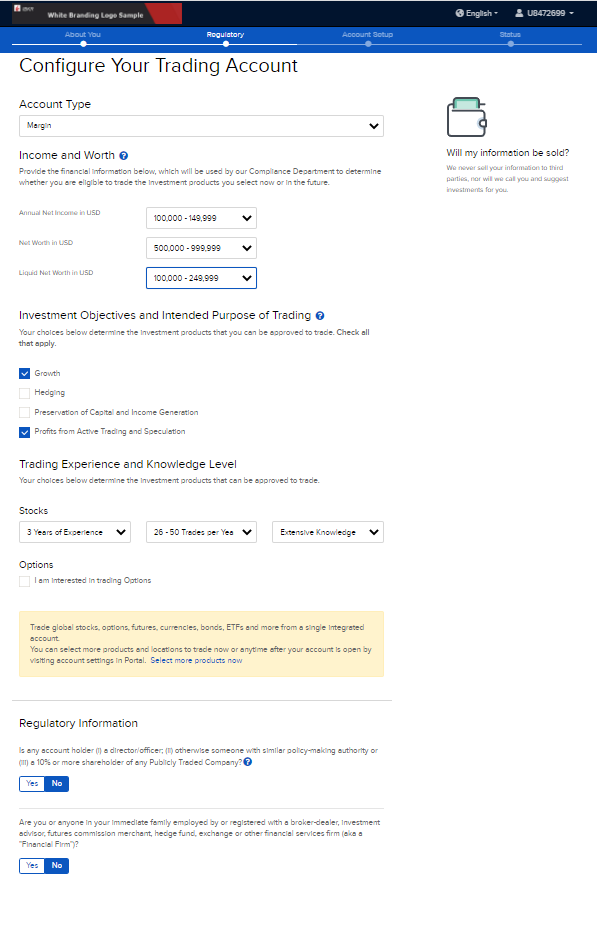
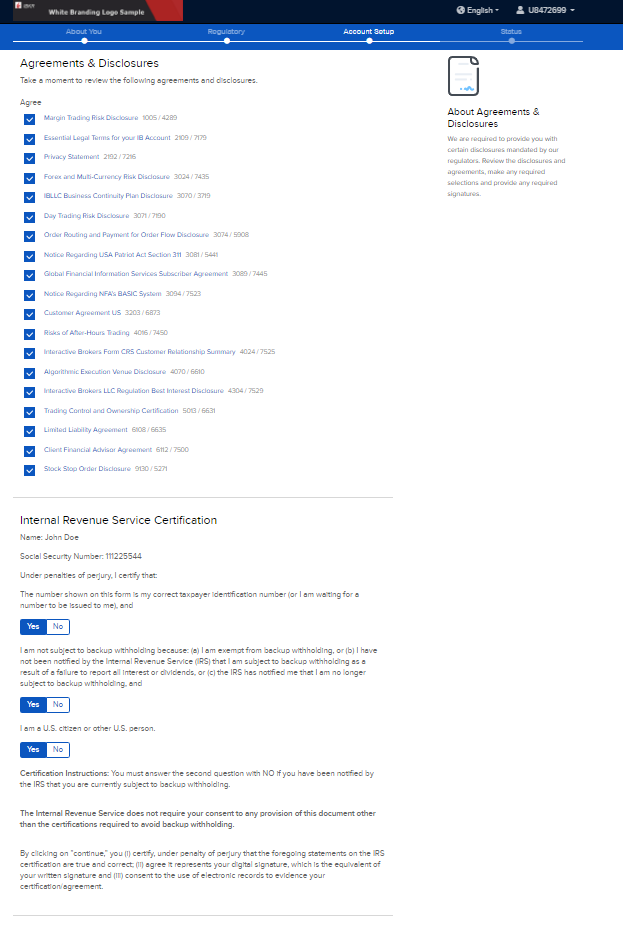
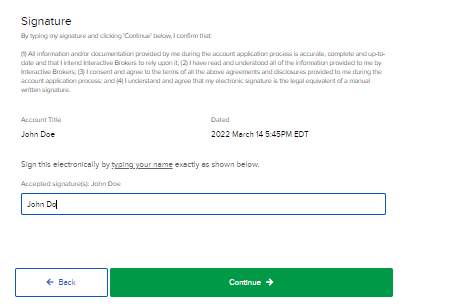
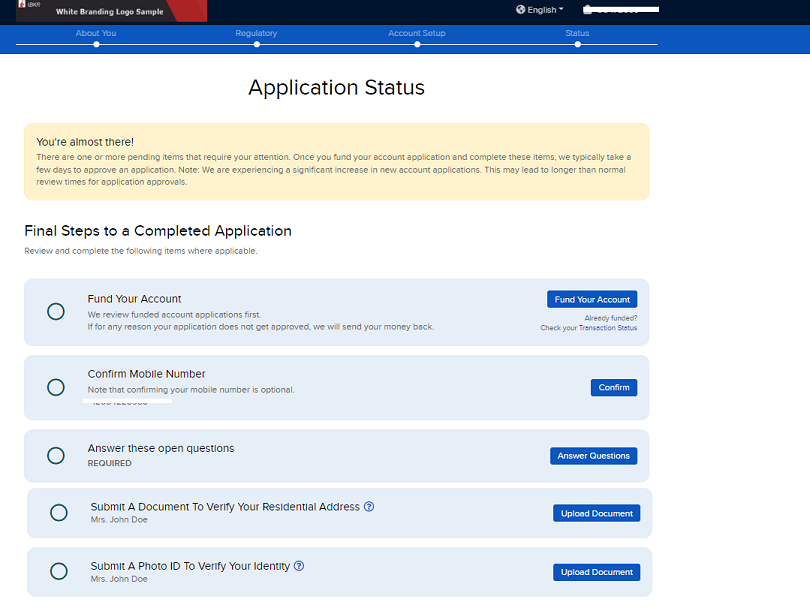
Set Password and Complete Email Verification (Optional)
- Upon accessing IBKR Portal, user will be prompted to enter temporary password (that was included in the response file) + set new password.
IBKR will send email confirmation toke to verify the identity. Email will be branded with your company logo and return email address.
Sample email
Password change has been processed. - Option 2: Set Password Post Approval
- Counterparty will direct user to IBKR’s Password Reset Tool to set password.
- User enters IBKR username and date of birth.
- IBKR will send SMS token to verify identity.
- User will set password and complete email verification.
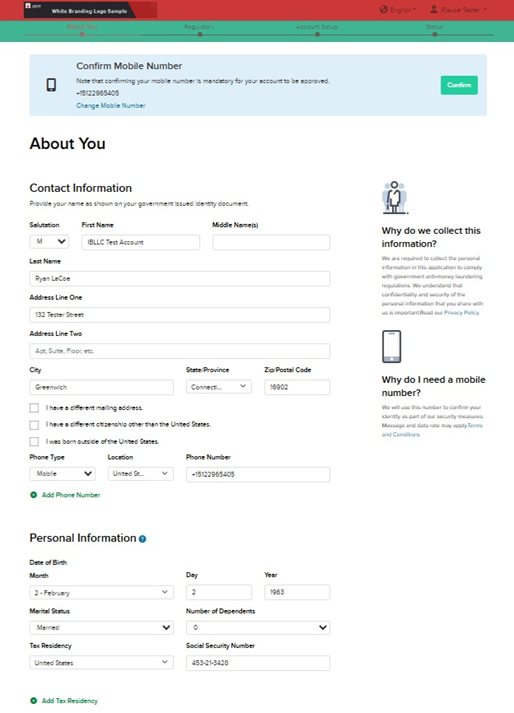
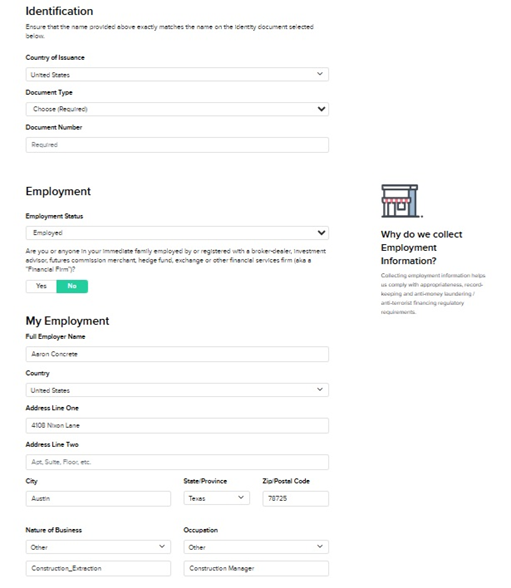
- Application will be pre-filled with information that was included in the XML file to create the account.
Screen 1: About YouCopy Location
Copy Location

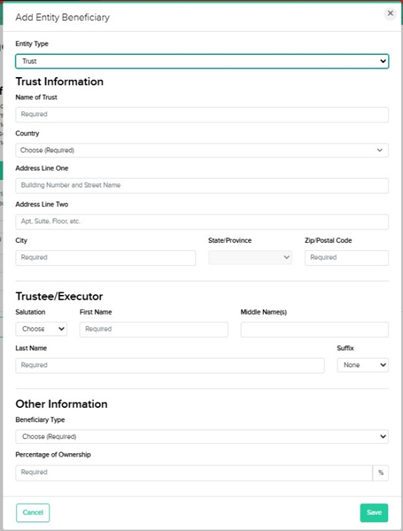
Screen 2: Beneficiary InformationCopy Location
Copy Location

- Individual Beneficiary
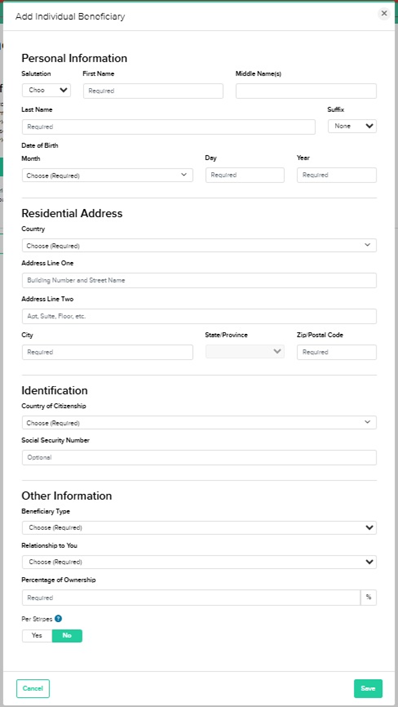
- Entity Beneficiary
Screen 3: Configure Your Trading AccountCopy Location
Copy Location


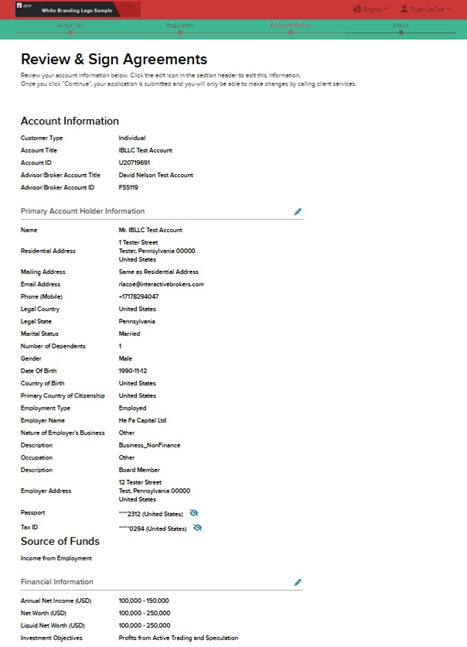
Screen 4: Review & Sign AgreementsCopy Location
Copy Location


Screen 5: Application StatusCopy Location
Copy Location

- Set Password and Complete Email Verification (Optional)
- Upon accessing IBKR Portal, user will be prompted to enter temporary password (that was included in the response file) + set new password.
IBKR will send email confirmation toke to verify the identity. Email will be branded with your company logo and return email address.
Sample email
Password change has been processed. - Option 2: Set Password Post Approval
- Counterparty will direct user to IBKR’s Password Reset Tool to set password.
- User enters IBKR username and date of birth.
- IBKR will send SMS token to verify identity.
- User will set password and complete email verification.
- Application will be pre-filled with information that was included in the XML file to create the account.
- Upon accessing IBKR Portal, user will be prompted to enter temporary password (that was included in the response file) + set new password.
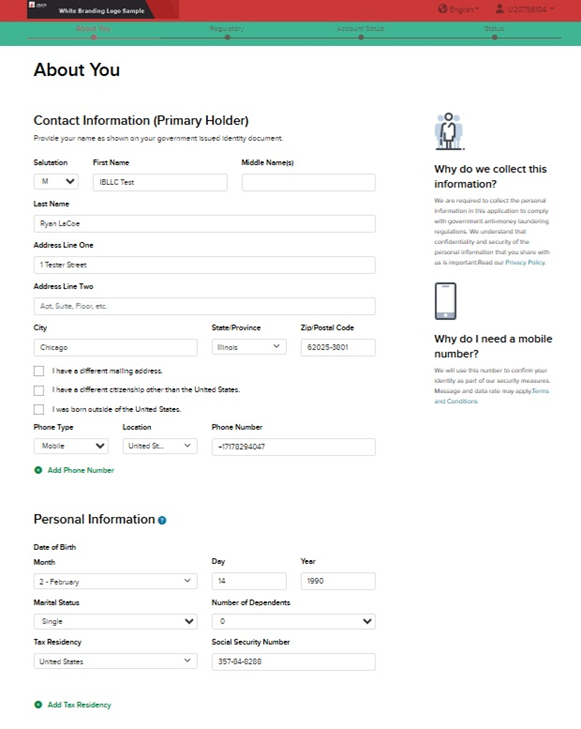
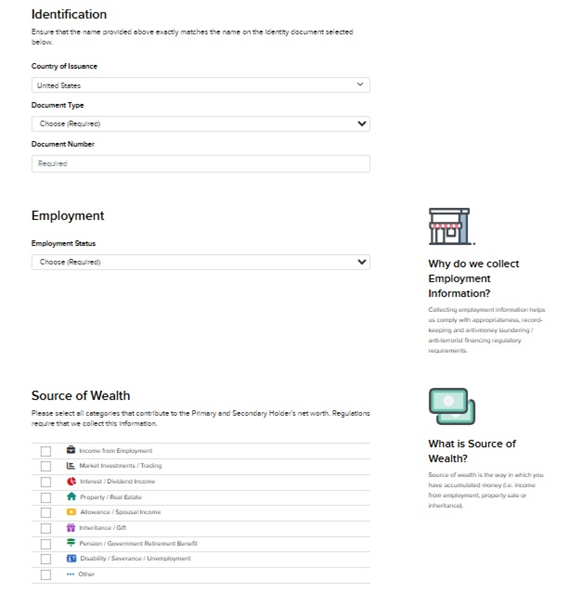
Screen 1: About You (Primary Holder)Copy Location
Copy Location

Screen 2: About You (Secondary Holder)Copy Location
Copy Location
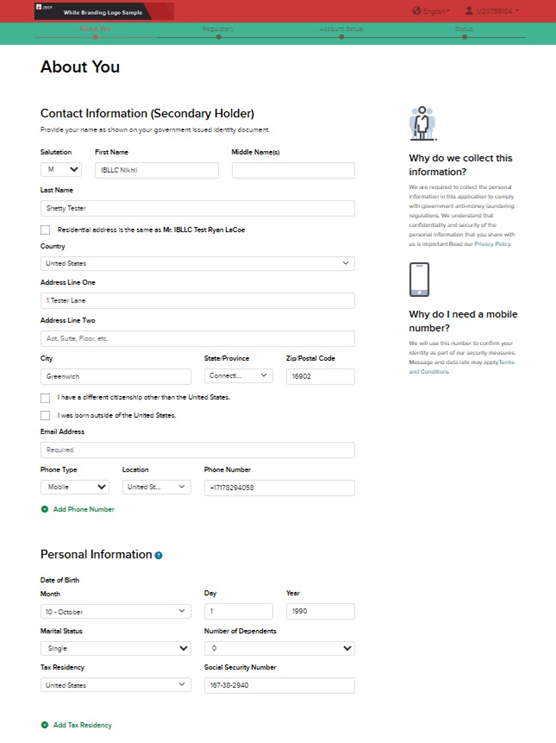

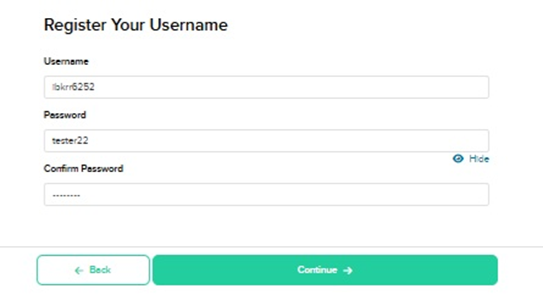
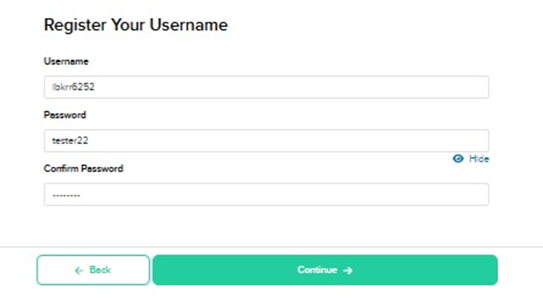
- Primary Holder can create a Username and Password for the Secondholder
Screen 3: Configure Your Trading AccountCopy Location
Copy Location
Screen 4: Review & Sign AgreementsCopy Location
Copy Location
Screen 5: Application StatusCopy Location
Copy Location
Set Password and Complete Email Verification (Optional)
- Upon accessing IBKR Portal, user will be prompted to enter temporary password (that was included in the response file) + set new password.
IBKR will send email confirmation toke to verify the identity. Email will be branded with your company logo and return email address.
Sample email
Password change has been processed. - Option 2: Set Password Post Approval
- Counterparty will direct user to IBKR’s Password Reset Tool to set password.
- User enters IBKR username and date of birth.
- IBKR will send SMS token to verify identity.
- User will set password and complete email verification.
- Application will be pre-filled with information that was included in the XML file to create the account.
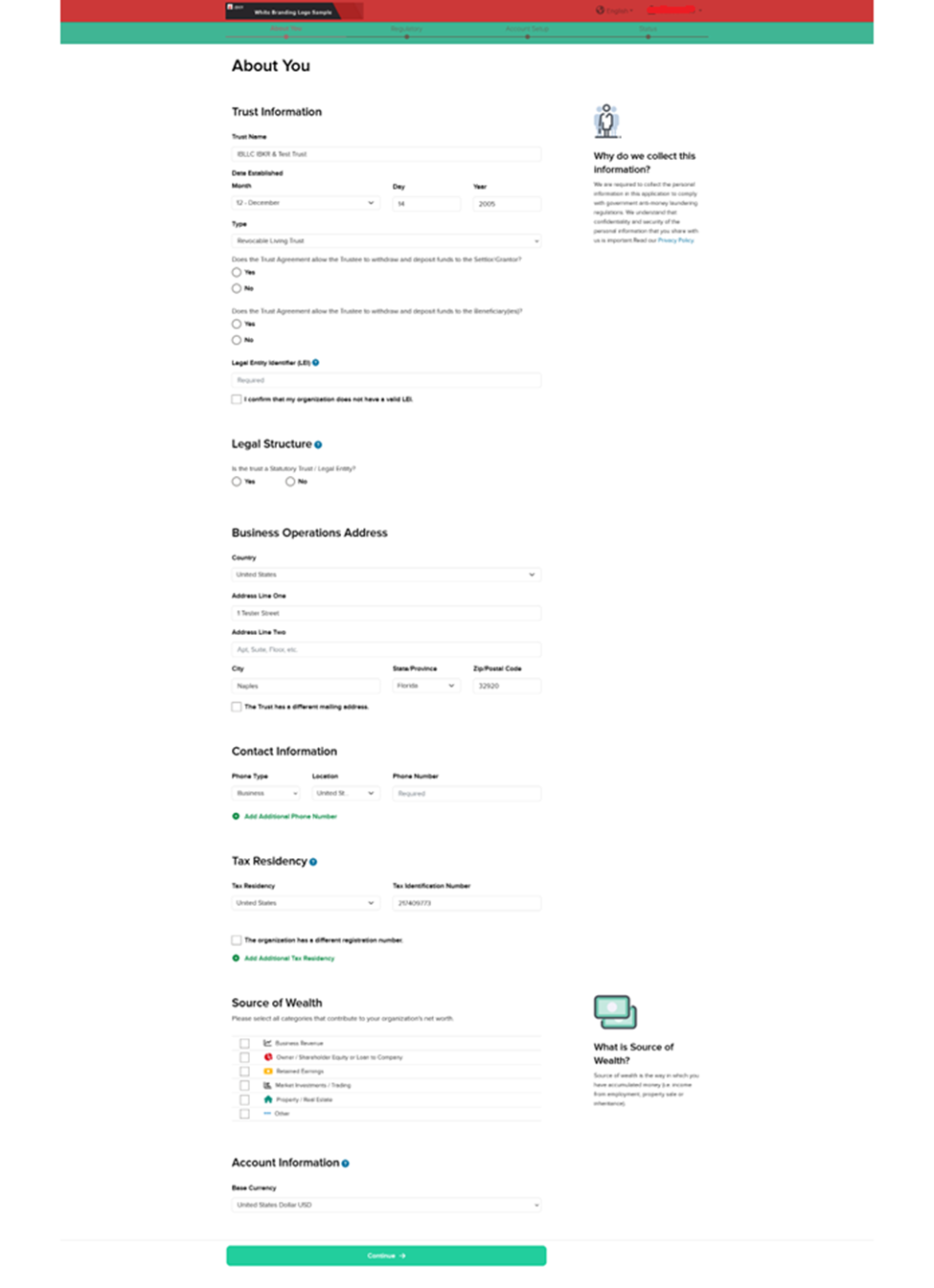
Screen 1: About YouCopy Location
Copy Location
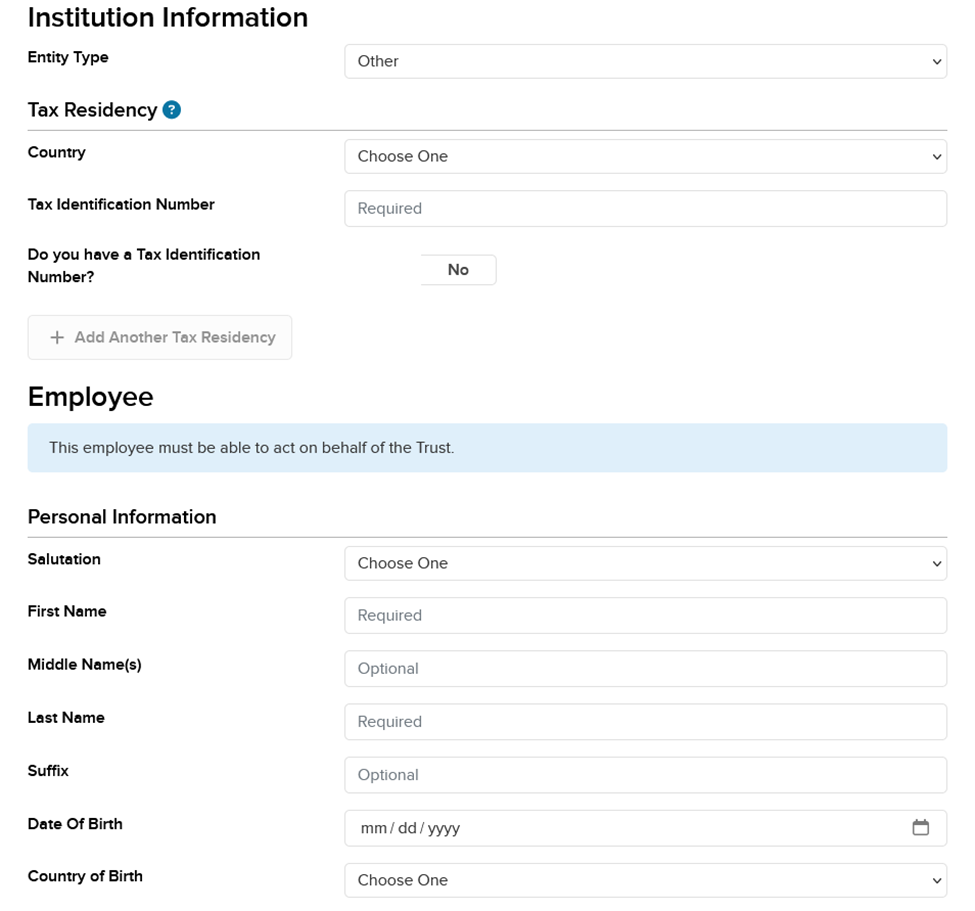
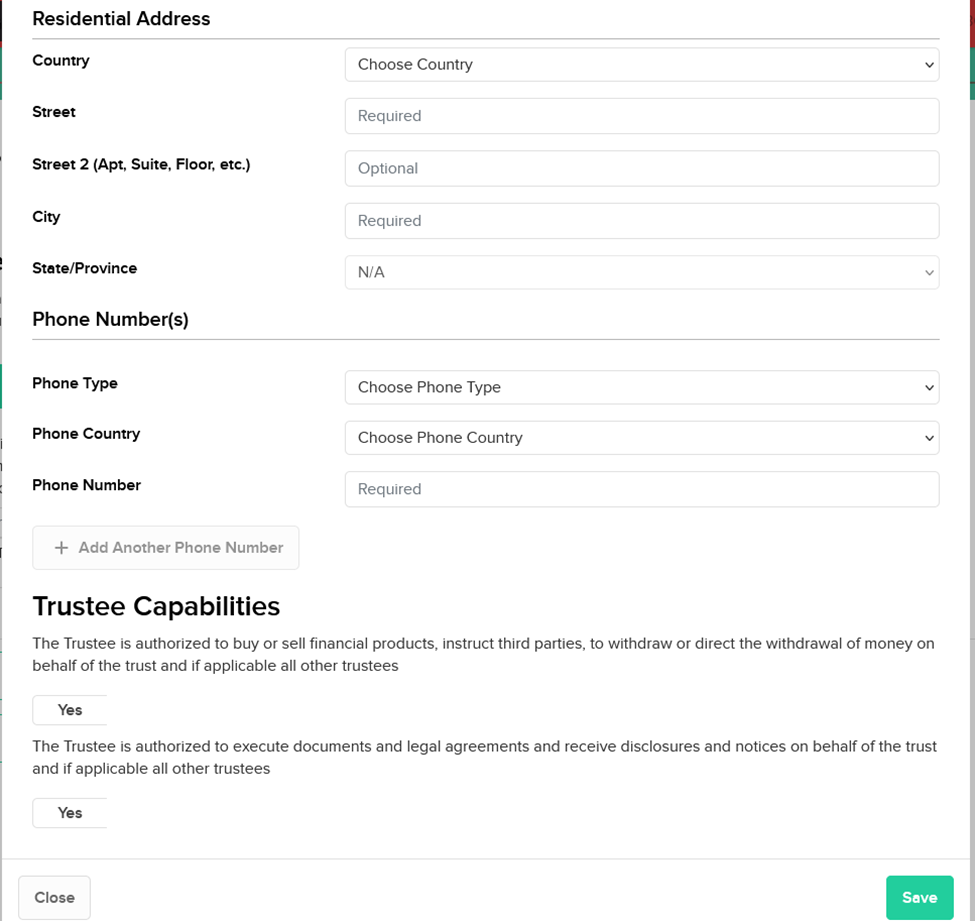
Screen 2: Trustee InformationCopy Location
Copy Location
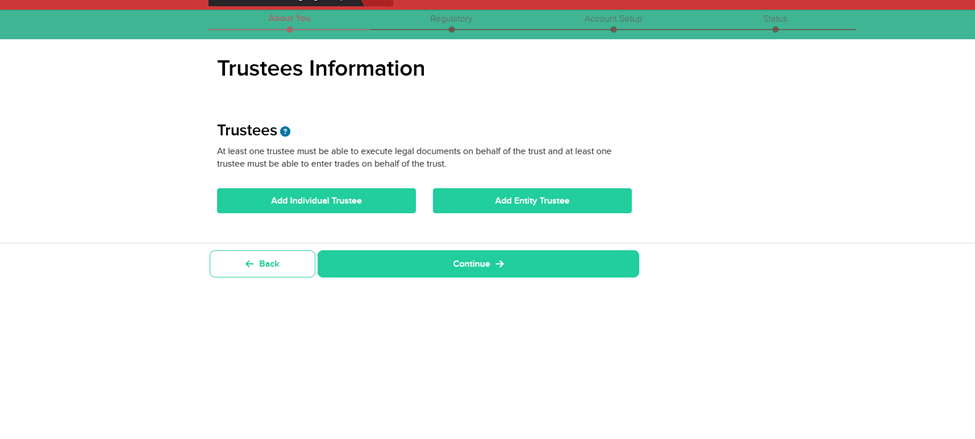
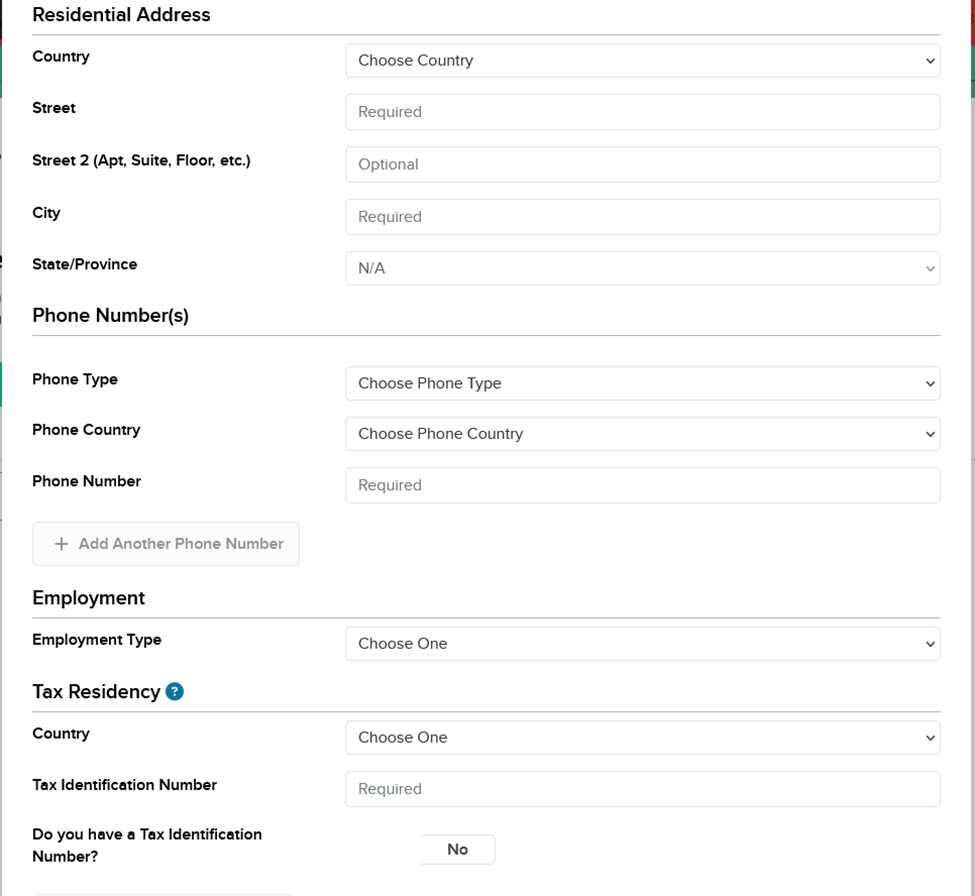
- Individual Trustee

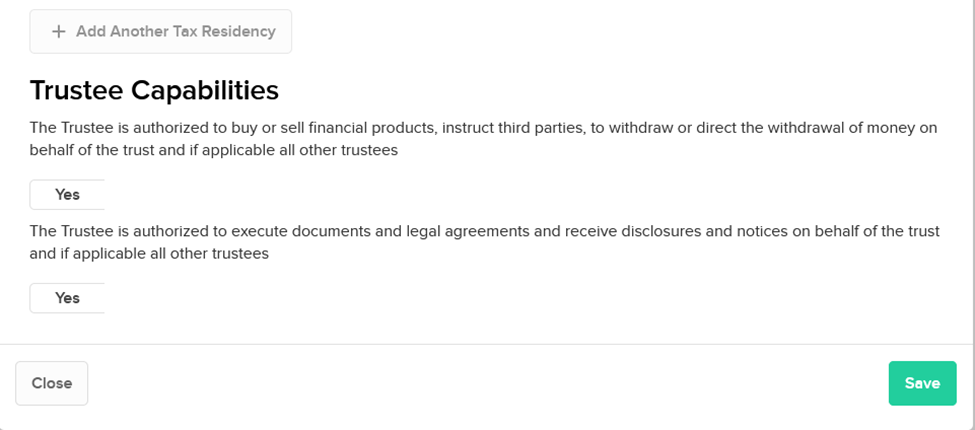
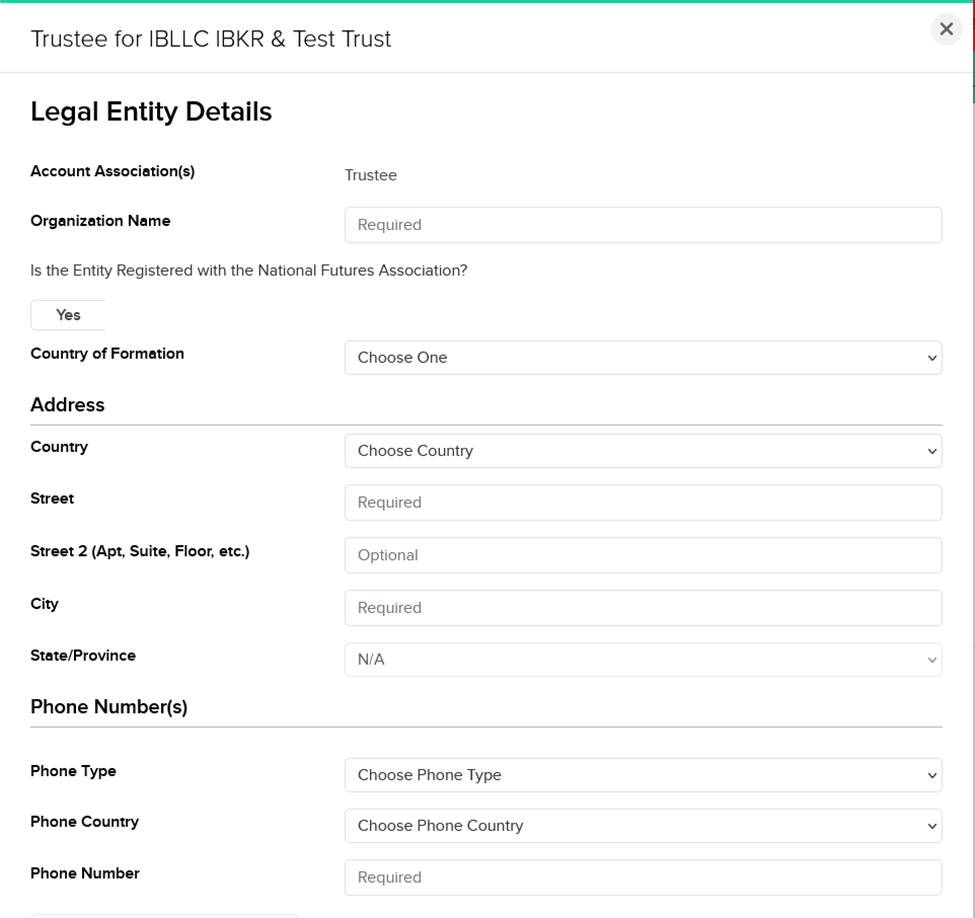
- Entity Trustee
Screen 3: Settlors/Grantor InformationCopy Location
Copy Location
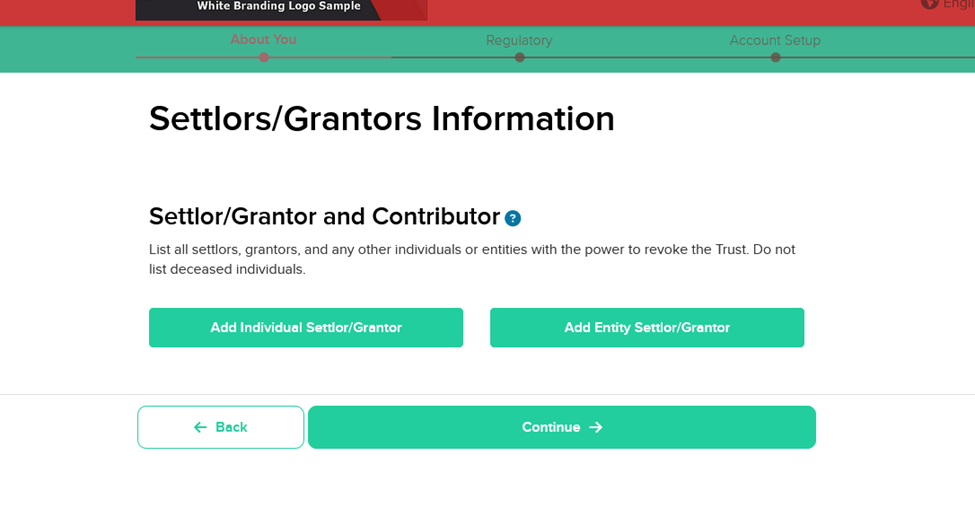
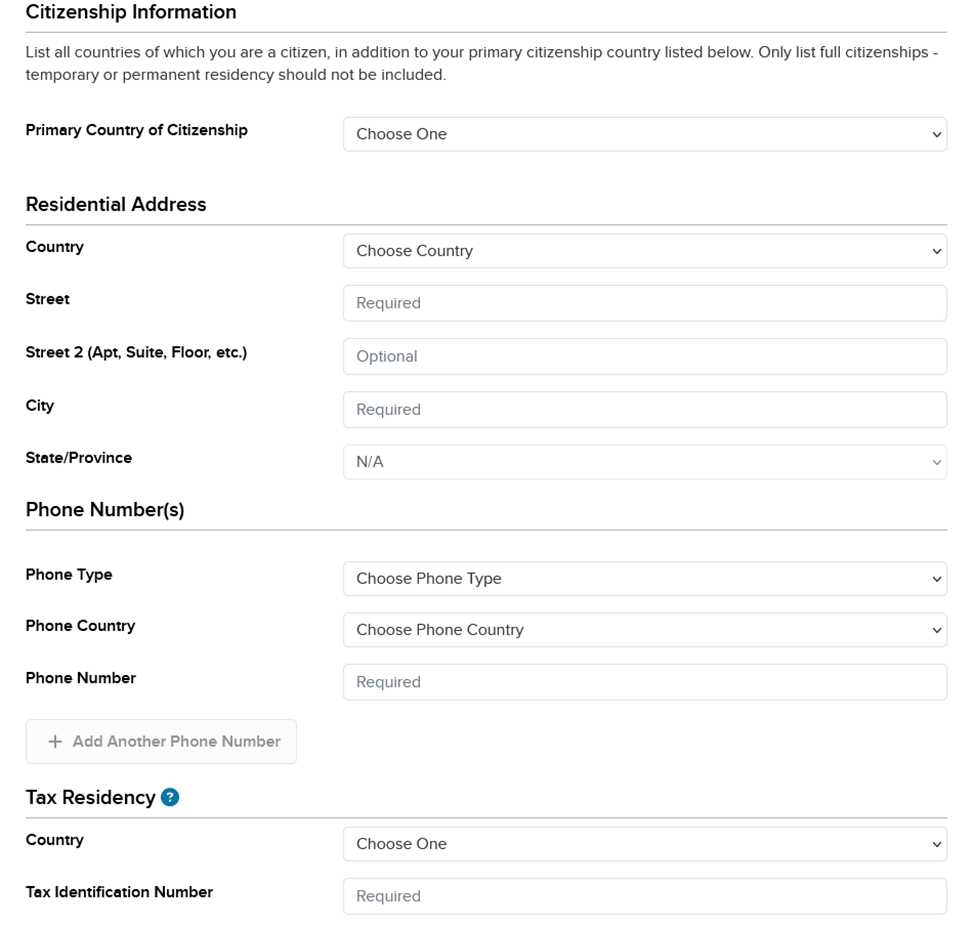
- Individual Settlor/Grantor
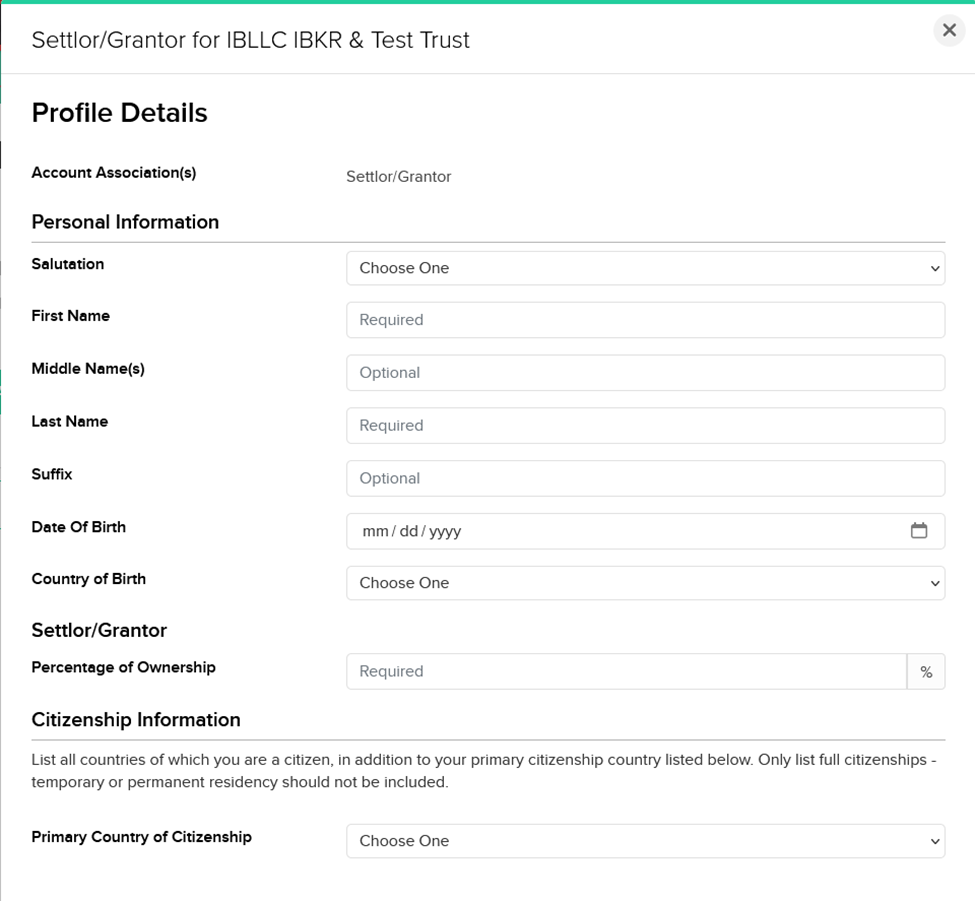
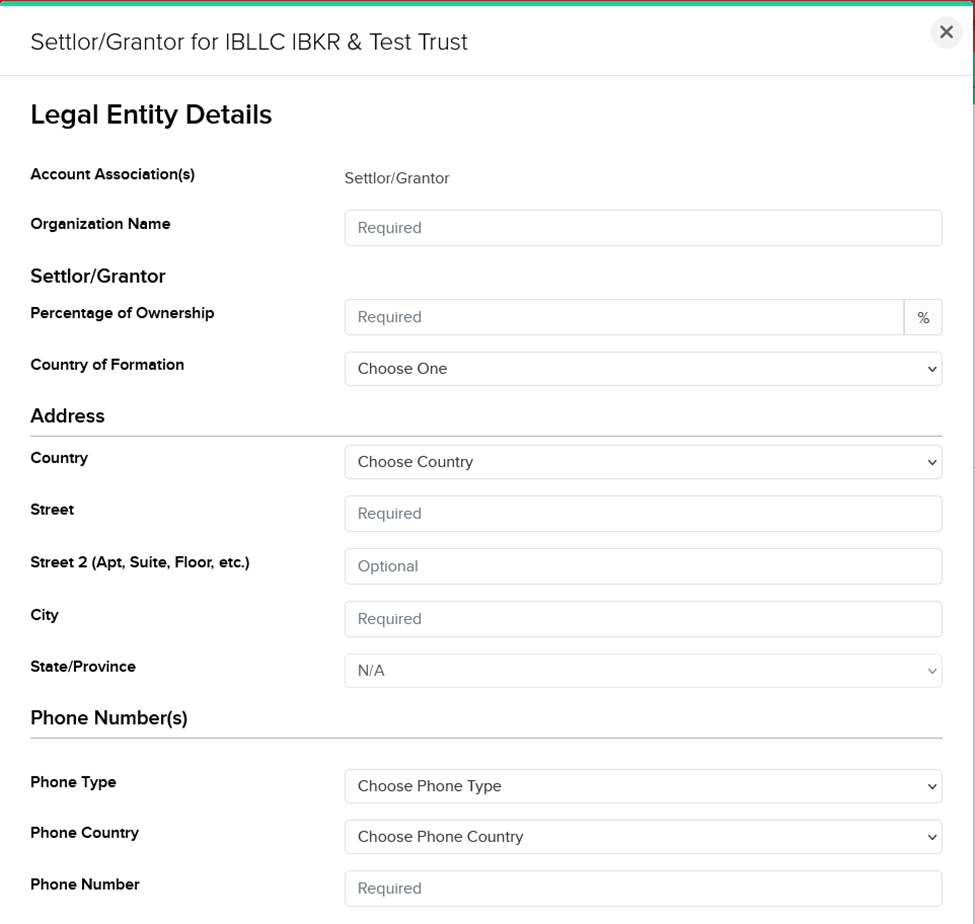
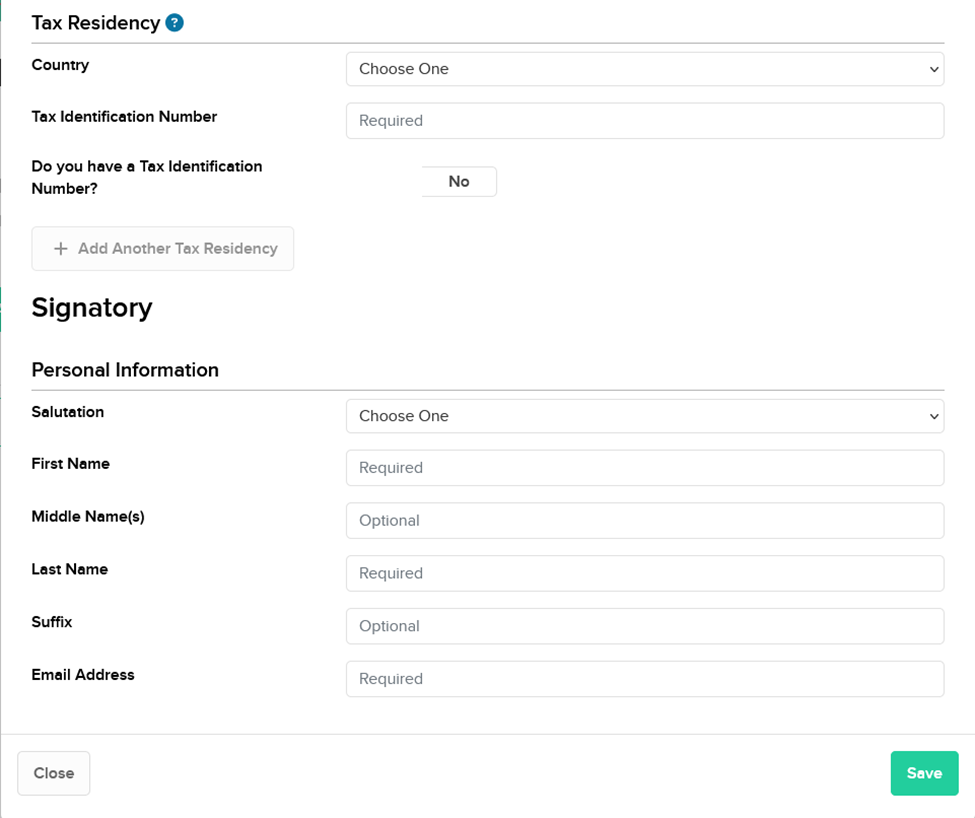
- Entity Settlor/Grantor
Screen 4: Tax ClassificationCopy Location
Copy Location

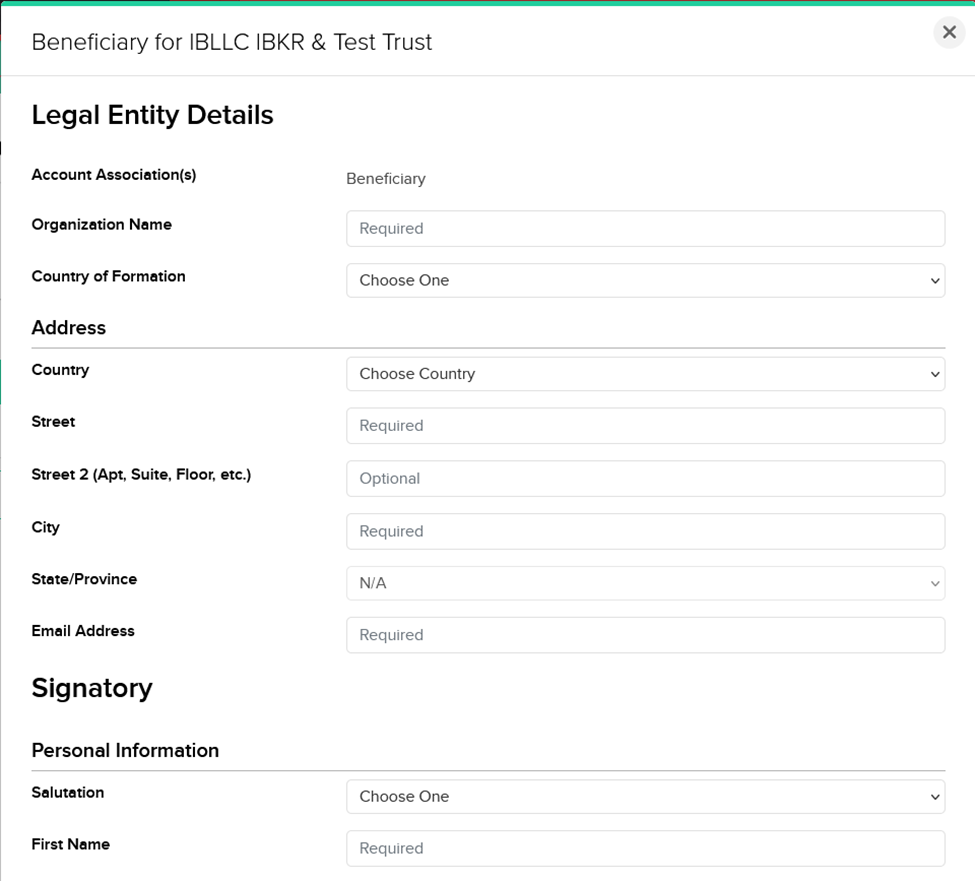
Screen 5: Beneficiary InformationCopy Location
Copy Location

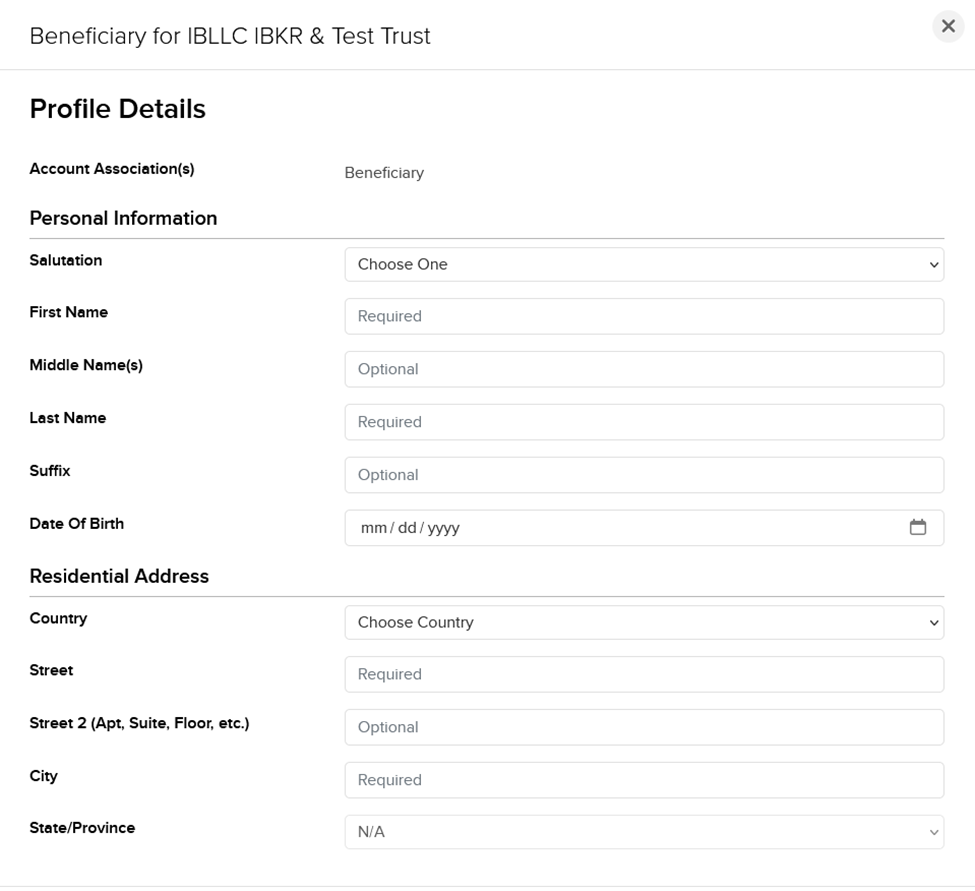
- Individual Beneficiary
- Entity Beneficiary
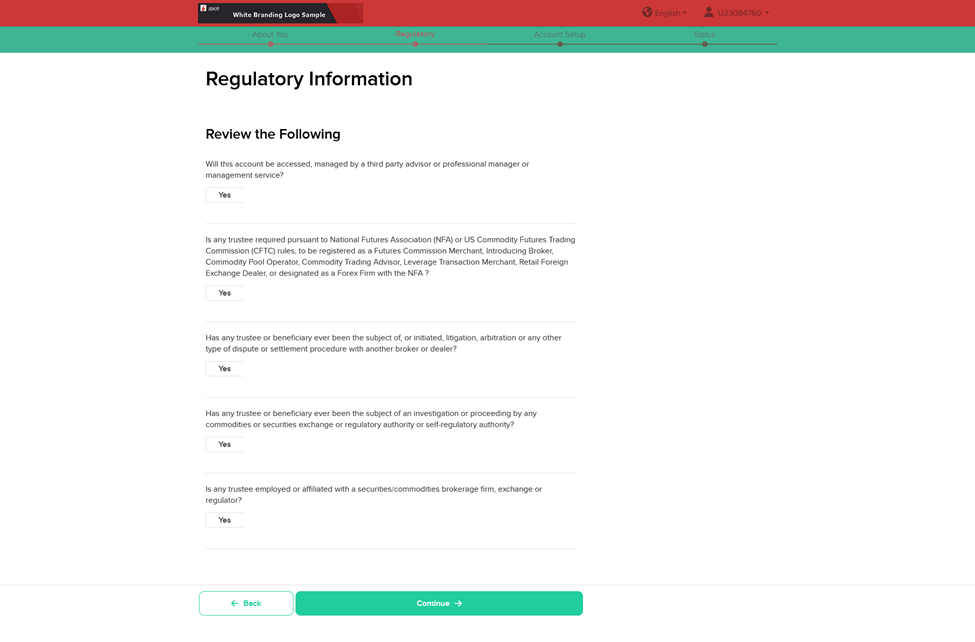
Screen 6: Regulatory InformationCopy Location
Copy Location
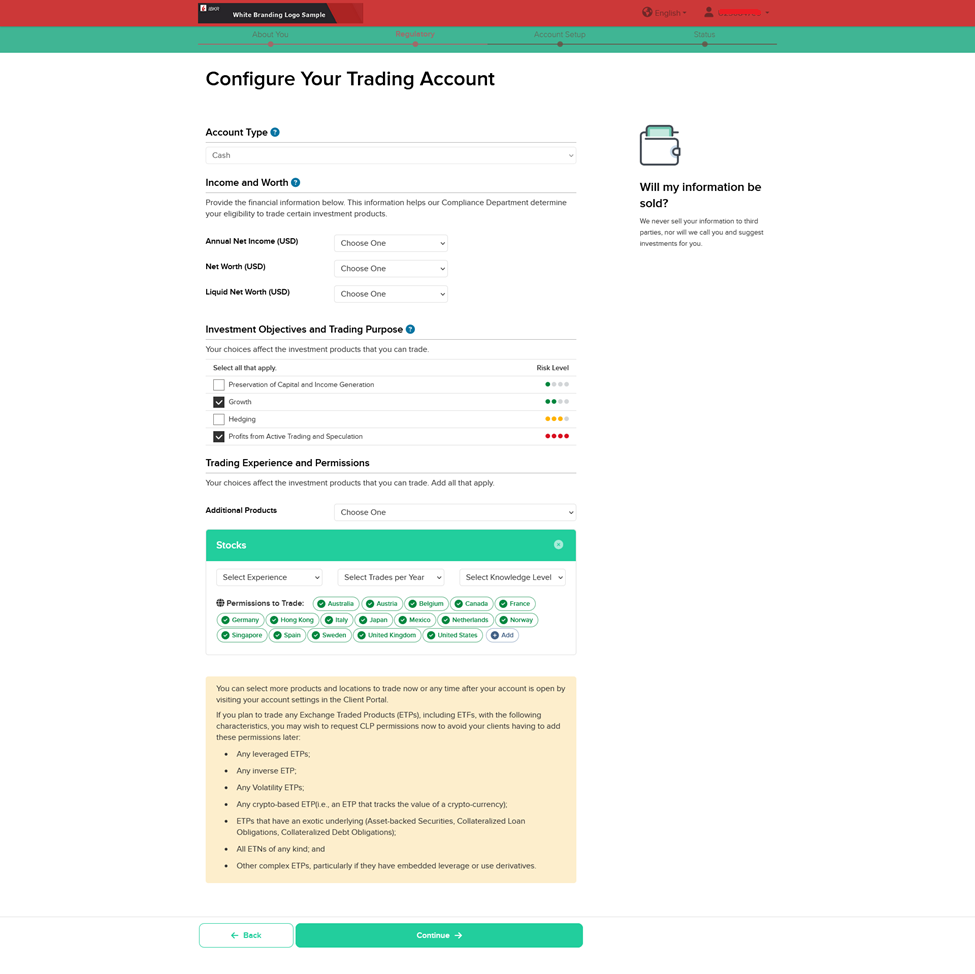
Screen 7: Configure Your Trading AccountCopy Location
Copy Location
Screen 8: Confirm Your Tax ResidenceCopy Location
Copy Location
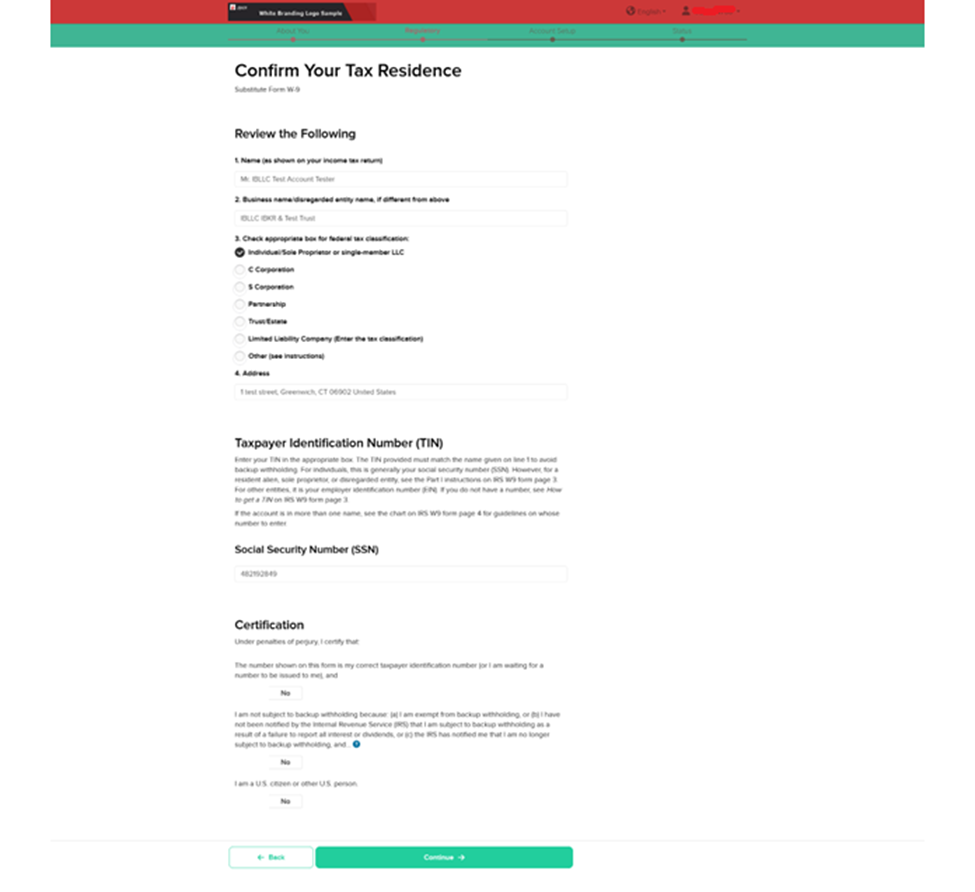
Screen 9: Confirm Your Tax ResidenceCopy Location
Copy Location
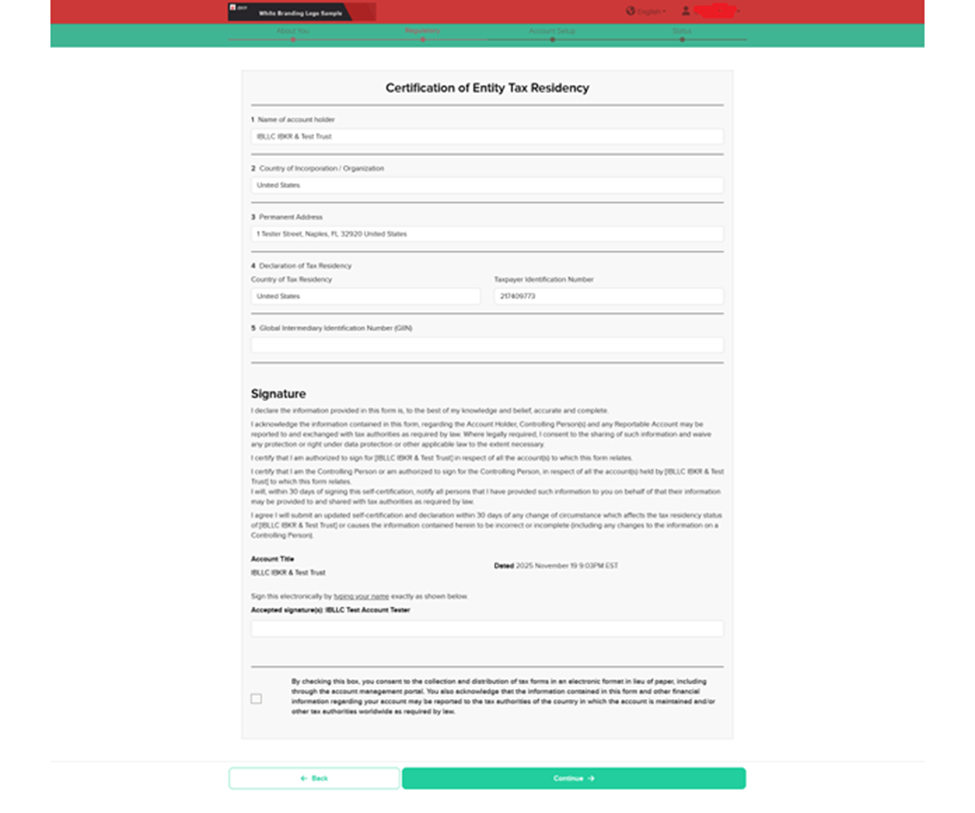
Screen 10: AffiliationCopy Location
Copy Location
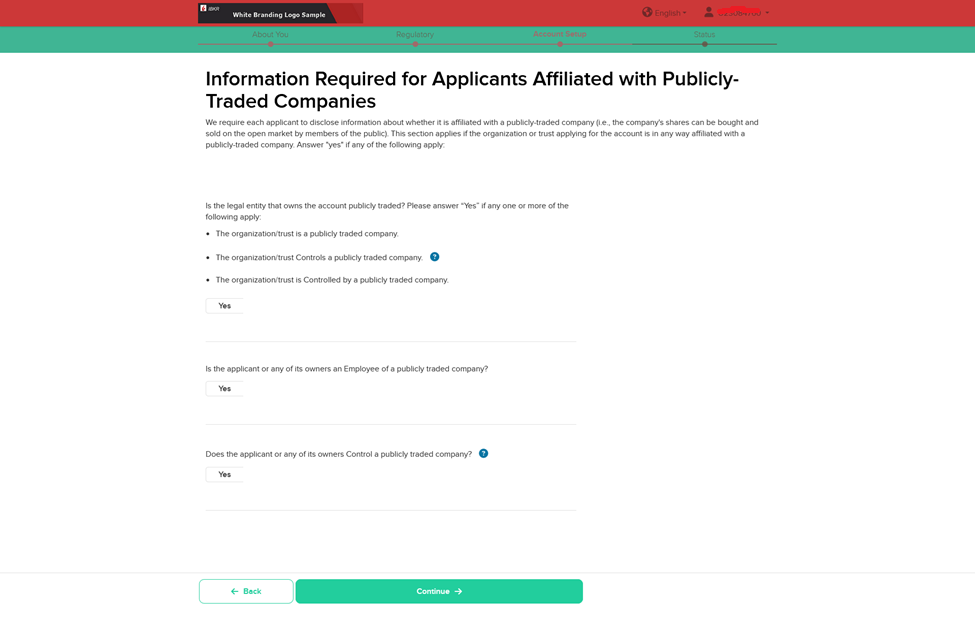
Screen 11: Review and Sign AgreementsCopy Location
Copy Location

Screen 12: Application StatusCopy Location
Copy Location
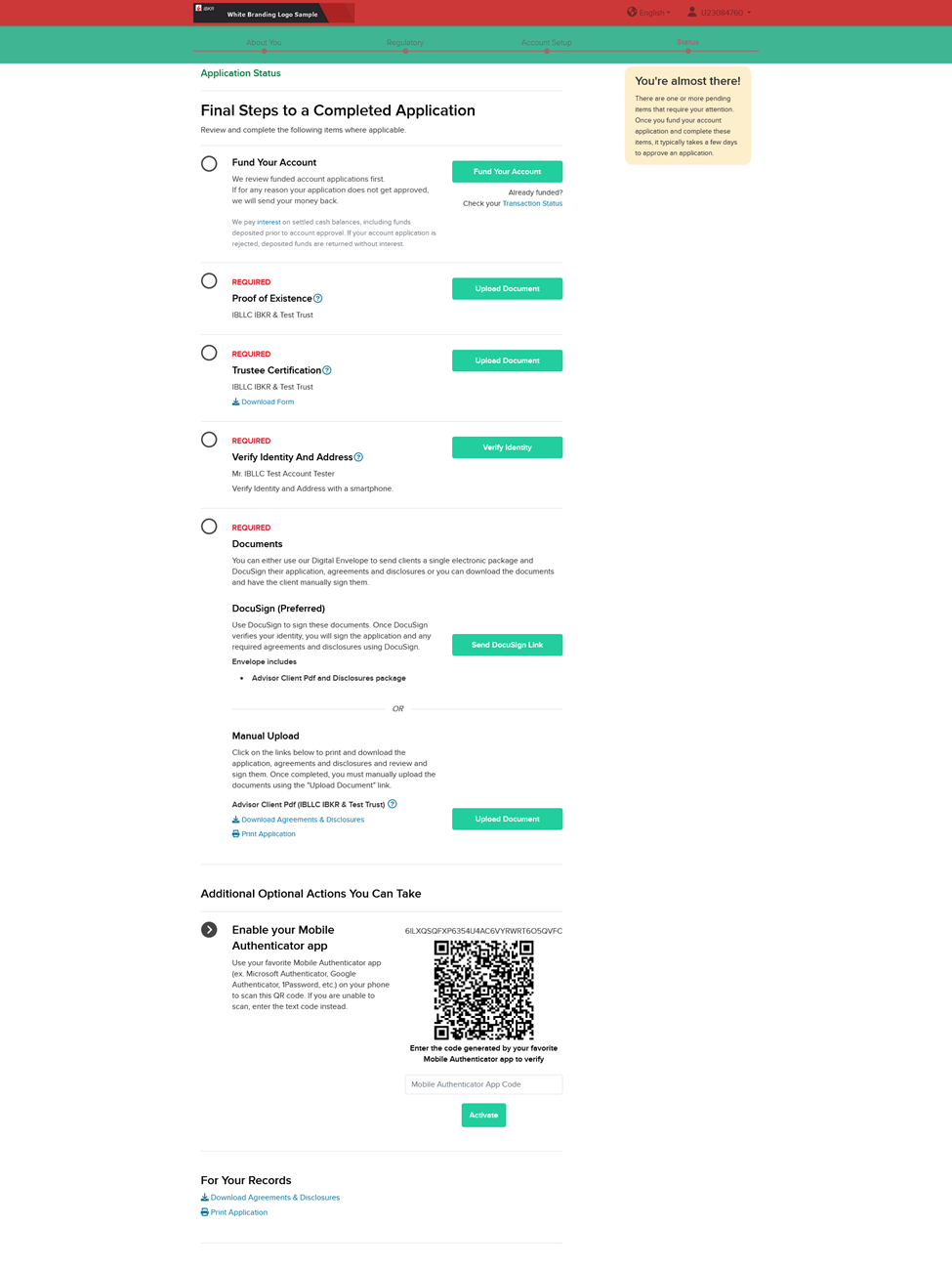
Workbook CompletionCopy Location
Copy Location
Required DataCopy Location
Copy Location
Below fields reflect the minimum information that IBKR requires to create accounts using mass upload. It is important to note that the more complete the Mass Upload workbook is, the less information your client will be required to provide in the IBKR Hosted Application.
Required FieldsCopy Location
Copy Location
| Tab Name | Required Fields | Optional Fields |
|---|---|---|
| Account Information | Email Address Prefix Residential Country Legal Residence State Base Currency IRA Type (Required for IRA) SYEP | Alias IRA Type (Not required for Individual and Joint) |
| Customer Information | Salutation Name (First, Last) Country of Birth Residence Address (Street, City, State/Province, Country, Zip) Margin (Margin/Cash) Date of Birth Gender Marital Status Citizenship Tax Residency Country Tax Number Document (Type, Issuing Country, Number) Market Data Status | Phone (Number, Type, Country) |
| Mailing Address | Mailing Street Address City State/Province Country Zip | |
| Employment Information | Employment Type Occupation Name of Employer Employer Address (Street, City, State/Province, Country, Zip) | |
| Source of Wealth | Source of Wealth Used to Fund Account Percentage | |
| Financial Information | Investment Objective(s) Estimated Net Worth Estimated Liquid Net Worth Annual Net Income Trading Experience | |
| Trading Permissions | Trading Permissions | |
| Advisor Wrap Fees | Advisor Wrap Fees (Financial Advisor Clients Only) | |
| ACATS | Customer Account at Broker Broker ID Broker Name Transfer Scope (Full) Has Margin Loan Holds Options Positions Holds Short Positions IRA Type IB Account ID Signature Transfer Type Authorize to Remove Funds |
| Tab Name | Required Fields | Optional Fields |
|---|---|---|
| Account Information | Email Address Prefix Residential Country Legal Residence State Base Currency IRA Type (Required for IRA) SYEP | Alias IRA Type (Not required for Individual and Joint) |
| Customer Information | Salutation Name (First, Last) Country of Birth Residence Address (Street, City, State/Province, Country, Zip) Margin (Margin/Cash) Date of Birth Gender Marital Status Citizenship Tax Residency Country Tax Number Document (Type, Issuing Country, Number) Market Data Status | Phone (Number, Type, Country) |
| Mailing Address | Mailing Street Address City State/Province Country Zip | |
| Employment Information | Employment Type Occupation Name of Employer Employer Address (Street, City, State/Province, Country, Zip) | |
| IRA Individual Beneficiaries | Beneficiary Type Relationship Ownership % Salutation Name (First, Last) Residence Address (Street, City, State/Province, Country, Zip) Date of Birth Country of Citizenship Document (Type, Issuing Country, Number) | |
| IRA Entity Beneficiaries | Beneficiary Type Relationship Ownership % Trust Name Execution Date Article of Will Salutation Executor Name (First, Last) Entity Address (Street, City, State/Province, Country, Zip) | |
| IRA Decedent | Salutation Decedent’s Name (First, Last) Inheritor Type Date of Birth Date of Death Country Document (Type, Issuing Country, Number) | |
| Source of Wealth | Source of Wealth Used to Fund Account Percentage | |
| Financial Information | Investment Objective(s) Estimated Net Worth Estimated Liquid Net Worth Annual Net Income Trading Experience | |
| Trading Permissions | Trading Permissions | |
| Advisor Wrap Fees | Advisor Wrap Fees (Financial Advisor Clients Only) | |
| ACATS | Customer Account at Broker Broker ID Broker Name Transfer Scope (Full) Has Margin Loan Holds Options Positions Holds Short Positions IRA Type IB Account ID Signature Transfer Type Authorize to Remove Funds |
| Tab Name | Required Fields | Optional Fields |
|---|---|---|
| Account Information | Email Address Prefix Residential Country Legal Residence State Base Currency IRA Type (Required for IRA) SYEP | Alias IRA Type (Not required for Individual and Joint) |
| Joint Account Type & Ownership | Joint Account Type First Holder Ownership % Second Holder Ownership % | |
| Customer Information | Salutation Name (First, Last) Country of Birth Residence Address (Street, City, State/Province, Country, Zip) Margin (Margin/Cash) Date of Birth Gender Marital Status Citizenship Tax Residency Country Tax Number Document (Type, Issuing Country, Number) Market Data Status | Phone (Number, Type, Country) |
| Second Holder Information | Salutation Name (First, Last) Country of Birth Residence Address (Street, City, State/Province, Country, Zip) Postal Code Date of Birth Gender Marital Status Country of Citizenship Tax Residency Country Tax Number Document (Type, Issuing Country, Number) | Phone (Number, Type, Country) |
| Mailing Address | Mailing Street Address City State/Province Country Zip | |
| Second Holder Mailing Address | Mailing Street Address City State/Province Country Zip | |
| Employment Information | Employment Type Occupation Name of Employer Employer Address (Street, City, State/Province, Country, Zip) | |
| Source of Wealth | Source of Wealth Used to Fund Account Percentage | |
| Financial Information | Investment Objective(s) Estimated Net Worth Estimated Liquid Net Worth Annual Net Income Trading Experience | |
| Trading Permissions | Trading Permissions | |
| Advisor Wrap Fees | Advisor Wrap Fees (Financial Advisor Clients Only) | |
| ACATS | Customer Account at Broker Broker ID Broker Name Transfer Scope (Full) Has Margin Loan Holds Options Positions Holds Short Positions IRA Type IB Account ID Signature Transfer Type Authorize to Remove Funds |
| Tab Name | Required Fields | Optional Fields |
|---|---|---|
| Trust Information | Trust Name Type of Trust Date Trust Was Established Formation Country Formation State Registration Country Trust Address (Street, City, State/Province, Country, Zip) Registration/Tax/Gov’t ID Tax ID Type | |
| Mailing Address | Mailing Address (Street, City, State/Province, Country, Zip) | |
| Associated Individuals | Type Beneficiary % Name (First, Last) Can Sign Documents Registered with NFA (NFA Number) Employer Details (Occupation, Job Title) Residence (Street, City, State, Country, Zip) Phone Number Date of Birth Country of Citizenship Document (Type, Country, ID Number) | |
| Associated Entities | Type Beneficiary % Name Document (Type, Country, ID Number) Formation (Type, Country) Registered with NFA (NFA Number) Business Address (Street, City, State, Country, Zip) Phone Number | |
| Entity Employees | Name (First, Last, Middle, Suffix) Can Sign Documents Registered with NFA (NFA Number) Email Address | |
| Financial Information | Investment Objective(s) Estimated Net Worth Estimated Liquid Net Worth Annual Net Income Trading Experience | |
| Source of Wealth | Source of Wealth Used to Fund Account Percentage | |
| Account Information | Prefix Base Currency Margin Capability | Alias User Privilege Multicurrency IRA Type (Not applicable) SYEP |
| Trading Permissions | Trading Permissions | |
| Advisor Wrap Fees | Advisor Wrap Fees (Financial Advisor Clients Only) | |
| ACATS | Customer Account at Broker Broker ID Broker Name Transfer Scope (Full) Has Margin Loan Holds Options Positions Holds Short Positions IRA Type IB Account ID Signature Transfer Type Authorize to Remove Funds |
| Tab Name | Required Fields | Optional |
|---|---|---|
| Account Information | Email Address Prefix Residential Country Legal State Residence Base Currency | Alias IRA Type (Not Required) SYEP |
| Organizational Information | Organizational Type Type of Trading US Tax Classification Name Business Description Formation Country Address (Street, City, State/Province, Country, Zip) Margin Identification (Number, Country) Phone (Number, Type, Country) Market Data Status Tax (Residency Country, Tax Number) | |
| Authorized Person | Title Code Salutation Name (First, Last) Residence (Street, City, State/Province, Country, Zip) Phone (Number, Type) Date of Birth Country of Birth Tax (Residency Country, Tax Number) Document (Type, Country of Issuance, Number) Employment (Type, Occupation, Employer Address) | |
| Associated Persons | Association Type Ownership % Salutation Name (First, Last) Address (Street, City, State/Province, Country, Zip) Phone (Number, Type, Country) Tax (Residency Country, Number) Document (Type, Country of Issuance, Number) Employment (Type, Occupation, Employer Address) | |
| Associated Entities | Entity Name Ownership % Business Address (Street, City, State/Province, Country, Zip) Phone (Number, Type, Country) Formation (Country, Type) Exchange (Symbol, Code) Tax (Country, Number) Signatory Name (First, Last) | |
| Source Of Wealth | Source of Wealth Used to Fund Account Percentage | |
| Financial Information | Investment Objective(s) Estimated Net Worth Estimated Liquid Net Worth Annual Net Income Trading Experience | |
| Trading Permissions | Trading Permissions | |
| Advisor Wrap Fees | Advisor Wrap Fees (Financial Advisor Clients Only) | |
| ACATS | Customer Account at Broker Broker ID Broker Name Transfer Scope (Full) Has Margin Loan Holds Options Positions Holds Short Positions IRA Type IB Account ID Signature Transfer Type Authorize to Remove Funds |
SpecCopy Location
Copy Location
Please refer to our Mass Upload Workbook Specification below. We have included separate drop down menus for each tab in IBKR’s Mass Upload workbook for your reference.
| Column | Field | Description | Value Type |
|---|---|---|---|
| A | Customer ID required | Customer ID is a unique identifier used to map customer information to each unique client account. The Customer ID should match across all completed workbook tabs Alphanumeric characters only | String |
| B | Email Address required | Email Address of the associated individual | String |
| C | Prefix required | Prefix is used to generate the client’s username. The Prefix must be five to six lowercase characters (alphabetical only) IBKR will use the prefix provided to append three random numbers when generating the client’s username | String |
| D | Residential Country required | Country which the applicant resides IBKR requires the country’s 3 Digit ISO Code | 3 Digit ISO Code |
| E | Legal Residence State required | State/Province which the applicant resides IBKR requires the State/Province’s 3166-2 ISO Code | 3166-2 ISO Code |
| F | Base Currency required | Base Currency of the client’s account | Available currencies can be found here. |
| G | Alias | Account Alias lets you define an alias for the account. For example, you might want to define an account alias that is easier to remember than your account ID If you create an account alias, it will appear on account statements, the account management portal and TWS | String |
| H | IRA Type | Only required for IRA Accounts | Traditional SEP Traditional Rollover Roth Traditional Inherited Roth Inherited |
| I | SYEP required | The Stock Yield Enhancement Program (SYEP) provides customers with the opportunity to earn additional income on fully paid securities by permitting IBKR to lend out those securities to third parties IBKR Reference: https://ibkb.interactivebrokers.com/zh-hans/node/1838 | Yes No |
Account Information – Sample

| Column | Field | Description | Value Type |
|---|---|---|---|
| A | Customer ID required | Customer ID is a unique identifier used to map customer information to each unique client account. The Customer ID should match across all completed workbook tabs Alphanumeric characters only | String |
| B | Salutation required | Salutation of the applicant | Mr. Mrs. Ms. Dr. Mx. Ind. |
| C | First Name required | Legal first name of the applicant | String; max characters 50 |
| D | Last Name required | Legal last name of the applicant | String; max characters 50 |
| E | Middle Initial | Middle initial of the applicant | String; max characters 50 |
| F | Suffix | Suffix of the applicant | String |
| G | Date of Birth required | Date of birth of the associated individual | YYYY-MM-DD |
| H | Country of Birth required | Country where the individual was born | 3 Digit ISO Code |
| I | Gender required | Gender of the individual | Male Female |
| J | Marital Status required | Marital status of the applicant | Single Married Widowed Divorced |
| K | Dependents required | Number of dependents for the account holder | Number |
| L | Home Street Address required | Street which applicant resides | String; Max characters 200 |
| M | City required | City which the applicant resides | String; Max characters 100 |
| N | State/Province required | State/Province which the applicant resides IBKR requires the State/Province’s 3166-2 ISO Code | 3166-2 ISO Code |
| O | Country required | Country which the applicant resides IBKR requires the country’s 3 Digit ISO Code | 3 Digit ISO Code |
| P | Zip required | Postal / Zip code For countries that do not provide postal code, please enter “00000″ | String; Max characters 20 |
| Q | Phone Number | Phone Number for the applicant | String; max characters 18 |
| R | Phone Type | Phone Number Type for the applicant. Mobile phone number is required | Mobile Home |
| S | Phone Country | Country which phone number is associated to IBKR requires the country’s 3 Digit ISO Code | 3 Digit ISO Code |
| T | Country of Citizenship required | Country of Citizenship for the applicant IBKR requires the country’s 3 Digit ISO Code | 3 Digit ISO Code |
| U | Tax Residence Country required | Tax Residency information of the associate individual IBKR requires the country’s 3 Digit ISO Code | 3 Digit ISO Code |
| V | Tax Number required | Tax Identification Number of the applicant | String |
| W | Document Type required | Identification Document Type Document Type must be “SSN” for US Citizens | SSN National Identity Card Alien Identification Card Passport Driver’s License |
| X | Issuing Country required | Issuing country of the ID Document | 3 Digit ISO Code |
| Y | Document Number required | ID Document Number | String |
| Z | Margin required | Type of margin rules to be applied to the account | Cash Margin |
| AA | Market Data Status required | Market Data Subscriber of the applicant | Non-Professional Professional |
Customer Information – Sample

| Column | Field | Description | Value Type |
|---|---|---|---|
| A | Customer ID | Customer ID is a unique identifier used to map customer information to each unique client account. The Customer ID should match across all completed workbook tabs Alphanumeric characters only | String |
| B | Mailing Street Address | Street address for the applicant’s mailing address | String; Max characters 200 |
| C | City | City for the applicant’s mailing address | String; Max characters 100 |
| D | State/Province | State/Province of the applicant’s mailing address IBKR requires the State/Province’s 3166-2 ISO Code | 3166-2 ISO Code |
| E | Country | Country of the applicant’s mailing address IBKR requires the country’s 3 Digit ISO Code | 3 Digit ISO Code |
| F | Zip | Postal / Zip code of the applicant’s mailing address | String; Max characters 20 |
Mailing Address – Sample

| Column | Field | Description | Value Type |
|---|---|---|---|
| A | Customer ID | Customer ID is a unique identifier used to map customer information to each unique client account. The Customer ID should match across all completed workbook tabs Alphanumeric characters only | String |
| B | Employment Type | Employment status of the applicant | Employed Self-Employed Unemployed Retired Student/Intern At-Home Trader Homemaker |
| C | Occupation | Occupation of the applicant | |
| D | Name of Employer | Name of the applicant’s employer | String |
| E | Nature of Employer Business/Activities | Nature of Business for the applicant’s employer Validations can be found on “Sheet 1” of the Workbook | |
| F | Employer Address | Street which the employer is located | String; Max characters 200 |
| G | City | City which the employer is located | String; Max characters 100 |
| H | State/Province | State/Province which the employer is located IBKR requires the State/Province’s 3166-2 ISO Code | 3166-2 ISO Code |
| I | Country | Country which the employer is located IBKR requires the country’s 3 Digit ISO Code | 3 Digit ISO Code |
| J | Zip | Postal / Zip code for the employer | String; Max characters 20 |
| K | Additional Sources of Income | Additional Sources of Income for the Applicant | |
| L | Description | Description of additional sources of income | String |
| M | Percentage | Percentage of additional sources of income | String |
Employment Information – Sample

| Column | Field | Description | Value Type |
|---|---|---|---|
| A | Customer ID | Customer ID is a unique identifier used to map customer information to each unique client account. The Customer ID should match across all completed workbook tabs Alphanumeric characters only | String |
| B | Investment Objective | Investment Objectives of the Applicant Eligibility for Trading Permissions will vary based on the Investment Objectives. This cannot be hard coded To Trade All Products: Growth + Trading Profits + Speculation + Hedging Growth + Speculation + Hedging Growth + Speculation Growth + Trading Profits Hedging + Trading Profits Speculation + Hedging Speculation + Hedging + Trading Profits Bonds Only: Preservation of Capital only Income + Preservation of Capital + Growth= cannot include Options or Forex Income + Preservation of Capital + Growth + Hedging= cannot include Options Description: Preservation of Capital: Seek maximum safety and stability for your principal by focusing on securities and investments that carry a low degree of risk. Income: Generate dividend, interest or other income instead of, or in addition to, seeking long-term capital appreciation. Growth: Increase the principal value of your investments over time rather than seeking current income. Investor assumes higher degree of risk. Trading Profits: Increase the principal value of your investments by using shorter term trading strategies and by assuming higher risk. Speculation: Substantially increase the principal value of your investments by assuming substantially higher risk to your investment capital. Hedging: Take positions in a product in order to hedge or offset the risk in another product. | Preservation of Capital Income Growth Trading Profits Speculation Hedging |
| F | Estimated Net Worth | The total value of all assets owned by the applicant, less what they owe (including all mortgages and debts). Applicant’s Net Worth cannot be less than their Liquid Net Worth Minimum value accepted is 101; maximum value accepted is 50000001 | Number |
| G | Estimated Liquid Net Worth | The total value of any assets the applicant owns that can be quickly converted into cash Minimum value accepted is 101; maximum value accepted is 5000001 | Number |
| H | Annual Net Income | The total amount of the applicant’s earnings for one year minus any taxes or other deductions taken from their pay. These other deductions could include health insurance, retirement contributions, court ordered judgements or support payments Minimum value accepted is 0; maximum value accepted is 1000001 | Number |
| I | Years of Trading Experience | Years of experience the applicant has trading this specific product Note: Should be provided for each Product requested in the “Trading Permissions” tab | Number |
| J | Number of Trades per Year | Average number of trades per year placed by the applicant for the specified product Note: Should be provided for each Product requested in the “Trading Permissions” tab | Number |
| K | Knowledge Level | Knowledge level the applicant has trading this product Note: Should be provided for each Product requested in the “Trading Permissions” tab | Good Limited Extensive |
Financial Information – Sample

| Column | Field | Description | Value Type |
|---|---|---|---|
| A | Customer ID | Customer ID is a unique identifier used to map customer information to each unique client account. The Customer ID should match across all completed workbook tabs Alphanumeric characters only | String |
| B | Source of Wealth | Source of the applicant’s Wealth the applicant is using to fund the account Note: Applicants can have multiple sources of wealth, but Percentage across all sourceOfWealth must = 100%. If Employment Type = EMPLOYED OR SELFEMPLOYED, then “Income” must be listed as a Source of Wealth but does not need to be “Yes” for “Used to Fund Account” | Allowance Disability Income Inheritance Interest Market Profit Other Pension Property |
| C | Used to Fund Account | Is the source used to fund the account? Yes/No | Yes No |
| D | Percentage | Percentage of funds used to fund the applicant’s account Percentage is not required IF usedForFunds=”false” | Number |
| E | Description | Describe source of funds. Only required if Source of Wealth is “Other” | String |
Source of Wealth – Sample

| Column | Field | Description | Value Type |
|---|---|---|---|
| A | Customer ID required | Customer ID is a unique identifier used to map customer information to each unique client account. The Customer ID should match across all completed workbook tabs Alphanumeric characters only | String |
| B | Permission | Trading Permissions requested for the client account |
Trading Permissions – Sample

| Column | Field | Description | Value Type |
|---|---|---|---|
| A | Customer ID required | Customer ID is a unique identifier used to map customer information to each unique client account. The Customer ID should match across all completed workbook tabs Alphanumeric characters only | String |
| B | Strategy required | No Fees: Automated fees will not be applied to the client account Automated: Fees will be billed to the client’s account with blanket client authorization. Fees will be specified in the “Type” and “Maximum Fee” columns. Template: Assign a pre-defined fee template to a client account. Fee Templates will need to be created in your Advisor Portal. Disclaimer: Fee schedule will automatically be applied once the account is opened and funded | No Fees Automated Template |
| C | Type | If the “Strategy” was Automated, then specify the automated Fee Type Annual Flat Fee M – Entered as an annualized amount, applied on a monthly basis (apportioned by 252 days). Percent of Equity Q – Entered as an annualized percentage, applied on a Quarterly basis. Percent of Equity M – Entered as an annualized percentage, applied on a Monthly basis. Percent of Profit – A fixed percent is applied to the mark-to-market P&L (positive or negative) at the end of each year. Percent of Profit Q – A fixed percent is applied to the mark-to-market P&L (positive or negative) at the end of each year. Details If “Strategy” is Template, then provide the Name of the fee template being applied. Data is case and space sensitive. The feesTemplateName must match the name of the template which was previously created in the advisor/broker portal. Details | Annual Flat Fee M Percent of Equity Q Percent of Equity M Percent of Profit Percent of Profit Q For Template Name; String |
| D | Maximum Fee | Automated Fee Percentage Required IF “Strategy” = “Automated” | Number |
Advisor Wrap Fees – Sample

| Column | Field | Description | Value Type |
|---|---|---|---|
| A | Customer ID | Customer ID is a unique identifier used to map customer information to each unique client account. The Customer ID should match across all completed workbook tabs Alphanumeric characters only | String |
| B | Cust. AccT at Broker | Client account number at sending institution | String |
| C | Broker ID | DTC Number of the sending institution | Number |
| D | Broker Name | Name of the sending institution | String |
| E | Transfer Scope | ACATS Transfer Scope Type will always be “Full” | Full |
| F | Has Margin Loan | Indicate if the client has a Margin Loan at the sending institution | Yes No |
| G | Holds Options Positions | Indicate if the client holds Options Positions at the sending institution | Yes No |
| H | Holds Short Positions | Indicate if the client holds Short Positions at the sending institution | Yes No |
| I | IRA Type | Only required for IRA Accounts | Traditional SEP Traditional Rollover Roth Traditional Inherited Roth Inherited |
| J | IB Account ID | IBKR Account Number of the client account that is initiating the transfer. Only in required if the client maintains an IBKR Account # | String |
| K | Signature | Must match the First Name, Middle Initial (if applicable), Last Name, Suffix (if applicable) entered on the “Customer Information” Tab Signature is case and space sensitive | String |
| L | Transfer Type | Method used to initiate the transfer Must be “ACATS” | ACATS |
| M | Authorize to Remove Funds | Indicate if you authorize for IBKR to remove unsupported Mutual Funds Yes = If unsupported mutual funds are found in the incoming account, IBKR will settle all supported positions and leave behind the unsupported mutual fund. No = If unsupported mutual funds are found in the incoming account, IBKR will reject the entire ACAT and you can then address unsupported positions before resubmitting the transfer. | Yes No |
ACATS – Sample

Excel Workbook EncryptionCopy Location
Copy Location
All Mass Upload workbooks provided to Interactive Brokers must be encrypted with a Password. To secure your Mass Upload workbook prior to submission, please use the steps outlined here.
Password Protect an Excel Workbook – Workflow:
Step 1: Select File > Info.
Step 2: Select the Protect Workbook box and choose Encrypt with Password.
Step 3: Enter a password in the Password box, and then select OK.
Step 4: Confirm the password in the Reenter Password box, and then select OK
For any questions regarding this process, please contact massupload@interactivebrokers.com.
What to ExpectCopy Location
Copy Location
Steps After Workbook CompletionCopy Location
Copy Location
Once you have completed your Mass Upload Workbooks, please follow these steps:
Step 1: Share your Mass Upload workbook with massupload@interactivebrokers.com
- Workbooks shared with Interactive Brokers should be encrypted (See “Encrypt Excel Spreadsheets” for the proper steps of encryption)
Step 2: A representative will review your workbooks and provide any necessary comments or adjustment recommendations
Step 3: After properly formatted workbooks have been approved, a representative will initiate the Mass Upload process
- Please note: Mass Upload processing typically takes 1-3 business days
Step 4: Once accounts have been successfully uploaded under your Master Account, the Mass Upload team will provide you with a response file that contains:
- Customer ID
- Client Name
- IBKR Account Number
- Username
- Temporary Password
Step 5: Upon receiving the response file, you will proceed with distributing client account credentials to your end-users through your secure communication channels.
- IBKR does not deliver client account credentials directly to your end-users.
Step 6: End-users will then be prompted to log-in to the IBKR Hosted Application to complete all remaining application fields. See “IBKR Hosted Application (Samples)” for samples on the IBKR Hosted Application
- Fields passed to IBKR in the Mass Upload workbook will be pre-filled for the end-user to confirm.
- IBKR’s Application will reflect the counterparty’s branding (logo, company name, color theme) IF white branding is configured.
Documentation RequiredCopy Location
Copy Location
KYC – Trulioo Verification
Real-time Trulioo identity verification is processed immediately upon application submission for supported countries. If Trulioo verification is unsuccessful OR if the applicant resides in a country where Trulioo verification is not supported, additional Identity and Address verification documentation will be required for account approval.
Trulioo is supported for applicants that reside in following countries
| Argentina | China | Malaysia | Russian Federation | Turkey |
| Australia | Denmark | Mexico | Singapore | United Kingdom |
| Austria | France | Netherlands | South Africa | United States |
| Belgium | Germany | New Zealand | Spain | |
| Brazil | Ireland | Norway | Sweden | |
| Canada | Italy | Portugal | Switzerland |
Other Countries:
- Identity and Address verification will always be required for approval.
If Trulioo is NoMatch, IBKR will prompt the user to Au10Tix to complete verification.
Retirement Accounts
A Spousal Consent Form is required when two conditions are met: (1) the IRA Account Holder’s Marital Status is “Married” AND (2) the IRA Account Holder has designated someone other than their spouse (husband or wife) as the Primary Beneficiary. The Spousal Consent Form documents the spouse’s acknowledgment and consent to the non-spousal beneficiary designation.
Inherited IRA’s
For all Inherited IRA Accounts, IBKR requires submission of the original IRA Decedent’s Death Certificate.
Document Submission – OptionsCopy Location
Copy Location
Counterparties will have two options to submit Documentation Required for client account approval for accounts created using Mass Upload:
Option 1: Application Status Page (IBKR Hosted Application)
Clients will have the ability to submit any required documentation in the “Application Status” page the IBKR Hosted Application (Final Application Page).
- To submit required documentation, clients can select “Upload” and select the file they wish to submit to IBKR
Option 2: Advisor/Broker Portal
Supporting documentation can be uploaded directly through the IBKR Advisor/Broker Portal. Please find steps below:
- Log-in to your Advisor/Broker Portal
- Select “Contacts & Accounts”
- Select “Accounts”
- Select “Pending – Additional Tasks” next to the Contact’s Name
- Select “Upload Document”
Servicing Your ClientsCopy Location
Copy Location
White BrandingCopy Location
Copy Location
The IBKR systems including Registration, Client Portal, and Emails can be customized (free of cost) to reflect your company branding including logo, company name, and theme file.
Instructions to configure White Branding:
Viewing Client Account StatusesCopy Location
Copy Location
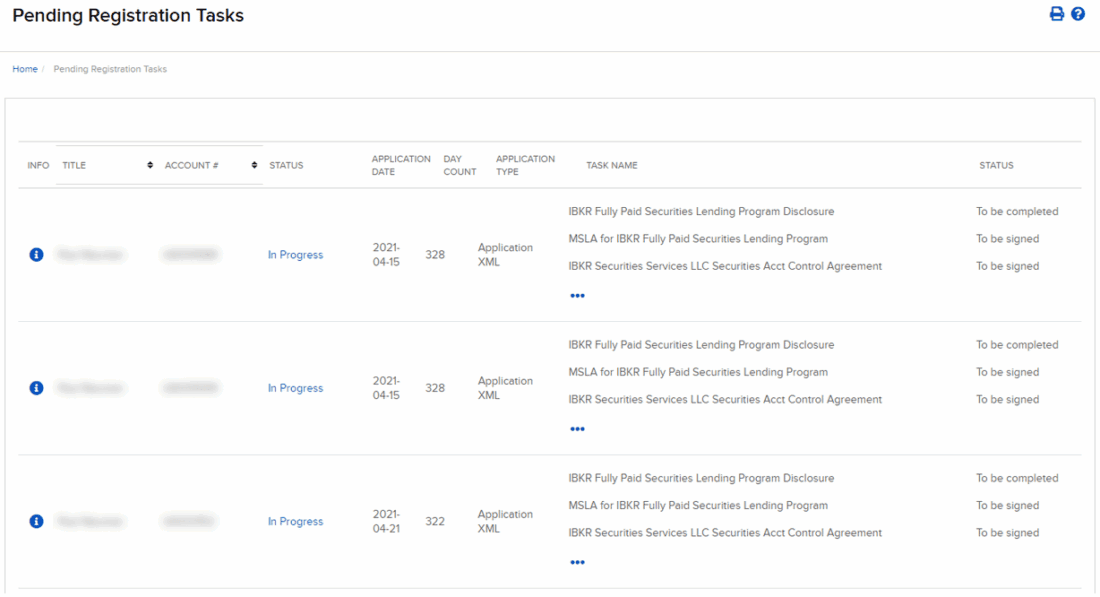
After clients complete the IBKR Hosted Application and submit their application for review and approval, you can track client account statuses and view Registration tasks directly within your Advisor/Broker Portal.
Steps to View Pending Registration Tasks:
- Log-in to your Advisor/Broker Portal
- Select Menu in the top left corner > Contacts & Accounts
- At the top of the page next to Pending – Additional Tasks select the Red Pill displaying the number of tasks.

- The page displays accounts with pending registration tasks.Click the three horizontal dots (…) to show all pending tasks for a specific account.
Service ContactsCopy Location
Copy Location
Mass Upload
For any Mass Upload Related Questions, please reach out to our Mass Upload team directly.
- Mass Upload Contact: massupload@interactivebrokers.com
Professional Services
For any client account related questions, Advisors should reach out to our Financial Advisor Services (FAS) Team directly. Introducing Brokers should reach out to our Professional Services team directly.
| Contact Name | Phone Number |
| Financial Advisor Services (Registered Investment Advisors) | United States: 1 (866)694-2757 Non-US: +1 203 618 7791 |
| Professional Services (Introducing Brokers) | United States: 1 (866)694-2757 Non-US: +1 203 618 7791 |
IBKR Onboarding
For any questions related to the IBKR Advisor and Broker Portal, please reach out to our Onboarding Team directly.
- Onboarding Contact: onboarding@interactivebrokers.com