Navigating Through The Sample
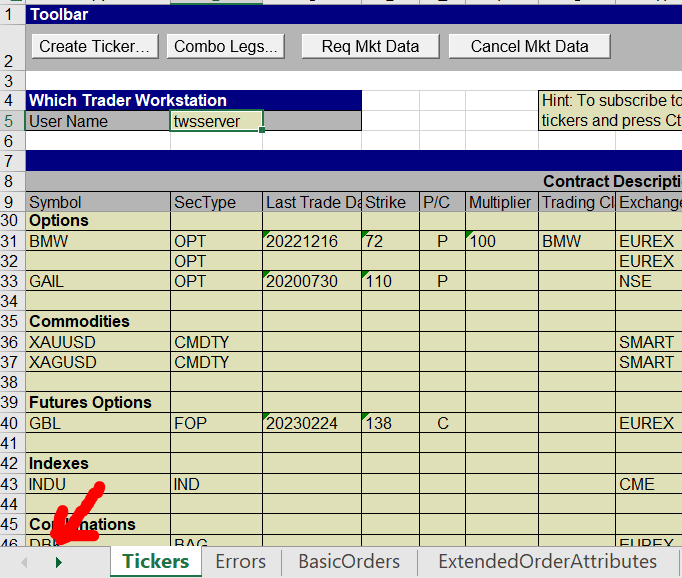
The Excel DDE Sample sheet should launch, initially displaying a yellow and grey sheet with several symbols listed. By looking in the bottom let, you should see a white banner labeled “Tickers”. You will then see several additional tabs on the bottom such as Errors, BasicOrders, ExtendedOrderAttributes, and more. All of these tabs on the bottom correspond to different functionality of the API. You may need to click the arrow in the bottom left to scroll to the right, showing even more tabs.