Install the TWS API on Windows
Download the TWSAPI
The TWS is available for download from https://download2.interactivebrokers.com/installers/tws-api/index.html. Windows users should select the “Windows 64-bit” button for Stable or Latest. In this example, we are downloading the Latest release. Clicking the affiliated button will begin downloading the software. You will receive a notification from your browser once it is finished, typically in the top-right corner.
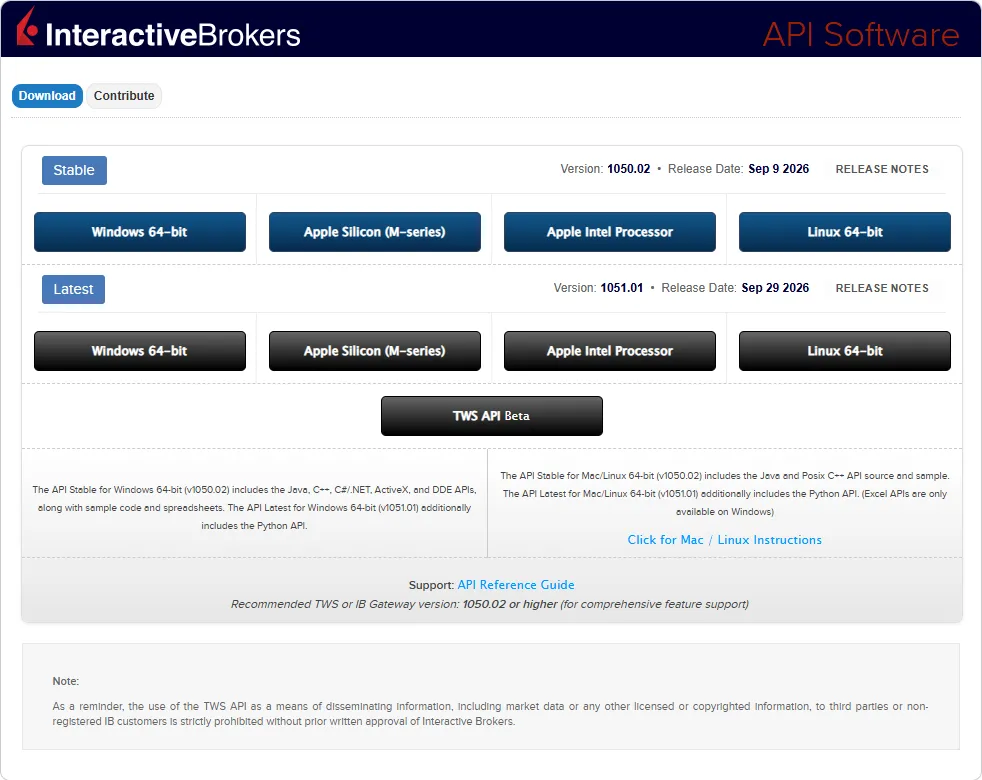
Version, as version numbers showcased here will update over time and may not match exactly as shown here.Launch the Installer
After the download has completed, click the downloaded executable file.
Because we selected the Latest release, the file is listed as tws-api-latest-windows-x64.exe.
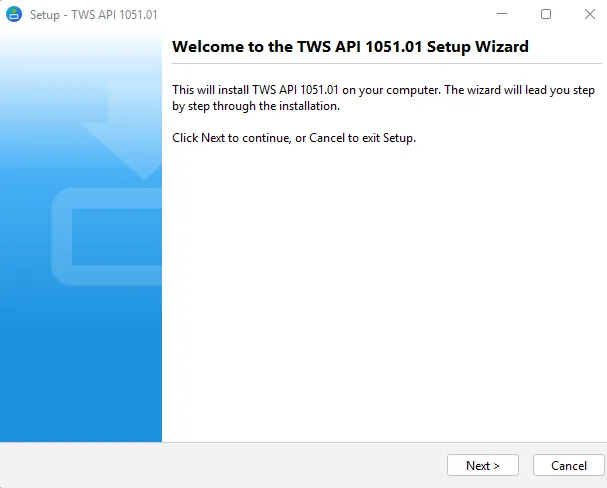
Clicking the file from your browser, or double clicking it in the Windows Explorer will launch the Setup Wizard.
Click Next in the setup wizard when you are ready to proceed.
Accept the License Agreement
The first step in the setup wizard is to accept the license agreement. Be sure to thoroughly read the contents until the end prior to acceptance. After reading the content, select “I accept the agreement”, click “Next”.

Select Destination Directory
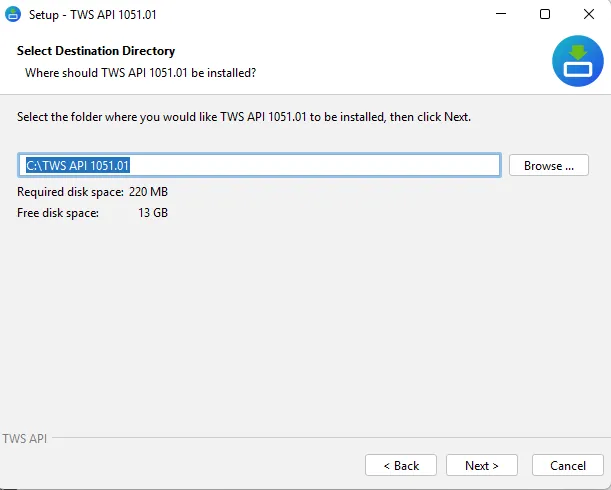
Enter your destination directory. C# or Excel users should use the default install location on the C: drive. After defining your destination, click “Next”.
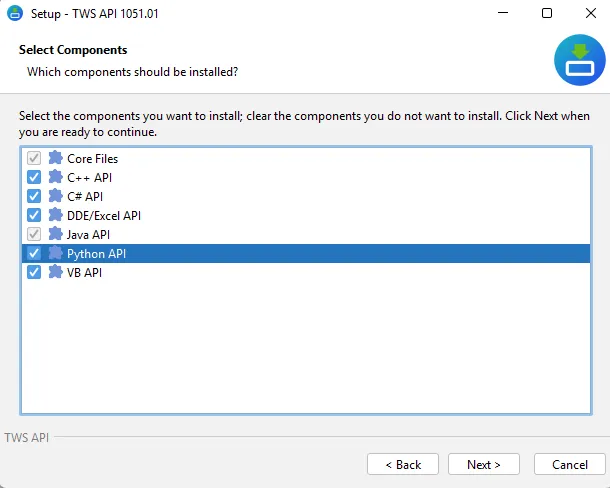
Select Install Components
The TWS API allows users to select the specific languages and components to install. Users planning to install DDE/Excel API must also install the Java API. Upon unchecking the Excel option, Java will be available to uncheck. After deciding which components to install, click “Next”.
Completed
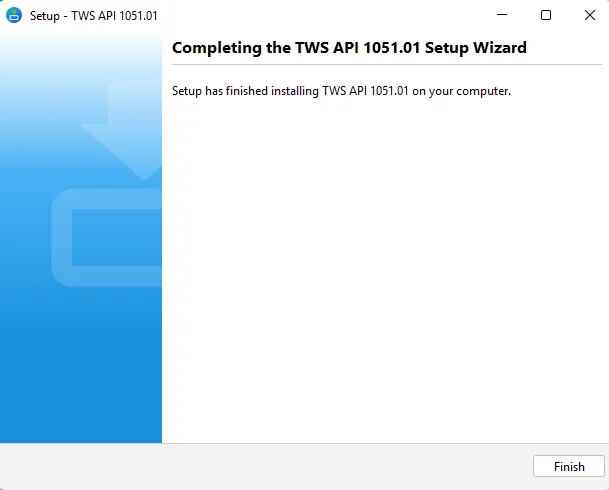
After the software has had time to install, the TWS API is now available for use. Click “Finish”.