TWS Volatility Trading Webinar Notes
Overview
Professional Option traders use volatility to trade instead of option prices because it is easier to compare and contrast different options contracts. It would be difficult to compare an XYZ 50 DEC Call at $2.50 with an ABC MAR 25 Put at $5.50. However if the prices were described in terms of volatility and XYZ was 20% and ABC was 18.5%, this would be much easier to compare.
A Volatility order is a TWS-specific order type that allows you to trade volatility by calculating the limit price of an option as the function of the option's implied volatility. You specify the option volatility and TWS calculates the limit price.
When you enable volatility trading in TWS, the bid and ask values are displayed as volatility instead of price – signified with a percent sign.
You can also enable dynamic management of volatility orders, where TWS updates the limit price based on movement in the underlying price, cancels the order if the underlying price moves outside a high or low price range, and transmits a delta hedge trade for the underlying when the option order executes.
Simulated (Paper) Account
You’ll notice today I’m in a simulated or “paper” trading environment using real market conditions. Trades don’t actually execute, but the price of the simulated ‘executions’ is determined by real market prices and sizes. Simulated account values and positions also update real-time.
IB Clients can use a paper trading account to learn TWS order types without risk, test your trading strategies and learn market dynamics for new products and exchanges. Even test API (Application Program Interface) features.
Just follow the links on the IB website, from the Software menu find Paper Trader. There’s no charge for the account but you do need an active IB account so we can mirror the account set ups such as base currency, market data subscriptions and trading permissions. If you don’t already have a paper trading account – open one today.
http://www.interactivebrokers.com/en/software/paperTrader.php
Agenda
In today’s session you’ll learn how to
- Configure Trader Workstation for volatility trading
- create volatility page
- configure volatility – daily/annual, display price, ITM or OTM
- specify a reference price setting bid/ask or avg.
- Create option orders based on volatility instead of price
- Allow TWS to continuously update your VOL order submitted price based on changes in the underlying price
- Learn how to trade volatility from the main Trading window and from the OptionTrader
- Set Market Scanners to find contracts by volume or volatility % gainers
- Chart volatilities, open interest, and options volume in real time.
Access
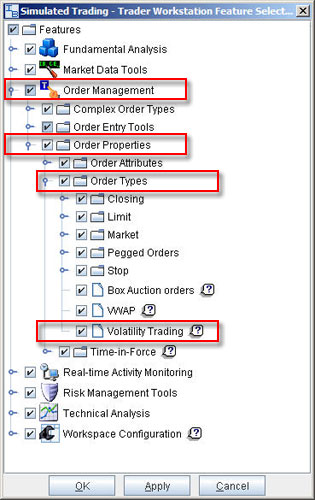
If you have not used the Volatility page in TWS, you may have inadvertently turned off the feature. It’s easy to re-enable the components, choose Feature Selector,
Order Management
- Order Entry Tools
- Order Types
- Volatility Orders
- Order Types
Then choose Apply and OK.
Create a Volatility Page
To activate volatility trading, you must first create a Trading window layout called a "Volatility Page". When you add market data lines, you will see market quotes for options in terms of volatility instead of option premium prices. You can then enter and execute orders in the same manner as with option premium prices, except you will be entering prices in terms of volatility.
From the Page menu select “Create Volatility Page". This will bring up a blank trading page similar to your basic trading window. There are some noticeable differences in the Market data row and in the order management row which will now display volatility values.
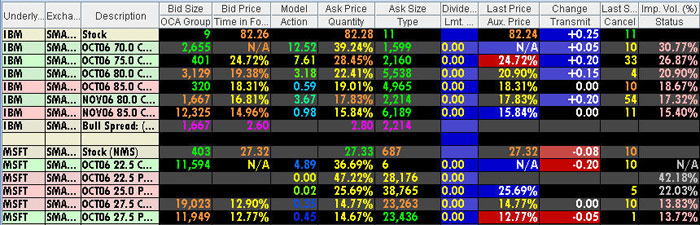
Implied volatility column is always displayed in either pink or white, signified by % sign. The quote line now includes Model and Implied Volatility fields.
Model prices update with the underlying last price and are displayed in color to help you see at a glance where they fall in relation to the bid and ask prices. Refer to color bar in the user guide. If either the Model or Imp Vol(%) values are displayed in white, it means the model hasn't calculated any prices or implied volatilities.
Use the Option Modeler to re-configure values used to calculate the model price and implied volatility. When you use the Option Modeler to determine the fair market value of an option class by entering your pricing assumptions, those inputs will be used in the volatility calculations. So changes in the Model editor to volatilities, interest rates and dividends carry over to the Volatility order calculations.
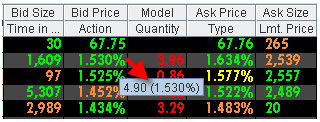
TIP: Hover mouse over the volatility value for a tool tip to display current market price. You can enable TWS to display current prices along with the volatility on the Volatility layout through the Configuration menu, Volatility
Market Data Quote
Define market data lines for option contracts. Note that the bid and ask price fields display volatility instead of price, signified by a percent sign (%).
You can also add underlying equity market data lines on the Volatility pages which will display the Bid and Ask price.
Configuration
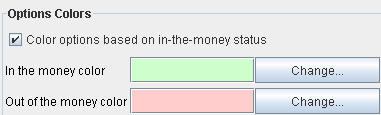
Global Configuration menu has selections that are specific to the Volatility page. Global Configuration > Display gives you the ability to turn on background shading for at a glance recognition of In the Money or Out of the Money option contracts.
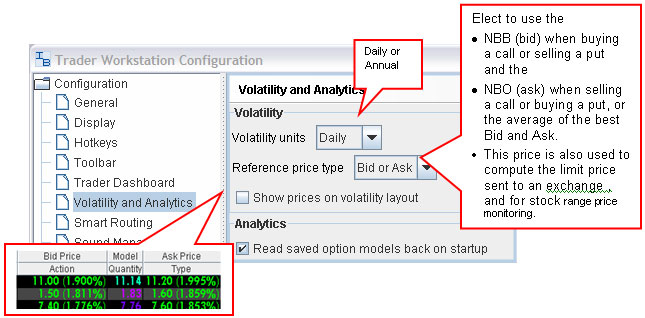
Under the General Configuration section, choose Volatility and Analytics
- to specify whether to display Volatility in Annual or Daily terms
- set default Reference price type as Average or Bid/Ask
- display option prices as well as volatility – contract price with Imp Vol in parentheses will display in the bid and ask price fields.
- Read saved option models back on startup - when checked will read previously computed volatility curves, this is the default. By unchecking the selection, you direct TWS to use current market data to compute option model volatilities.
You can make configuration changes on the Volatility page by right clicking on the column headers and choosing Customize Layout – or from the Configuration menu, Trading page, Volatility page.
Market Data fields added:
- Model price
- Implied Volatility
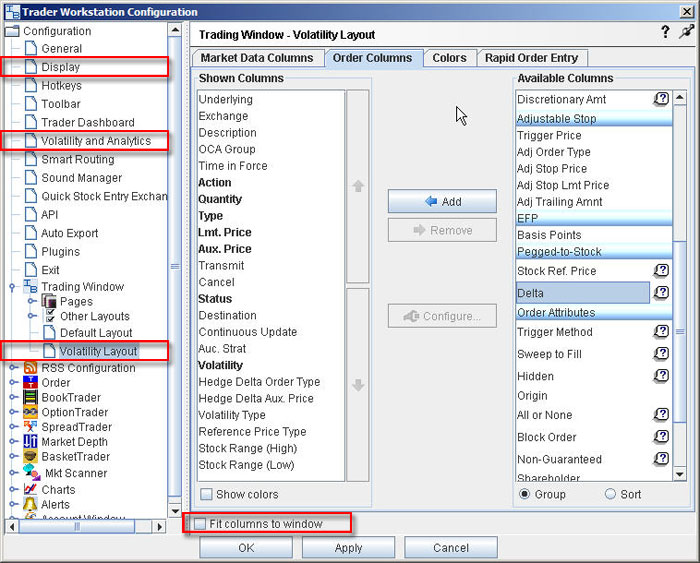
Order Row fields added to dynamically manage volatility orders:
- Order Volatility
- Volatility Type
- Stock Range (Low)
- Stock Range (High)
- Reference Price Type
- Continuous Update
- Hedge Delta (Delta Neutral) order type
- Hedge Delta Aux price
You can enable/disable the fields visible on your trading screen with the checkboxes.
Rearrange the columns by selecting a field then using the Move Up or Move Down buttons. Example: move Reference Price field next to Stock Range
TIP: on configuration screen for the volatility page, deselect Fit columns to window. This will insert a left to right scroll bar allowing you to expand columns for viewing.
Create an order
You enter and execute VOL orders in the same manner as with option premium prices – by clicking the Ask price for a Buy order, or the Bid price for a Sell order – except you will be entering prices in terms of volatility.
On a Volatility page, the order type defaults to VOL on a Volatility page.
To have TWS calculate a limit price for the option order based on your volatility input, enter a value in the Order Volatility field. TWS will then calculate and convert the volatility specified into a limit price based on your input. TWS submits this limit price for the order to exchange.
You cannot edit the limit price since it is calculated based on the volatility – but you can enter a different order volatility, and the limit price is re-calculated based on the modified volatility.
NOTE: When you log out of TWS all VOL orders will be cancelled.
Order Ticket Volatility fields
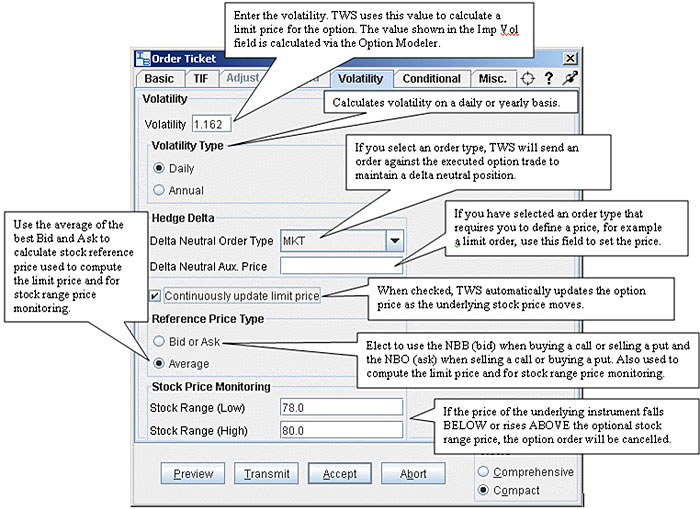
Although the most direct way to enter a VOL order is through the trading window, you can also enter order information on the TWS order ticket. To activate the Volatility tab on the order ticket the underlying contract must be an option.
Dynamic Management for Volatility Orders
There are a number of special configurations on a Volatility order line which allow you to dynamically manage your option volatility orders:
Continuously update limit price – when checked, TWS automatically updates the option price as the underlying stock price moves. You can only check Continuous Update for three active orders at a time.
Stock Range (High) (Low)
- A high/low end acceptable stock price relative to the selected option order. If the price of the underlying instrument falls BELOW or ABOVE the stock range price, the option order will be cancelled.
Reference Price Type –Use the dropdown list in the field to select:
- Average- uses the average of the NBBO to calculate the stock reference price
- Bid or Ask - calculates the stock reference price using the NBB when buying a call or selling a put, and the NBO when selling a call or buying a put.
This price is also used to compute the limit price sent to an exchange and for stock range price monitoring.
Hedge Delta (Delta Neutral) Order Type
Select an order type. (LMT, MKT, MTL, REL, MOC) TWS will send an order against the executed option trade to maintain a delta neutral position.
Hedge Delta (Delta Neutral) Aux. Price
Used in conjunction with the Hedge Delta (Delta Neutral) Order Type field. If you have selected an order type that requires you to define a price, for example a limit order or a relative order, use this field to set the price.
OptionTrader
The self-contained OptionTrader window, displays customizable option chains, with access to pricing tools, risk analytics and complete order management.
When you access the OptionTrader from a volatility page, the quote panel and order management panel will display the pre-configured volatility fields by default.
Manage your working orders from the Order management panel, Orders tab. The same dynamic volatility order management fields are available or can be configured for this self-contained window.
You can also access the Option tools from this window or the Analytics menu on the main trading window.
- Option Modeler – calculate model option prices based on your pricing assumptions, which are then displayed throughout TWS wherever that option class appears.
- Option Analytics – focus on the risk and valuation of specific option contracts.
ChartTrader
The enhanced Real-time Charts include the ability to chart Option Implied Volatility, Historical Volatility, Option Volume and Option Open Interest.
To access:
- right click an underlying, choose Analysis, Real-time Chart or
- select an underlying and click the Charts toolbar icon
Chart Parameter window allows you to select how you want to view the chart - including the enhanced ability to now create a chart with the Volatility values as the focal point rather than price. Choose from Implied Volatilities, Historical Volatilities, Option Volume and Option Open Interest.
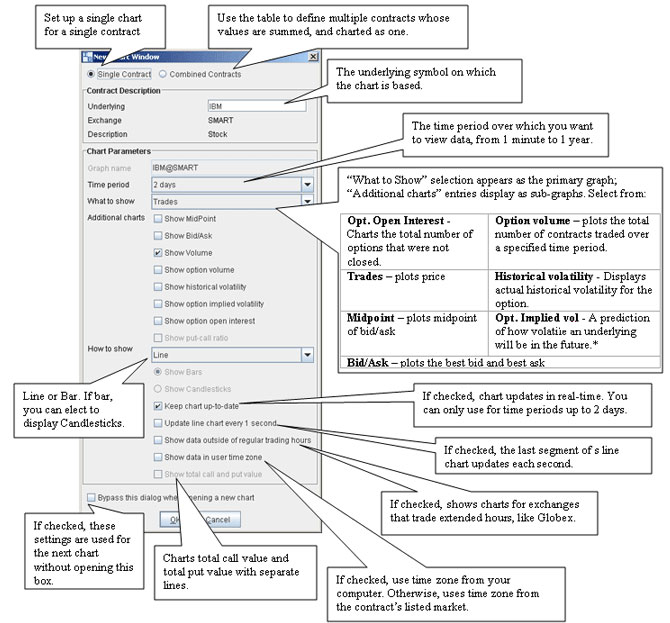
There’s a full length webinar presented monthly devoted to the interactive charts feature so I’ll just point out the highlights:
Display Time Panel to enable ability to change time parameters of chart on the fly.
Chart Studies – Allow you to look for peaks, bottoms, trends, patterns and other factors affecting price movement by adding studies to your chart. Select the Add Studies icon and choose from simple, weighted or exponential moving averages to any of the 19 available studies. Depending on the study, some will appear as an overlay on the chart, others are displayed in separate panels below the chart.
Note the color-coded key beneath the chart identifies all lines by color.
Zoom Tools and Crosshair mode allow you view chart specifics clearly.
- Zoom- Select the toolbar icon then click and drag cursor in chart to define period to view.
- Crosshair Mode hover cross hair over a specific time and a Price Value window will display values.
Full Screen icon removes menus and toolbar for an uncluttered chart view. Chart functions become available through the right click menu. Click icon again to restore normal view.
Market Scanners
The Market Scanner populates a pre-formatted trading page with current rankings based on the filtering criteria you chose. Use this feature to help spot trends for the Top % Gainers, Most Active, Hot Contracts by Volume, plus many, many more including 13 scanners for volatilities, option volume and put/call ratios.
Accessing Market Scanners
- Click the Market Scanner in the TWS Toolbar
- In page menu, choose Create Market Scanner and a page is added to your trading window,
- Set the scan parameters:
- Click in the Instrument field select from Stocks. The instrument selected drives the location, filter and parameter choices available.
- Choose a location. (optional)
- Click in the Filter field to set scan filters. For instance Stocks above $ 5, with trading volume over 1,000,000 and option volume above 1,000 with market cap above (1 Billion) 1,000*1,000,000 – same filters as used in IB’s Option Commentary tables.
- Specify the type of market scan from the Parameter drop down menu -- Top Volatility % Gainers, etc.
- Choose to display volatility as daily or annual
- Click Query to return the top contracts that meet your search criteria.
- Data is refreshed every 60 seconds. Note the Time in Scan column to determine the new items added to the scan.
If you change any of the scan parameters, be sure to click the Query button for the results to load.
Change column can be viewed as an absolute value or a relative percentage. To change how the figures are viewed, right click and choose “Toggle Display”.
You can easily identify the underlying contract by right clicking on the symbol, choose:
- Analysis – for access to fundamental info such as Company profile, News, analyst information
- Contract Info – Details for general info, option details and exchanges traded on.
Options involve risk and are not suitable for all investors. For more information, read the “Characteristics and Risks of Standardized Options” before investing in options. For a copy call 203 618-5800 or click here. There is no guarantee of execution. Orders will be routed to US options exchanges.
Any symbols displayed are for illustrative purposes only and do not portray a recommendation.