Registration Options
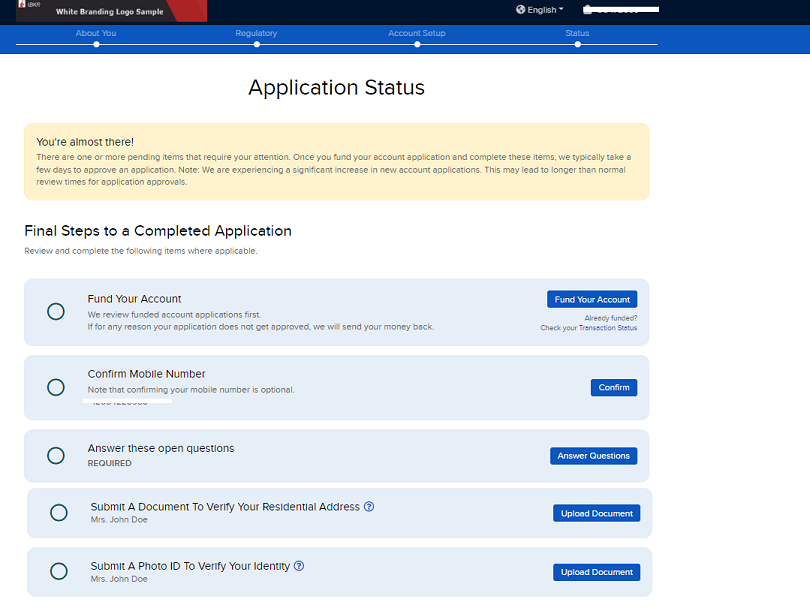
The IBKR systems including Registration, Client Portal, and Emails can be customized (free of cost) to reflect your company branding including logo, company name, and theme file.
Instructions to configure White Branding :
Embed IBKR Hosted Application to Website
Embed the Fully Electronic application on your website, when the client clicks on the application link, they will be redirected to the IBKR hosted Application that is White Branded. Client will complete the application (in full) through the IBKR application and submit to
IBKR for processing.
- Display own agreements /pre-qualification questions (if needed)
- Available to Registered Advisors and Introducing Brokers free of cost
- Minimal development work involved
- Registration process 100% Electronic
- Application hosted by IBKR
Workflow
Configure White Branding for Emails AND Client Portal, The Registration System, Statements, and PortfolioAnalyst
- The IBKR Portal can be customized (free of cost) to reflect your company branding including logo, company name, and theme file. Generate URL to the Application
- From IBKR Portal, select Settings > Client Account Template.
- Select ‘Chain’ icon
- Copy Hyperlink
- Embed Hyperlink to website
- You can ask pre-qualification questions/display your own forms then drive the client to a specific Client Account Template based on the answers.
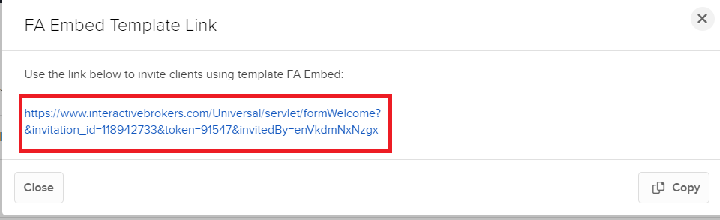
Send Fully-Electronic Application to your Client
Initiate an email invitation to your potential client, who is then required to complete the application online electrically using the Fully-Electronic application.
- Available to Registered Advisors and Introducing Brokers free of cost
- No development work involved
- Registration process 100% Electronic
- Application hosted by IBKR
Workflow
Tools available to help simplify the Fully-Electronic Application:
- Account Templates: Client account template is used to simplify application. Use Account Template to specify Account Type, Base Currency, Trading Capabilities, Trade Permissions, Financial Information, and Fee Configuration.
- CRM: Use the CRM Tool to Pre-Populate the Fully-Electronic Application. The client will receive an email with the prefilled application. The CRM tool and the use of a client account template would populate 90% of the application. Once completed, the client can submit the application back to Interactive Brokers electronically.
- Add Contacts to IBKR’s CRM manually OR in bulk using import feature.
- Initiate Invite from CRM Contact
- Select ‘Contacts’ > Select Individual Contact > Select
 icon to send Application Invite > Specify Application Method (Fully-Electronic)
 - Use Template?
- If Yes, select Template
- Prospect will receive an email invitation to start the IBKR application.
- When prospect clicks on hyperlink to start the application, the application will be pre-filled with data that was entered in the CRM/Template. The client can modify information if needed.
- The user will be required to enter the following information:
- Create username and password
- Specify 3 security questions and answers
- Answer regulatory information
- Specify funding
- Specify information for second holder (For Joint Accounts Only)
- Once completed, the client can submit the application back to Interactive Brokers electronically.
Complete Semi-Electronic Application for your Client
With the Semi-Electronic, you will complete an electronic application online for your potential client. At the end of the process, you will generate a PDF application. Provide the PDF application to prospect client for review and signing (physical signature is required).
- Available to Registered Advisors and Introducing Brokers free of cost
- No development work involved
- Signed Government Issued ID + Physical Signature required for the application
- Application hosted by IBKR
IBKR’s CRM can be used to pre-fill the Semi-Electronic Application.
Mass Upload
Mass upload is designed for advisors/brokers that are seeking an efficient way to move 20+ clients over to IBKR in a seamless manner. Rather than completing individual applications for each account, accounts can be opened in bulk by providing application data in Excel Workbook.
- Available to Registered Advisors and Introducing Brokers free of cost
- Registration process 100% Electronic
- Application hosted by IBKR
- Bulk Upload for existing client base
Workflow
- IBKR will provide FA/Broker with spreadsheets by account type.
- FA/BRoker will complete the spreadsheets with client information and submit to IBKR for Processing.
- IBKR will upload the accounts and provide the FA/Broker with the account credentials.
- Advisor/Broker will provide their clients with the credentials.
- Client will need to log into the IBKR White Branded Portal to review application information and electronically sign the IBKR agreements /disclosures.
Link existing account to Advisor/Broker
An existing IB account can link under the Advisor/Broker directly through Client Portal.
- Available to Registered Advisors and Introducing Brokers free of cost
- Registration process 100% Electronic
Workflow
- Initiate Linkage Request
- Option 1: Embed URL on your site where user can submit request to link to your master.
https://ndcdyn.interactivebrokers.com/sso/Login?forwardTo=AA\_LINKAGE&masterAccountId=<InsertMasterAccountIDHere>
- Option 2: Mutual client will initiate request to link to the advisor/broker within Client Portal > Settings > Account Settings > Create, Move, Link or Partition an Account.
- Option 1: Embed URL on your site where user can submit request to link to your master.
- Confirm Linkage Request
- An email will be sent to the Advisor/Broker to inform them of the request. The Advisor/Broker must accept the linkage request (in Pending Items) before the account is linked.
Full Integration- Client Registration with Web API
Available for Advisors/Brokers that would like to customize the Registration System, Portal, and Funds and Banking System. Account Management web API is used as an alternative to the IB hosted Portal.
- Intended for advisors/brokers who have working knowledge of OAuth 2.0 and JSON.
- Control look, feel, flow of the application
- Registration process 100% Electronic
- Application hosted by Counterparty
- Management approval is required- requests are reviewed on a case by case basis.
- Generally advisors/brokers that plan on bringing over 100 + accounts within the first quarter OR 50M USD are eligible for this service.
- Hosting advisors and brokers are subject to both an upfront and ongoing fee intended to offset the costs incurred by IBKR for vetting the initial request and to conduct an annual review of the hosted application. This annual review is intended to ensure that the hosted application has been updated to reflect changes IBKR has implemented to its own application and that no other changes which would cause IBKR to reject the hosted arrangement have been introduced by the advisor or broker.
Workflow
- The Advisor/IBroker builds an interface on their website to collect all required IBKR application fields + collect signature for the IBKR agreements /Disclosures
- The Advisor/IBroker sends all data and signed agreements and disclosures to IBKR (in JSON format) using Web API.
- IBKR retrieves the files and provides a response file. Response will have a status of Success or Error. Any errors will be corrected by the Advisor/IBroker and then resubmitted.
- Successful response files will include the IB account #, username, temporary password, and confirmation of the agreements/disclosures that were successfully processed + pending registration tasks (if any) that are required for approval.
- If no registration tasks are included in the response file, the account will be submitted for approval.
- If registration tasks are included, the registration tasks will need to be completed in order for the account to proceed with the approval process.
- The Advisor/IBroker is responsible for providing the account numbers, usernames and temporary passwords to their clients.
- The client will be prompted to reset his or her password and enter three security questions the first time they login to IBKR Portal after the account has been approved and opened.
Hybrid
Provide IBKR with partial account data via Web API. Client will complete the remaining applications steps via the IBKR hosted application (white branded).
-
Advisor/Broker can direct the client to IBKR’s login page (white branded) or create single sign on session to complete remaining application steps.
-
Intended for advisors/brokers who have working knowledge of JSON and OAuth 2.0.
-
Registration process 100% Electronic
-
Application hosted by IBKR
-
Moderate development work involved
Workflow
Workflow for Advisor and Fully-Disclosed clients
- Create Account with IBKR
- Submit partial application data to IBKR using accounts endpoint.
- Minimally, we will require Name, Email, Country of Residence to create an account.
- Required Fields
- IBKR will return a real-time response with the account credentials and pending tasks.
- Submit partial application data to IBKR using accounts endpoint.
- Direct user to IBKR Portal to complete remaining application steps.
- Create single sign on session to seamlessly connect user to the IBKR Portal.
- The IBKR Portal can be customized (free of cost) to reflect your company branding including logo, company name, and theme file. This can be configured directly within IBKR Portal.
- Set Password and Complete Email Verification (Optional)
- IBKR authentication with username and password is required IF setting / changing banking instructions OR facilitating withdrawals within the IBKR Hosted Portal.
- API supports creation of ACH instructions for U.S. Based Clients. For all other clients, banking instructions for withdrawals will need to be added within the IBKR Portal; which means password will need to be set on the account.
- IBKR provides 2 options for setting password (if option 2, post approval, skip to step 4).
- Option 1: Set Password During Registration (Suggested)
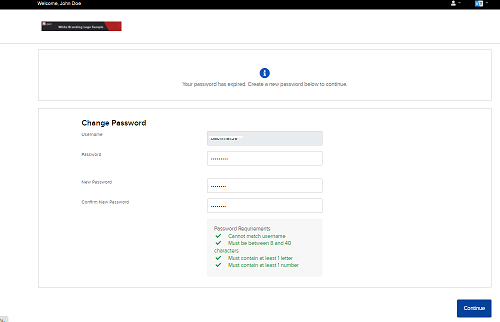
- Upon accessing IBKR Portal, user will be prompted to enter temporary password (that was included in the response file) + set new password.
IBKR will send email confirmation toke to verify the identity. Email will be branded with your company logo and return email address.
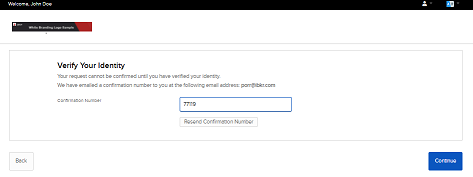
Sample email
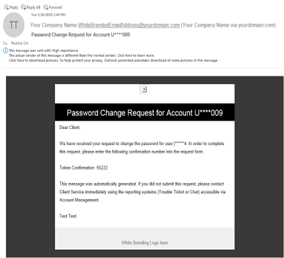
Password change has been processed.
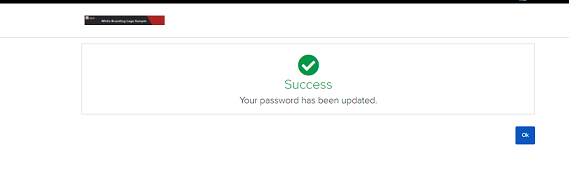
- Upon accessing IBKR Portal, user will be prompted to enter temporary password (that was included in the response file) + set new password.
- Option 2: Set Password Post Approval
- Counterparty will direct user to IBKR’s Password Reset Tool to set password.
- User enters IBKR username and date of birth.
- IBKR will send SMS token to verify identity.
- User will set password and complete email verification.
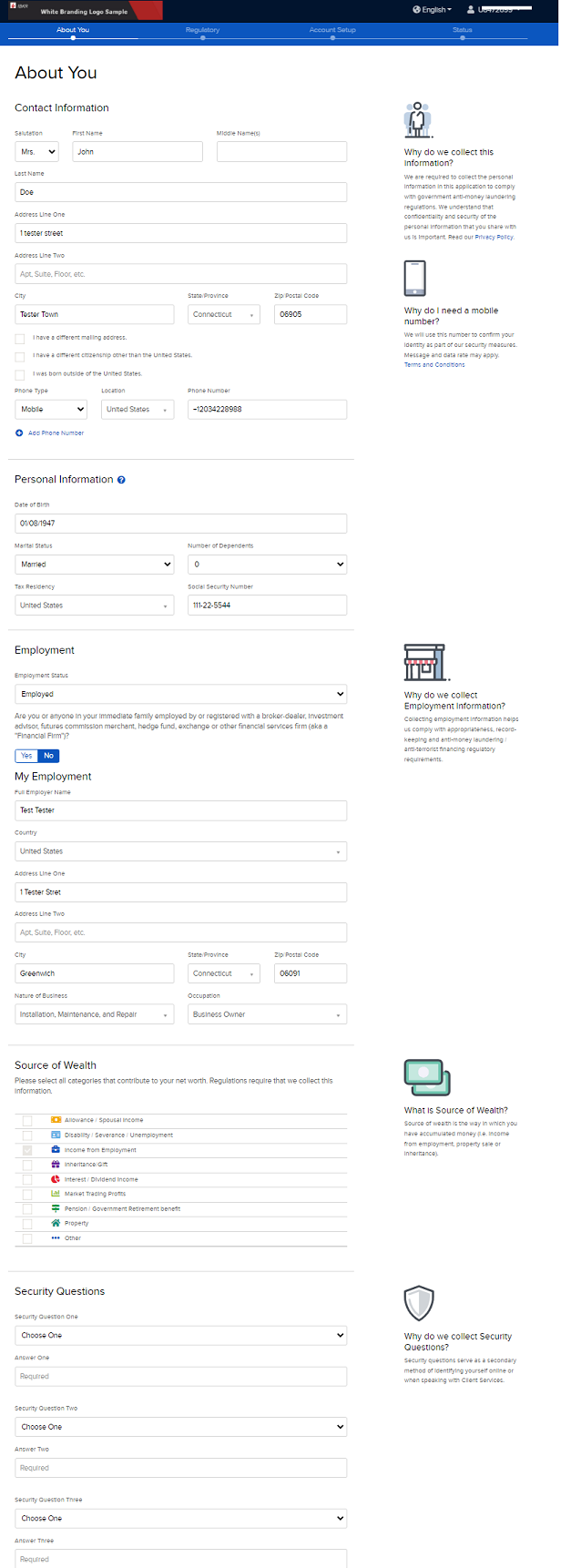
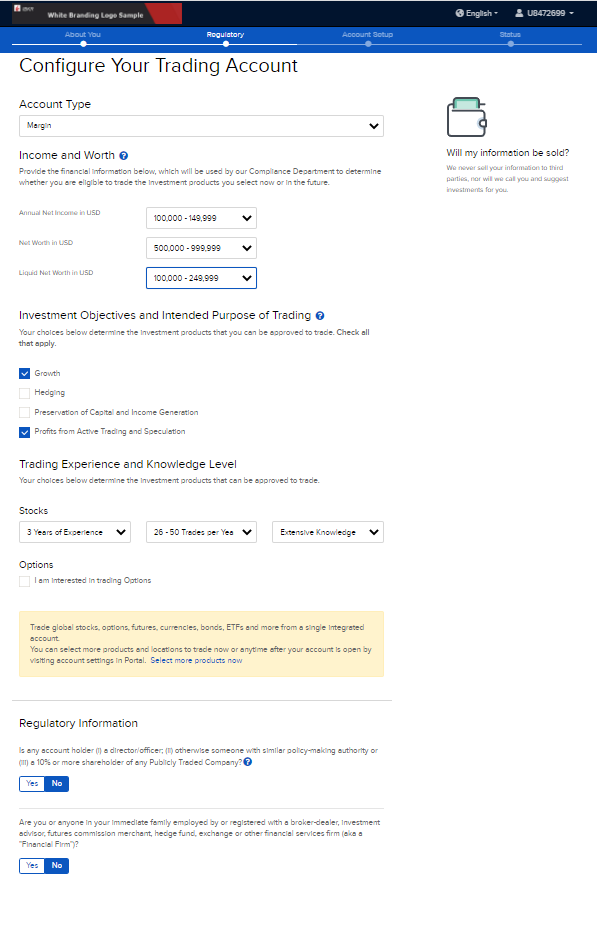
- User completes remaining application steps.
- Application will be pre-filled with information that was included in the XML file to create the account.
- Screen 1: About You
- Screen 2: Configure Your Trading Account
- Screen 3: Agreements and Disclosures
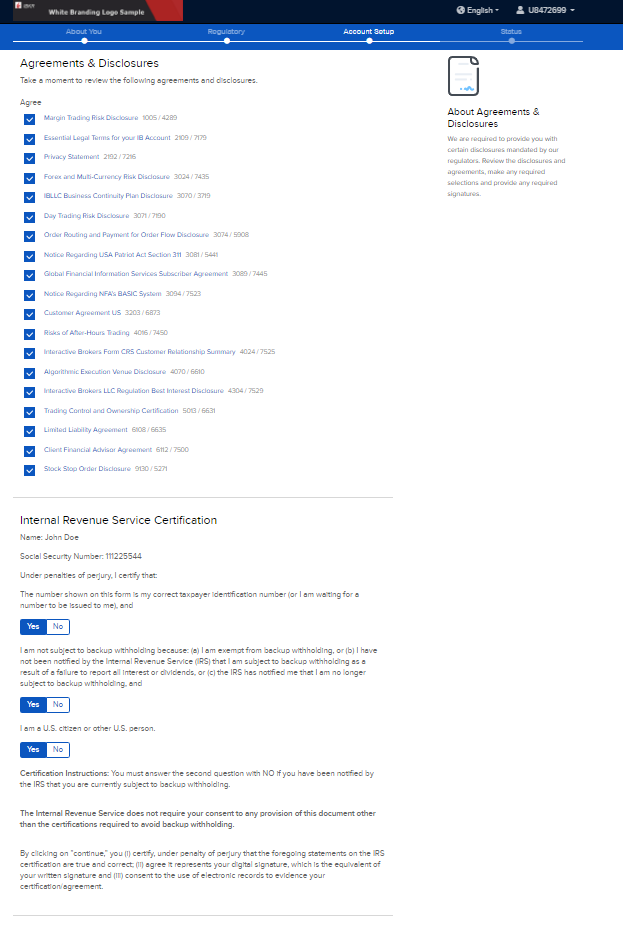
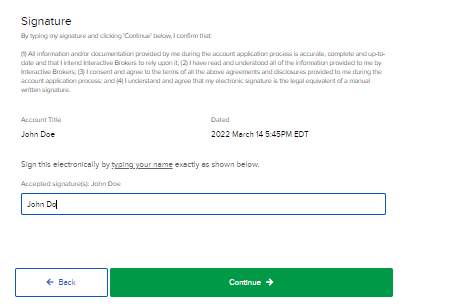
- Screen 4: Application Status