To submit an order to work outside of regular trading hours (Outside RTH) you can either specify it at the time of order creation or define it as an order preset to be used automatically when available.
Mosaic TWS
- On the Order Entry panel/window click the Time-in-Force (TIF) drop-down
- Check the Fill Outside RTH checkbox
Classic TWS
Enable Outside RTH in Classic TWS Animated Example
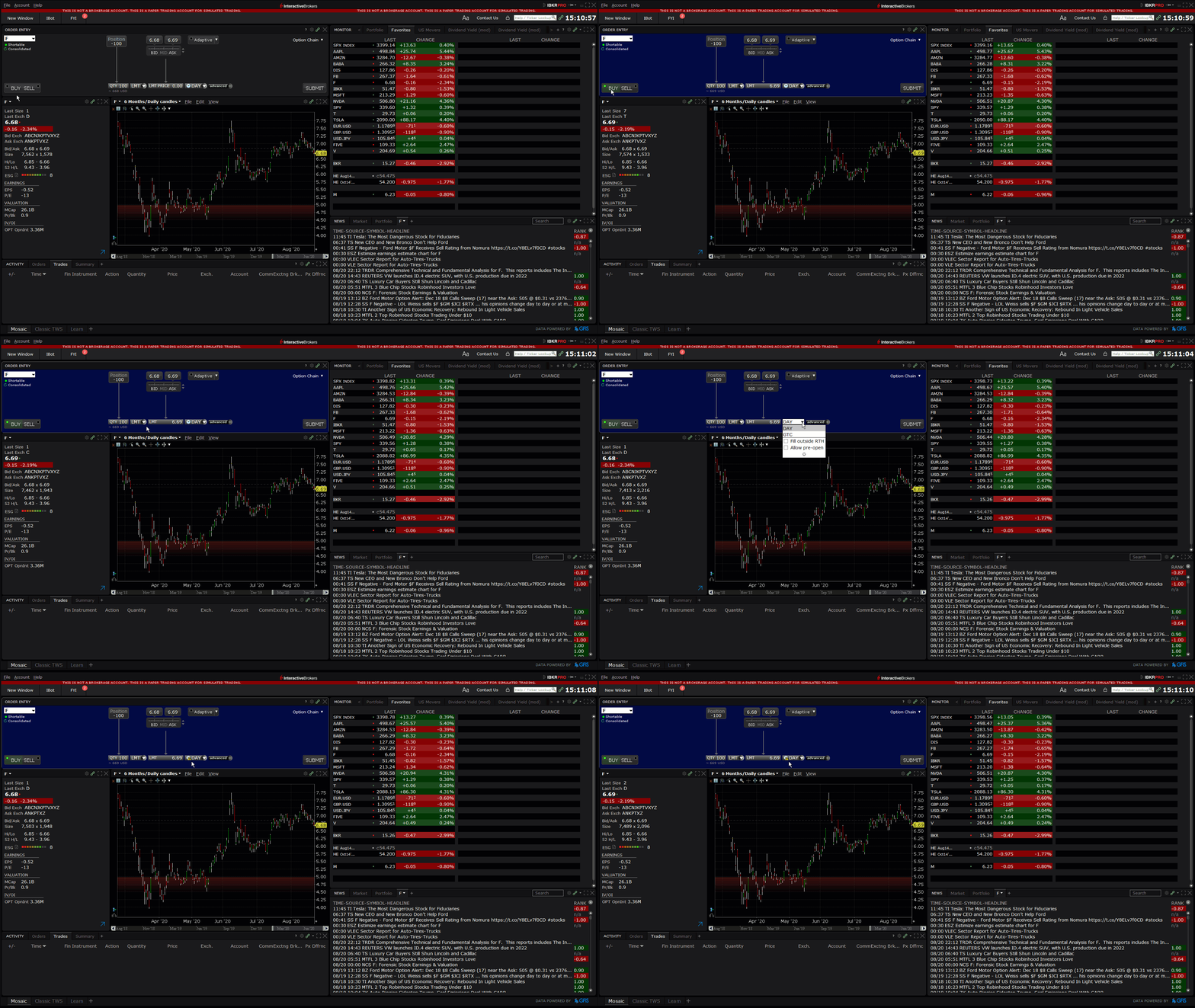
- On an Order Row, click the Time-in-Force (TIF) drop-down
- Check the Fill Outside RTH checkbox.
Order Presets
Configure Presets Animated Example
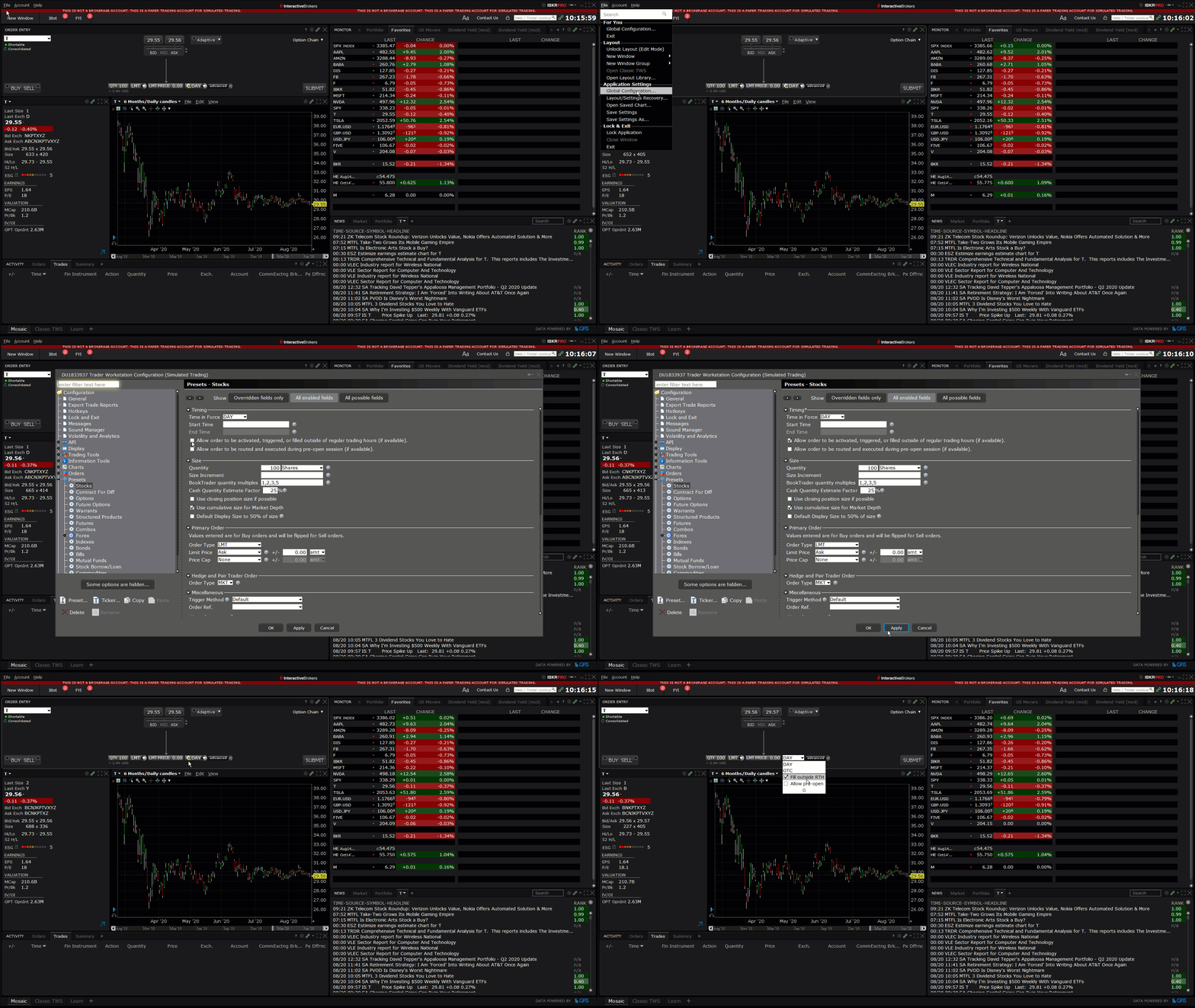
- Click File or Edit menus, followed by Global Configuration
- On the left panel, select Presets and choose an instrument type (e.g. Stock)
- On the right panel under the Timing section, check the box for Allow order to be activated, triggered, or filled outside of regular trading hours (if available).
- Click OK to save your settings.
Once set, the Outside RTH default will apply to orders across all platforms, including TWS, IBKR Mobile, and Client Portal.
Additional Information
- Outside Regular Trading Hours Study Guide
- Why did my order not fill overnight?
- How do I trade outside regular trading hours in IBKR Mobile?
- How do I trade outside regular trading hours in Client Portal?
- How to trade stocks during the pre-market or post-market
- What are Regular Trading Hours?
- Understand the potential risks of trading outside of regular trading hours