Global Trading Platform - IB Trader Workstation
Trader Workstation (TWS)
Trade Smarter, Faster and More Efficiently
Power your trading with Trader Workstation (TWS) — our flagship platform built for active traders and investors who demand speed, flexibility and global markets access.
Explore TWS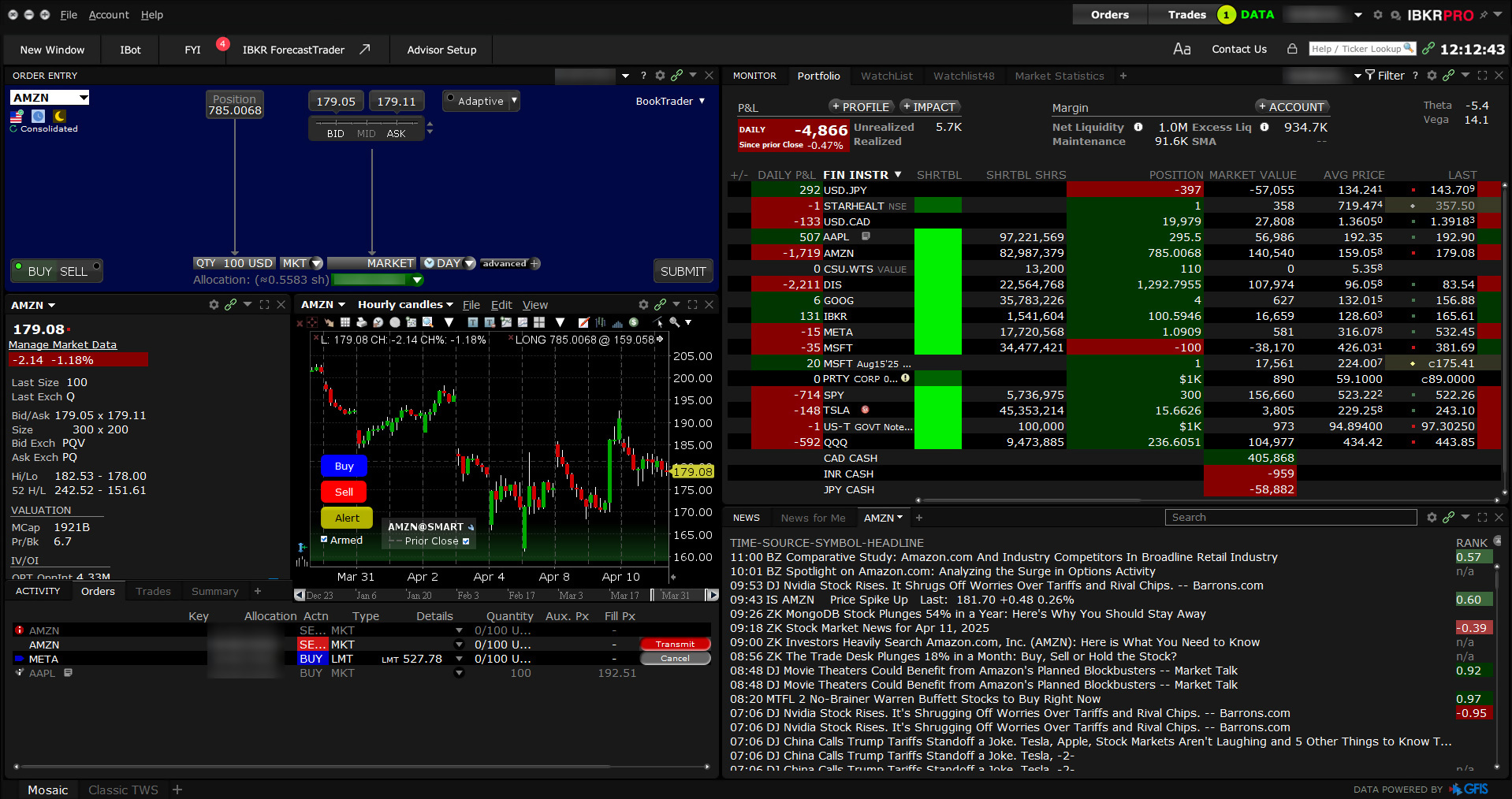
A Powerful Trading Platform Built for Your Trading Style
The market maker-designed Trader Workstation (TWS) lets traders, investors and institutions trade stocks, options, futures, currencies, bonds, forecast contracts and funds on over 160 markets worldwide from a single unified platform.
Choose a View Aligned with Your Trading Style
Mosaic:
Your Customizable Trading Workspace
Instantly access trading, charting, order management and portfolio tools from an intuitive, flexible interface that gives you fast access to the tools you need to execute your trading strategy – all from a single window.
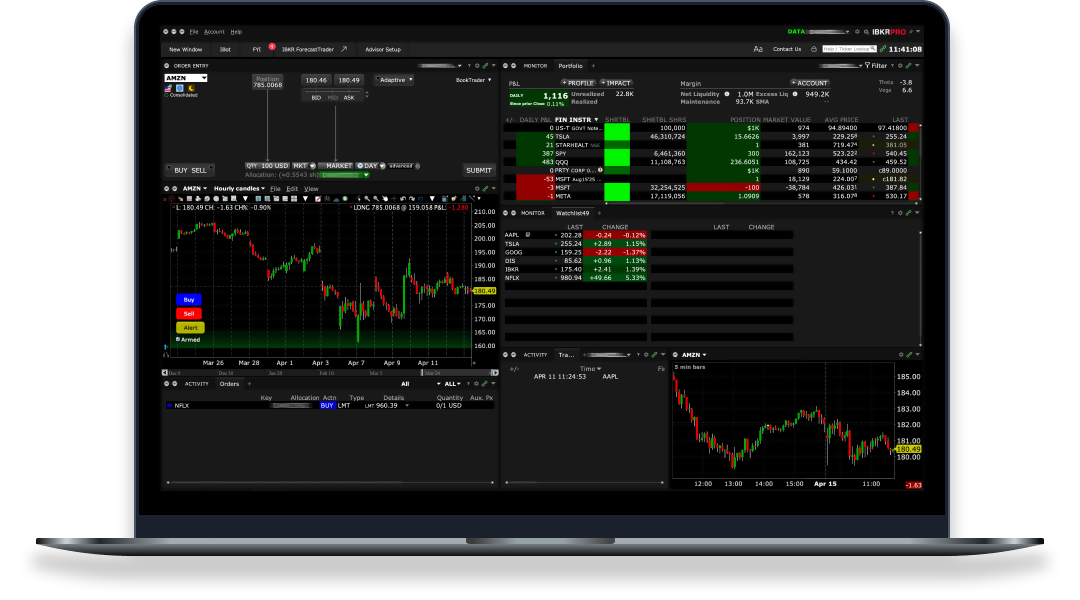
- Access TWS trading, order, live quoting, technical research and analysis tools from a single window.
- Use the Portfolio window for at-a-glance account summary and position detail, the Order Entry window to formulate and transmit orders instantly, and the Order Monitor to track and modify live orders and review filled and cancelled orders.
- Create attached orders directly within the Orders panel, including bracket, stop limit, profit taker, One Cancels Other, beta, FX order and pair hedging orders.
- Add multiple Watchlists to view groups of instruments and create customized Market Scanners and use the Discover tool to help find your next opportunity.
- Add gradients, lines and bars to Market Scanners for easy-to-spot trends and patterns and view interactive, customizable charts that support studies and trendlines.
- View real-time streaming general news that you can filter by subject, as well as real-time streaming news for a selected underlying.
- Enhance Mosaic with premium newswire and analyst research subscriptions from such tier-one providers as Reuters, Dow Jones, Morningstar and Zacks.
- Customize the workspace to suit your own trading needs by snapping your favorite trading tools together.
- Link windows and symbol action by color using the grouping blocks, and watch the symbol automatically change in every linked window when you change the symbol in one window.
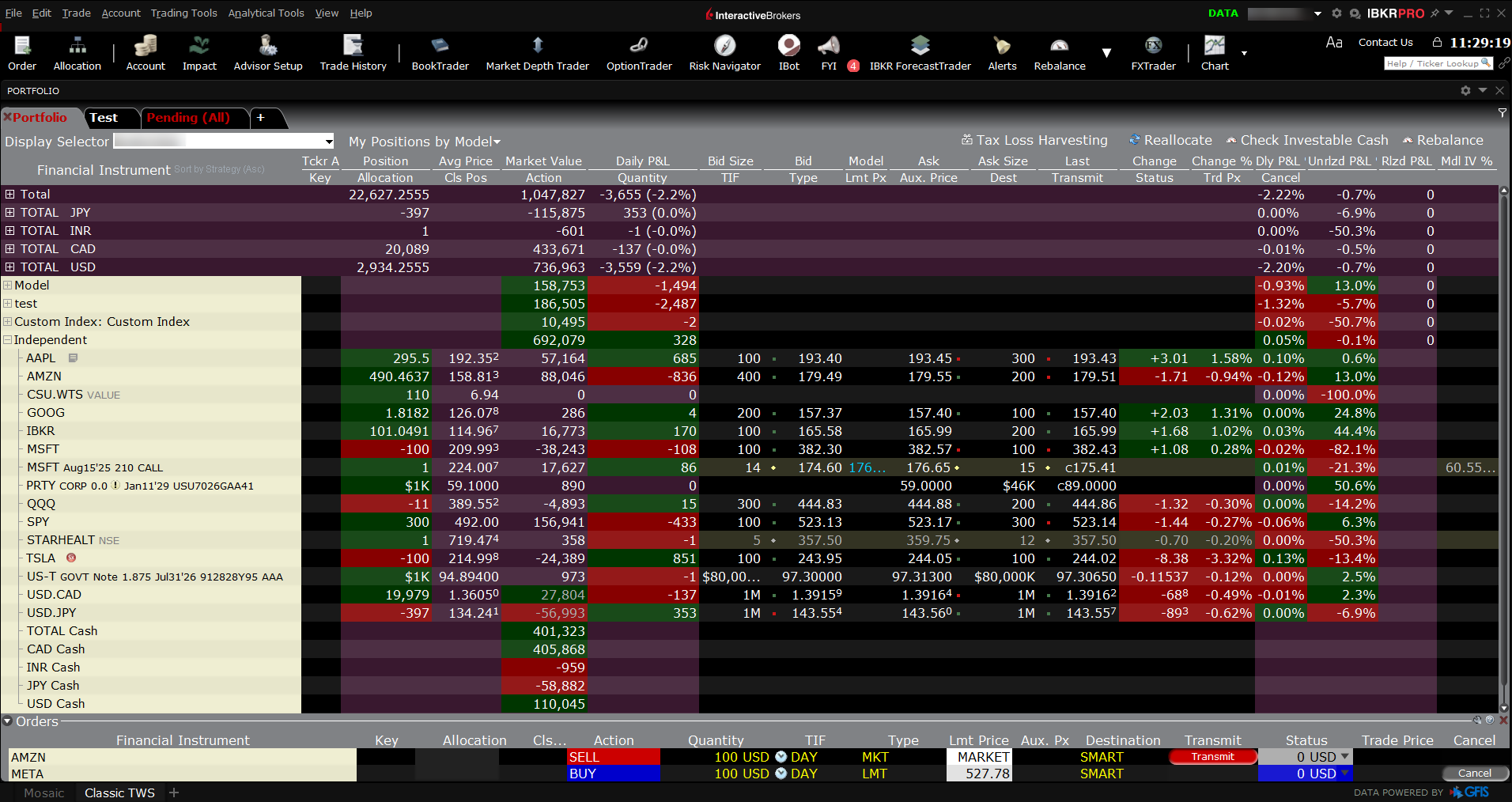
Classic TWS:
Power and Efficiency for Advanced Traders
Classic TWS offers quick click order entry from bid and ask prices, with the Order row displayed directly beneath the Market Data row and direct access to over 100 order types, order tools and algos designed to improve execution, manage risk and automate trading strategies
Real-Time Market Data, News
and Research
Stay informed with real-time market data, breaking news, fundamentals and in-depth research from industry leaders. Features include:
- Up-to-the-minute news from leading news services such as Reuters, Dow Jones, flyonthewall.com, and more.
- World-class analyst research from Morningstar, Zacks and a host of other providers.
- Mission-critical financial information on thousands of companies from Reuters Worldwide Fundamentals.
- Real-time global market data on specific exchanges.
- Event calendars.
Stay On Top of Your Trading with Real-Time Monitoring
Our real-time monitoring system lets you see the current state of your account at any time to give you the edge you need in changing market conditions.
At-a-Glance Account Summary
View account balances, margin, funds available for trading, market value and portfolio data for all of your products in the customizable, easy-to-read Account window.
Understand Margin Requirements
Stay on top of your margin requirements with quick-glance summaries of potential deficiencies that help you avoid liquidation and try "what if" Portfolio Margining to see your margin requirements using the Portfolio Margining system.
Monitor Activity
See daily executions as well as net trading activity by symbol in our expandable trade reports.
Curate Opportunities
Create Watchlists to monitor real-time market quotes based on your market data subscriptions. Create, resize and move multiple named Watchlist windows to fit your own trading style.
Capitalize on Market Opportunities
Create real-time alerts based on price, time, margin and volume that notify you of important changes in the market.
Track Performance
View P&L on your trading screen and in the Account window.

IBKR Order Types and Algos
Trader Workstation offers access to over 100 order types, order tools and algos to help limit risk, speed execution, provide price improvement, allow privacy, time the market and simplify the trading process through advanced trading functions.
Manage Risk with Confidence
Our sophisticated risk-assessment technology helps you manage your risk in a dynamic market.

The Risk NavigatorSM
The Risk Navigator is a real-time market-risk management platform that provides a comprehensive measure of risk exposure across multiple asset classes around the globe.
Learn More
Model Navigator
Modify pricing assumptions and include them in the model price calculation using this sophisticated option model pricing tool.
Learn More
Option Analytics
Use the Option Analytics window to see values that reflect the rate of change of an option's price with respect to a unit change in each of a number of risk dimensions.
Learn MorePractice with Paper Trading
Test your trading skills in a simulated trading environment without risking real capital. Monitor your strategies while developing, practicing and perfecting your trading skills.
- Test new strategies and trade products, exchanges, and order types without risking real capital, while using prices and account values determined by actual market conditions.
- Access essential trading tools – real time charts, executions, market depth, option pricing, price risk analytics and more.
- Learn market dynamics for new exchanges and products.
- Receive a Paper Account statement every day you trade.
- Test your IB API (Application Program Interface) trading solutions.
- The TWS PaperTrader works just like your production account. You can use most IBKR order types, trade all instruments available through the TWS, and experiment with almost every aspect of the TWS platform.
- The PaperTrader interface clearly indicates that you are working in a simulated account. If you do not see this, you are trading in your production account and will be liable for all trades that fill.
- Trades entered into this paper trading account will not actually execute on any exchange or settle at a clearing house. However, the price of your executions will be determined by real market prices and sizes.
- Trading permissions, market data subscriptions, base currency, and other account configurations are the same as specified for your regular account.
- A paper trading account statement will be provided each day and is available by logging into Account Management with your PaperTrader login and accessing the Reports menu.
- All clients will start with USD 1,000,000 of paper trading Equity with Loan Value, and this equity will fluctuate as if the trades had executed in the real market.
- You may reset your cash equity at any time by accessing Account Management for your paper trading account and selecting the Trade menu. Your account will be reset to the greater of either USD 100,000 or five times the total equity of the your production account. Note that reset requests should be entered before 16:00 ET in order to take effect for the next business day.
Although the paper trading account simulates most aspects of a production TWS account, you may encounter some differences due to its construction as a simulator with no execution or clearing abilities. These differences include but are not limited to:
- No support for some order types including: Passive Relative, Auction, RFQ, and Pegged to Market.
- Fills are simulated from the top of the book; no deep book access.
- Limited combo and EFP trading.
- Stops and other complex order types are always simulated in paper trading; this may result in slightly different behavior from a TWS production account.
- Penny trading for US Options is not supported. You will be able to submit the order but it will not receive a penny fill.
- The trade simulator will reject the remainder of any exchange-directed market order that partially executes. This may or may not match behavior of a real-world exchange. Market orders received while there is no quote on the opposite side will be held until the market data arrives (i.e. until the first partial fill).
- Mutual Fund trading is not supported in a paper trading account.
TWS SOFTWARE
This version of the Trader Workstation platform is only available from a desktop computer.
For more information about mobile trading solutions, see IBKR Mobile.
Ready to Trade with Trader Workstation (TWS)?
Click a version of TWS below to download and install our award-winning trading platform. Once the software is installed, log in by double-clicking the newly installed TWS icon on your desktop. If you prefer to perform manual updates use the Offline installers.
Offline TWS
The offline installer contains everything needed to install and run the selected TWS version. The Offline installation will not update automatically. If a new version of TWS is published, you will need to manually download and install the Offline program again. If you prefer to have TWS auto-update, install one of the updating versions above.
Additional Resources

Any trading symbols displayed are for illustrative purposes only and are not intended to portray recommendations.